



Troubleshooting and advanced configurations
This chapter provides troubleshooting strategies and solutions for common errors quickly and effectively. For further assistance, contact Thales Customer Support.
- Remote users who lost or forgot token
- Refining administrator group exclusions
- Configuring Num Lock settings
- Upgrade/Error prompt during agent installation
- Issue while configuring the Local admin MFA privilege control feature
- Error 1722
- For offline access please contact your administrator
Remote users who lost or forgot token
Following are the steps if the emergency password is enabled and the workstation is unable to communicate with the SafeNet server at the time of authentication:
-
The user contacts the SafeNet server Administrator/Operator.
-
The operator:
-
Logs in to the SafeNet server, finds the user on the Secured Users tab and makes a note of the emergency password.
-
Provides emergency password to the user.
-
-
The user logs in to the workstation using the emergency password.
-
The operator assigns a new token to the user or enables a SafeNet server static password.
-
The user establishes a VPN connection to the network, launches the SafeNet Windows Logon Agent Manager, and performs a manual replenish with the new token or SafeNet static password.
-
The user can now log in with their SafeNet credentials while being offline.
Refining administrator group exclusions
During installation of the agent, an option can be enabled to exempt the Local and Domain Administrators groups from performing SafeNet authentication. In certain cases, restrictions may only be needed for the Local Administrators group or the Domain Administrators group rather than all Administrator groups. Perform the following steps to achieve the same:
-
During the installation of the agent, clear the option Exempt Local and Domain Administrator groups from SafeNet Authentication Service Authentication.
-
Log in to the WLA protected workstation with SafeNet credentials and then with Microsoft credentials.
-
Right-click the SafeNet Windows Logon Agent Manager and select Run as administrator.
-
Click Policy tab. In the Group Authentication Exceptions section, select Only selected groups will bypass SafeNet. Add the administrator group(s) to be excluded from SafeNet authentication.
-
Log out and log in again.
Configuring Num Lock settings
The Num Lock setting can be controlled from the registry. If required, perform the following steps:
-
Click Start > Run.
-
In the Open box, type
regedit, and then click OK. -
In the registry, open one of the following:
- For a single user:
HKEY_CURRENT_USER > Control Panel > Keyboard - For all users:
KEY_USERS| .Default > Control Panel > Keyboard
- For a single user:
-
Edit the string value named InitialKeyboardIndicators, as follows:
- Set to
0to set NumLock OFF. - Set to
2to set NumLock ON.
- Set to
Upgrade/Error prompt during agent installation
Either of the following upgrade prompt or error message is displayed while installing the agent:
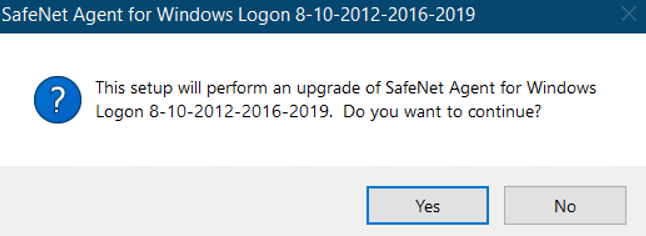
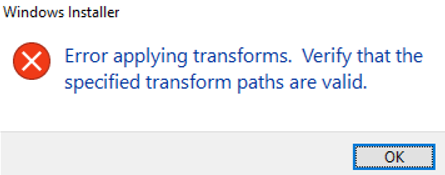
Possible cause
Upgrade code and Product code are not deleted from the registry during agent uninstallation.
Solution
Perform the following steps to resolve the issue:
-
Open the Registry Editor.
-
Navigate to the following registry path and delete the corresponding keys.
For 64-bit agent:
Computer\HKEY_LOCAL_MACHINE\SOFTWARE\Classes\Installer\UpgradeCodes\01779F6209AC86E40B7FFCECEBCF2E57Computer\HKEY_LOCAL_MACHINE\SOFTWARE\Classes\Installer\Products\0B7273255D5D293439B5FBAE7AF0926AFor 32-bit agent:
Computer\HKEY_LOCAL_MACHINE\SOFTWARE\Classes\Installer\UpgradeCodes\AD45FBE9E31364443B7976CB83D67A42Computer\HKEY_LOCAL_MACHINE\SOFTWARE\Classes\Installer\Products\40384914B7EAD384CBD87894AF9A398A
Issue while configuring the Local admin MFA privilege control feature
If you are facing any issue after enabling the RegEditCount registry setting, the following could be the reason:
Possible causes
- The registry auditing might not be enabled.
- Required registry permissions are not set.
Solution
Perform the following steps to enable auditing of the registry using a user with admin rights:
-
Open the Local Security Policy.
Press Win+R, type
secpol.msc, and press Enter. -
Navigate to Audit Policy:
Go to Advanced Audit Policy Configuration > System Audit Policies - Local Group Policy Object > Object Access > Audit Registry.
-
Enable Registry Auditing:
-
Double-click on Audit Registry.
-
Select both the Success and Failure checkbox to log both successful and unsuccessful access attempts.
-
Perform the following steps to set the registry auditing permissions in AuthGINA registry at Computer\HKEY_LOCAL_MACHINE\SOFTWARE\CRYPTOCard\AuthGINA:
-
Right-click AuthGINA, and then click Permissions > Advanced.
-
On the Advanced Security Settings for AuthGINA window, click the Auditing tab, and then click Add.
-
On the Auditing Entry for AuthGINA window, click Select a principal link.
-
On the Select User, Computer, Service Account, or Group window, enter Everyone as the object name, click Check Names, and then click OK.
-
Now, on the Auditing Entry for AuthGINA window, select All from the Type dropdown. Under Basic permissions, select Full Control and Only apply these auditing settings to objects and/or containers within this container, and then click OK.
-
Click Apply > OK.
-
On the Permissions for AuthGINA window, click OK.
Error 1722
The following error message is displayed while uninstalling the agent through the control panel:
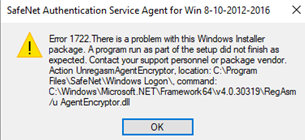
Possible cause: Insufficient user permission during uninstallation
Possible cause 1
If the agent is deployed via GPO and uninstallation is done through the control panel while the user is logged in to the machine as a non built-in administrator user.
Solution
Perform any of the following step to resolve the issue:
-
If the agent is installed through GPO, then uninstall the agent via GPO only (Recommended).
-
Log in to the affected machine as a built-in administrator user (
<DomainName>\Administrator) and then try to uninstall the agent through control panel. -
Open CMD in Run as administrator mode and execute the following command to uninstall the agent:
- For 64-bit installer:
msiexec /x {523727B0-D5D5-4392-935B-BFEAA70F29A6} - For 32-bit installer:
msiexec /x {41948304-AE7B-483D-BC8D-8749FAA993A8}
- For 64-bit installer:
Possible cause 2
If the agent is deployed via any method other than MDM (GPO, Intune, or SCCM) and uninstallation is done through the control panel while the user is logged in to the machine as a non built-in administrator user.
Solution
Perform any of the following step to resolve the issue:
-
Log in to the affected machine as a built-in administrator user (
<DomainName>\Administrator) and then try to uninstall the agent through control panel. -
Open CMD in Run as administrator mode and execute the following command to uninstall the agent:
- For 64-bit installer:
msiexec /x {523727B0-D5D5-4392-935B-BFEAA70F29A6} - For 32-bit installer:
msiexec /x {41948304-AE7B-483D-BC8D-8749FAA993A8}
- For 64-bit installer:
For offline access please contact your administrator
During online authentication, the following message is displayed if the user SID is not fetched properly due to domain/network connectivity issue.
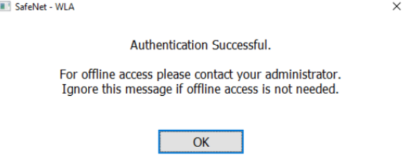
Solution
-
If offline access is not required, ignore the message and continue with the authentication.
-
If offline access is required, continue performing online authentication until the pop-up message stops appearing.

