



SafeNet Agent for Windows Logon
SafeNet Agent for Windows Logon is a lightweight software that is installed on Windows machines to augment logon security by invoking Multi-factor Authentication (MFA). It ensures that valuable resources are accessible only by authorized users. The agent also protects desktop applications and processes which use CredUI.
The use of MFA in addition to AD authentication adds another layer of security. The agent provides a secured and consistent logon experience to the end users of Windows machines.
System requirements
| Component | Requirement |
|---|---|
| Software prerequisites | Microsoft .NET 4.8 and above |
| Communication protocols | HTTP HTTPS TLS 1.2 and above |
| Network port | TCP Port 80 (HTTP) or 443 (HTTPS) |
| Azure support | Azure AD* Hybrid Azure AD |
| Operating systems | Windows 11 Windows Server 2016 Windows Server 2019 Windows Server 2022 Windows Server 2025 |
| Supported tokens | All tokens supported by SafeNet Trusted Access, except the following: 4.x legacy, 5.x legacy, 6.x legacy, UB, IronKey, SafeStick, Smart Cards, Microsoft Certificate-Based Authentication (CBA) Login, and FIDO. |
| Supported tokens in offline authentication mode | Emergency Password Static Password Event-based tokens, for example, MobilePASS (in Quick Log mode) Note: Only last used event-based token is supported. When using MobilePASS+, the Push OTP feature does not work, but standard One Time Password (OTP) authentication works. |
| Supported SAS/STA releases | SAS PCE/SPE 3.9.1 (and later) SafeNet Trusted Access (STA) |
Note
The agent is compatible with the Microsoft native FDE tool, BitLocker.
* Limitations for Azure AD joined machines
-
The Exempt Local/Domain Administrator strong authentication does not work with pure Azure AD joined machines for domain admins. However, this feature works as expected for the local admins.
-
The Group Filter feature does not work with pure Azure AD joined machines for domain groups. However, this feature works as expected for the local groups.
-
Third-party federation services with Azure AD joined machines are not supported.
-
The Passwordless feature is not supported with pure Azure AD.
Windows Logon Agent – authentication methods
Authentication is a process to verify that the credentials presented are authentic. The agent offers following authentication methods:
Domain/Workgroup authentication
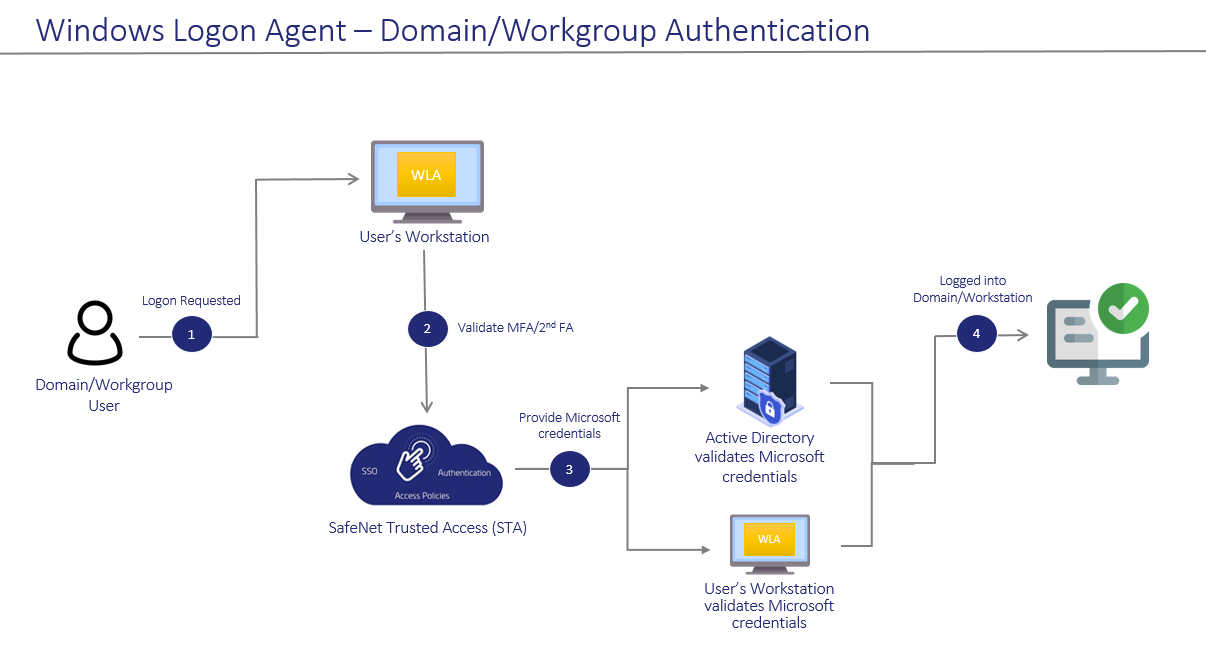
Domain Authentication refers to the Multi-factor Authentication of a domain user through the SafeNet server. Workgroup Authentication refers to the Multi-factor Authentication of a local user through the SafeNet server. The following flow diagram illustrates the user authentication while accessing the domain or local workstation login:
-
After invoking the workstation logon, the user is presented with the agent login screen.
-
If Multi-Factor Authentication is required, the user enters the credential of the supported second-factor authentication, for example, OTP. The entered credentials are then sent to the SafeNet server for verification.
-
If the SafeNet credentials are valid, the user is prompted for Microsoft credentials.
-
If the user is part of the domain, the credentials are validated by the Active Directory (AD).
-
If the user is part of the local workstation, the credentials are validated by the user's workstation.
-
-
On successful validation of the Microsoft credentials, the user is logged on to the WLA-installed machine.
Offline authentication
The SafeNet Agent for Windows Logon supports offline authentication, which enables users to log on to Windows machines securely using a SafeNet OTP when there is no connection to the SafeNet server.
To use offline authentication, the user must have had logged on online at least once. After successful online login, the offline tokens are replenished automatically. While online, the user (with admin rights) can also manually replenish the offline tokens through the management console.
Refer to the System requirements section to see the supported tokens in Offline Authentication mode.
Note
Offline authentication is not supported in the Remote Desktop Public (RDP) mode.
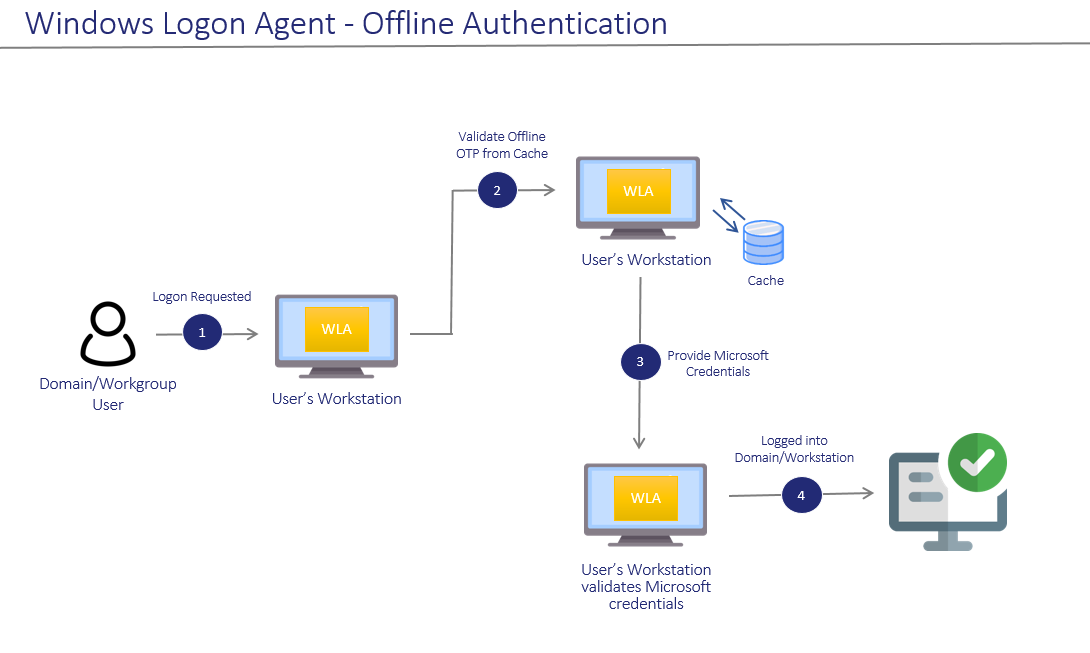
The following flow diagram illustrates the user authentication while accessing the workstation in offline mode:
-
After invoking the workstation logon, the offline user is presented with the agent login screen.
-
If Multi-Factor Authentication is required, the user enters the credential of the supported second factor authentication, for example, OTP. The entered credentials are then verified by the offline authentication OTP stored on the local workstation. Otherwise, if the offline user is part of a local group authentication exception, the credentials are passed to the local workstation.
-
If the SafeNet credentials are valid, the user is prompted for Microsoft credentials.
-
On successful validation of the Microsoft credentials, the user is logged on to the WLA installed machine.
RDP authentication
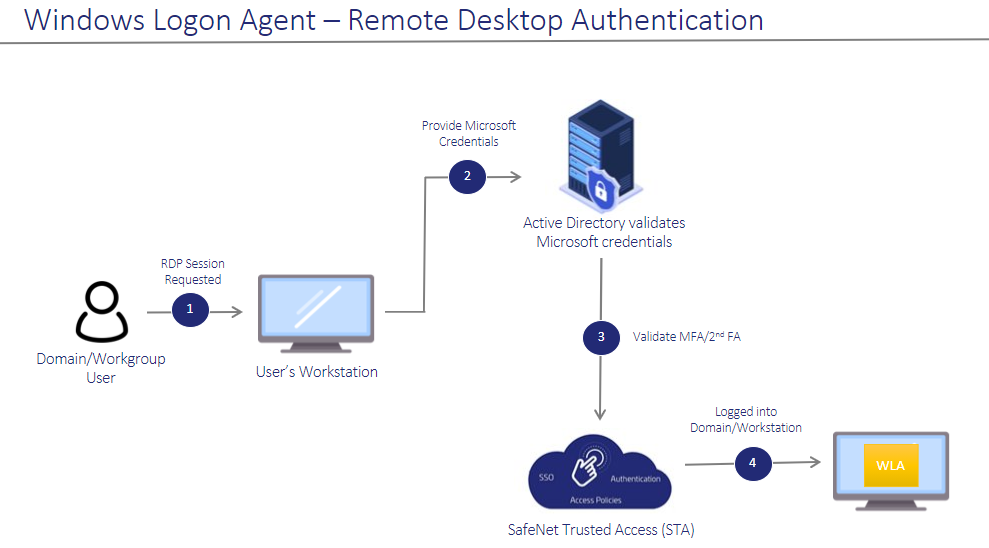
The following describes the RDP authentication flow for different scenarios when a user tries to access the remote machine:
| Management console setting | RDP scenarios | ||
|---|---|---|---|
| Allow outgoing RDP connection without OTP | Agent installed on remote machine but not on local machine | Agent installed on both local and remote machine | Agent installed on local machine but not on remote machine |
| Enabled | Microsoft credentials > SafeNet OTP | Microsoft credentials > SafeNet OTP | Microsoft credentials |
| Disabled | Microsoft credentials > SafeNet OTP | SafeNet OTP of local machine > Microsoft credentials of remote machine > SafeNet OTP of remote machine | SafeNet OTP of local machine > Microsoft credentials of remote machine |
-
After invoking the RDP session, the user is presented with the RDP prompt.
-
The user enters the Microsoft password.
-
If the Microsoft credentials are valid, the user enters the credential of the supported second factor authentication, for example, OTP. The entered credentials are then sent to the SafeNet server for verification.
-
If the SafeNet credentials are valid, the user is logged on to the WLA installed machine.

