



Configure Password Self Service (PSS) Agent with SafeNet Access Exchange
This section describes the integration of the Password Self Service (PSS) Agent with SafeNet Access Exchange to enable PSS functionality for SafeNet Authentication Service Private Cloud Edition (SAS PCE). In this integration, SafeNet Access Exchange is configured as the identity provider to support authentication and user management, enabling users to securely perform password self-service operations through a multi-factor authentication workflow.
Before you proceed with the integration, ensure that the following instances are operational and accessible:
- SAS PCE
- SafeNet Access Exchange (SAE)
- PSS Agent
Configuring PSS Agent with SafeNet Access Exchange is a two-step process:
Configure SafeNet Access Exchange
Configuring SafeNet Access Exchange requires:
Create a Client for Password Self Service
-
Open the following URL in a web browser and log in to the SafeNet Access Exchange as an administrator.
https://<host>:8443/orhttps://keycloak.example.com/. -
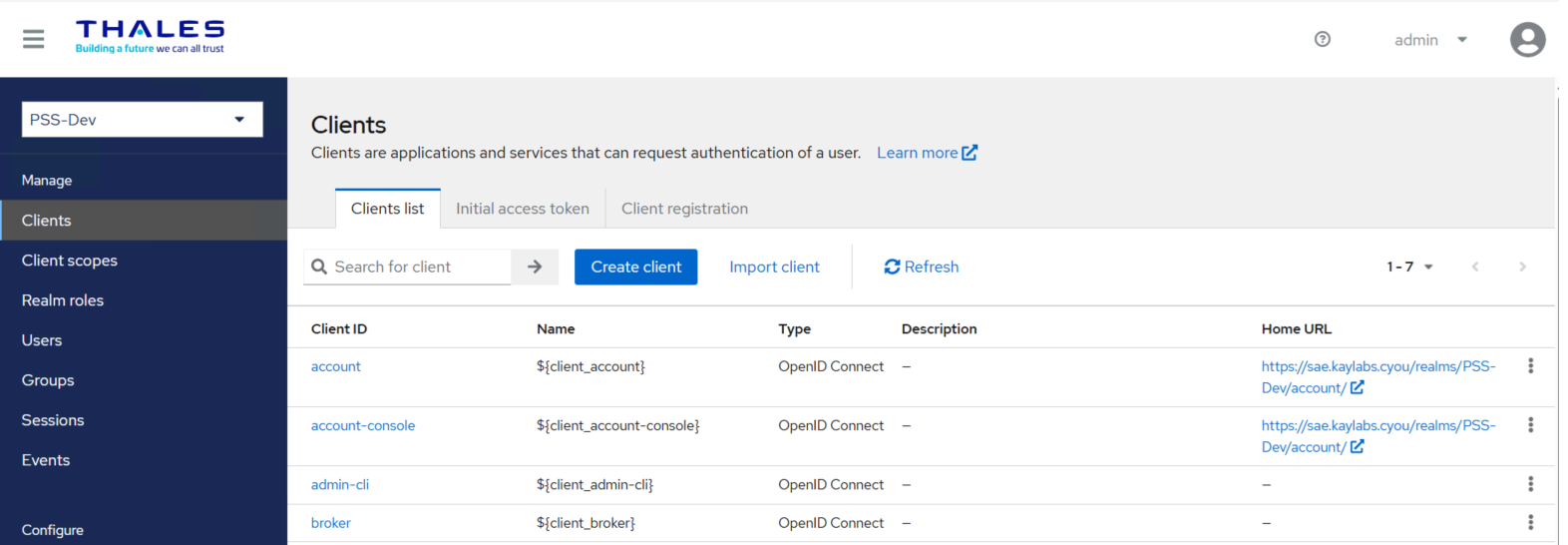
On the administrator console, select your realm (for example, PSS-Dev).
This realm contains the authentication flow configuration required for SAS PCE integration.
-
In the left navigation menu, click Clients.
-
Click Create client.
-
In the Client ID field, enter a client ID (for example, Password-Self-Service-demo).
You can use a different client ID based on your naming conventions.
-
Under Create Client, perform the following steps:
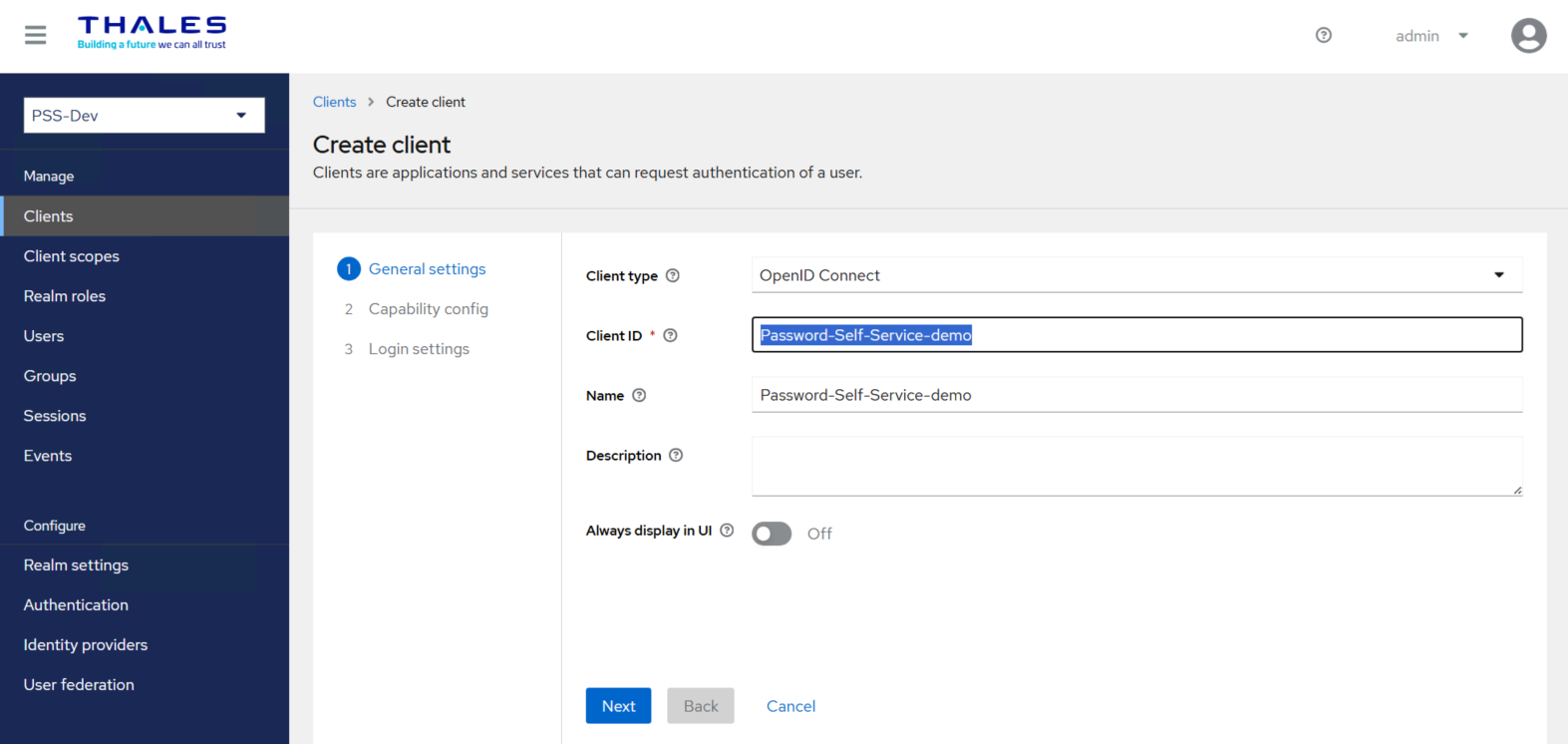
a. Under General Settings, perform the following steps:
-
In the Client type field, select OpenID Connect.
-
In the Client ID field, enter a client ID (for example, Password-Self-Service-demo).
This ID is an alphanumeric string used to identify the client in OIDC requests.
-
(Optional) In the Name field, enter a name of your choice (for example, Password-Self-Service-demo).
- Click Next.
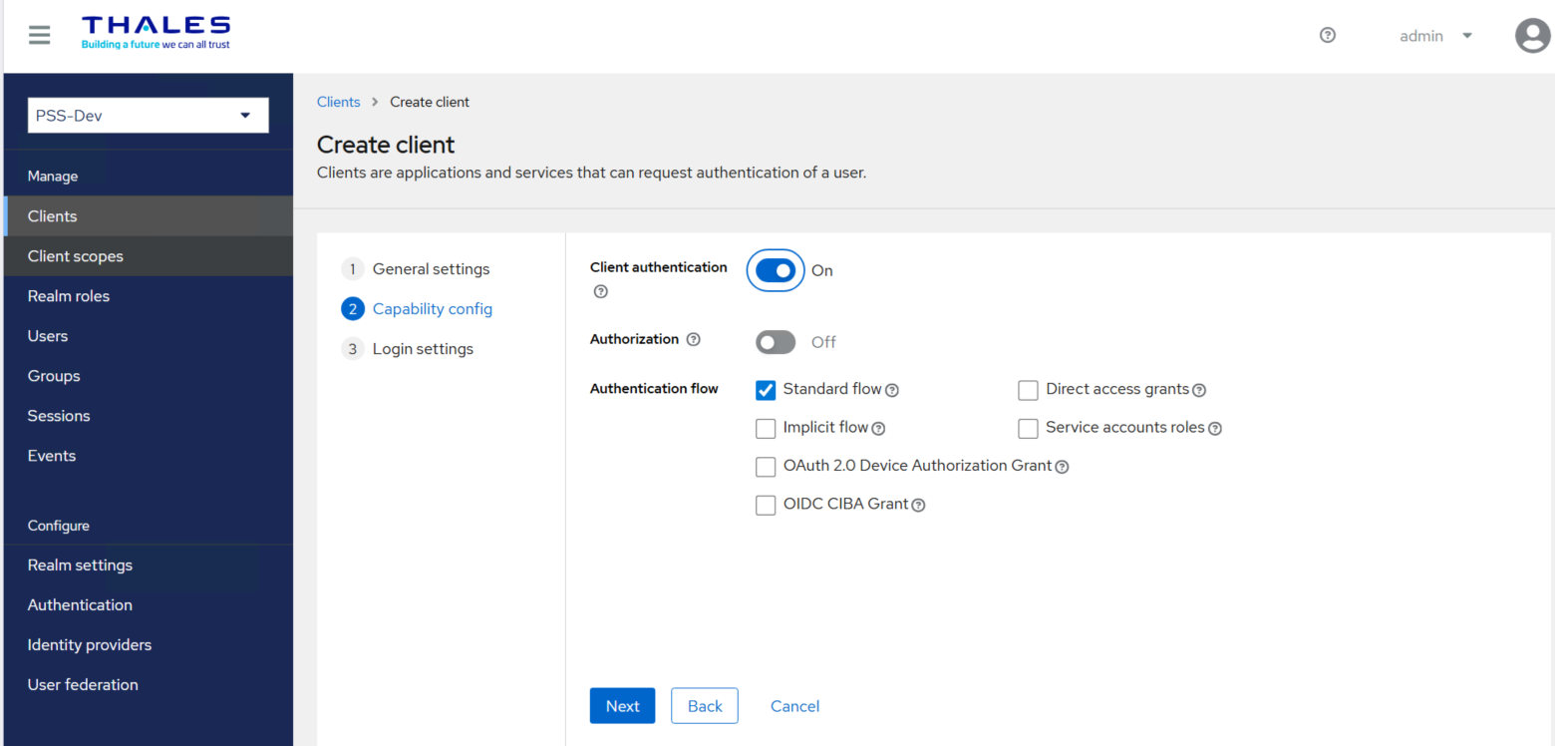
b. Under Capability config, perform the following steps:
-
Turn on the Client authentication toggle.
-
Turn off the Authorization toggle.
-
Under the Authentication flow, select the Standard flow checkbox and clear the Direct access grants checkbox.
-
Click Next.
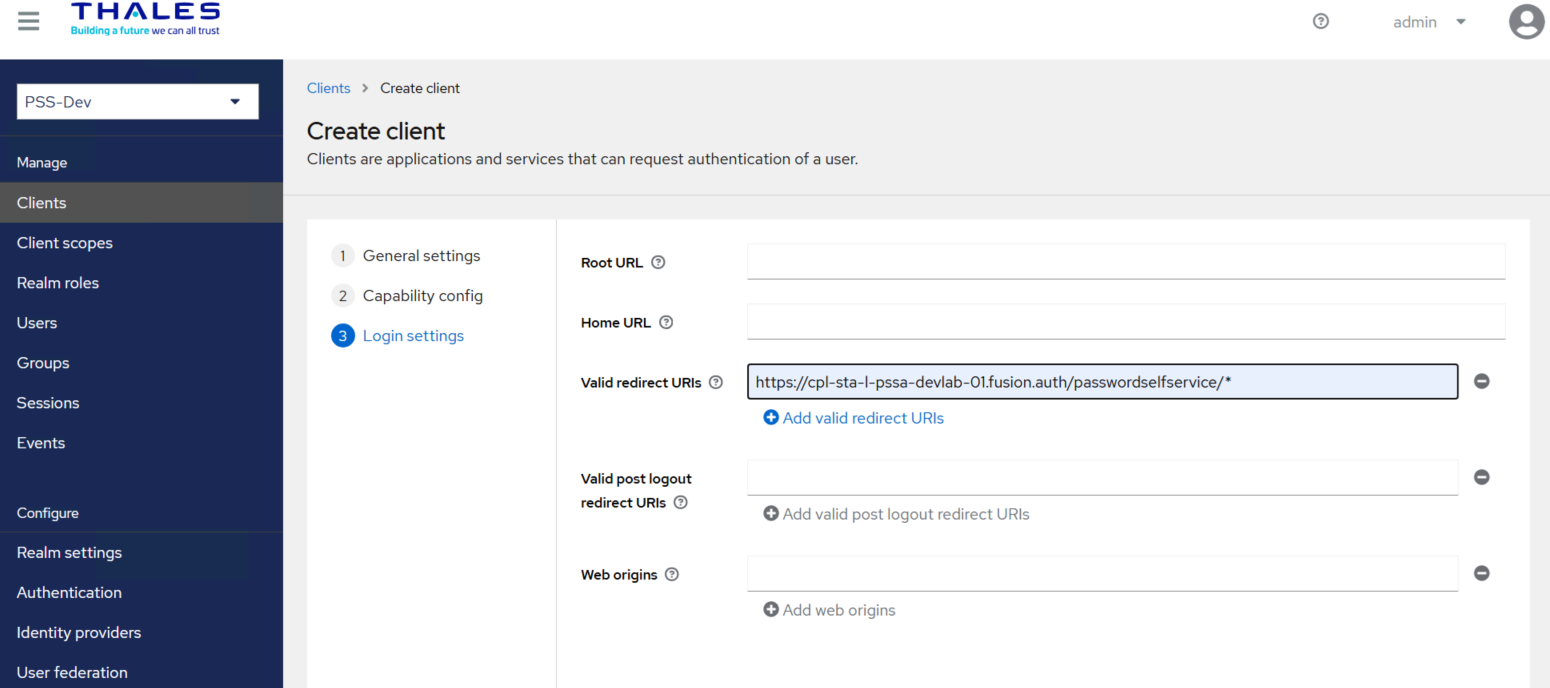
c. Under Login settings, perform the following steps:
-
In the Valid redirect URIs field, enter
https://<pss_agent_server_fqdn>/passwordselfservice/*.Where
<pss_agent_server_fqdn>is the FQDN of your PSS Agent server. -
Click Save to complete the client configuration.
-
Configure the Client Scope
Under Client, perform the following steps:
-
Select your newly created Client ID (for example, Password-Self-Service-demo).
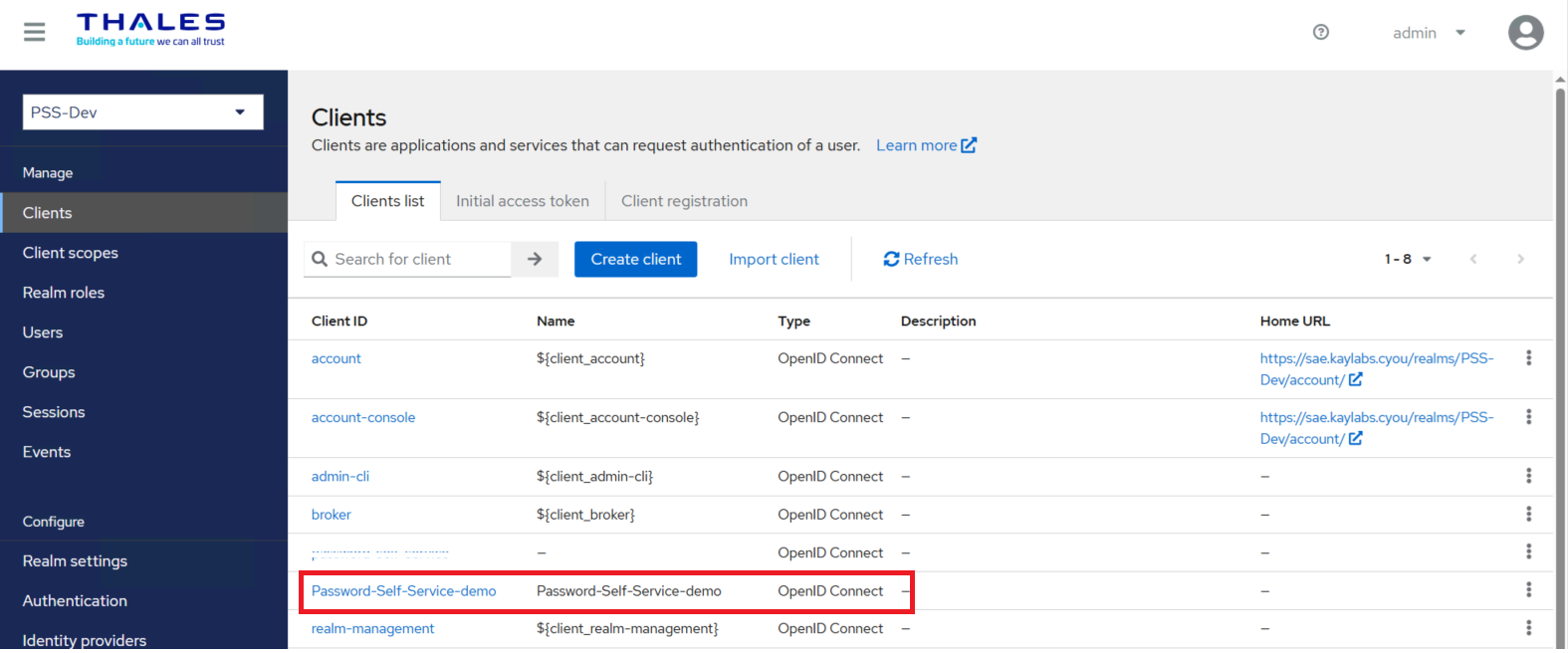
-
Go to the Client scopes tab, under Assigned client scope, select your scope (for example, Password-Self-Service-demo-dedicated).
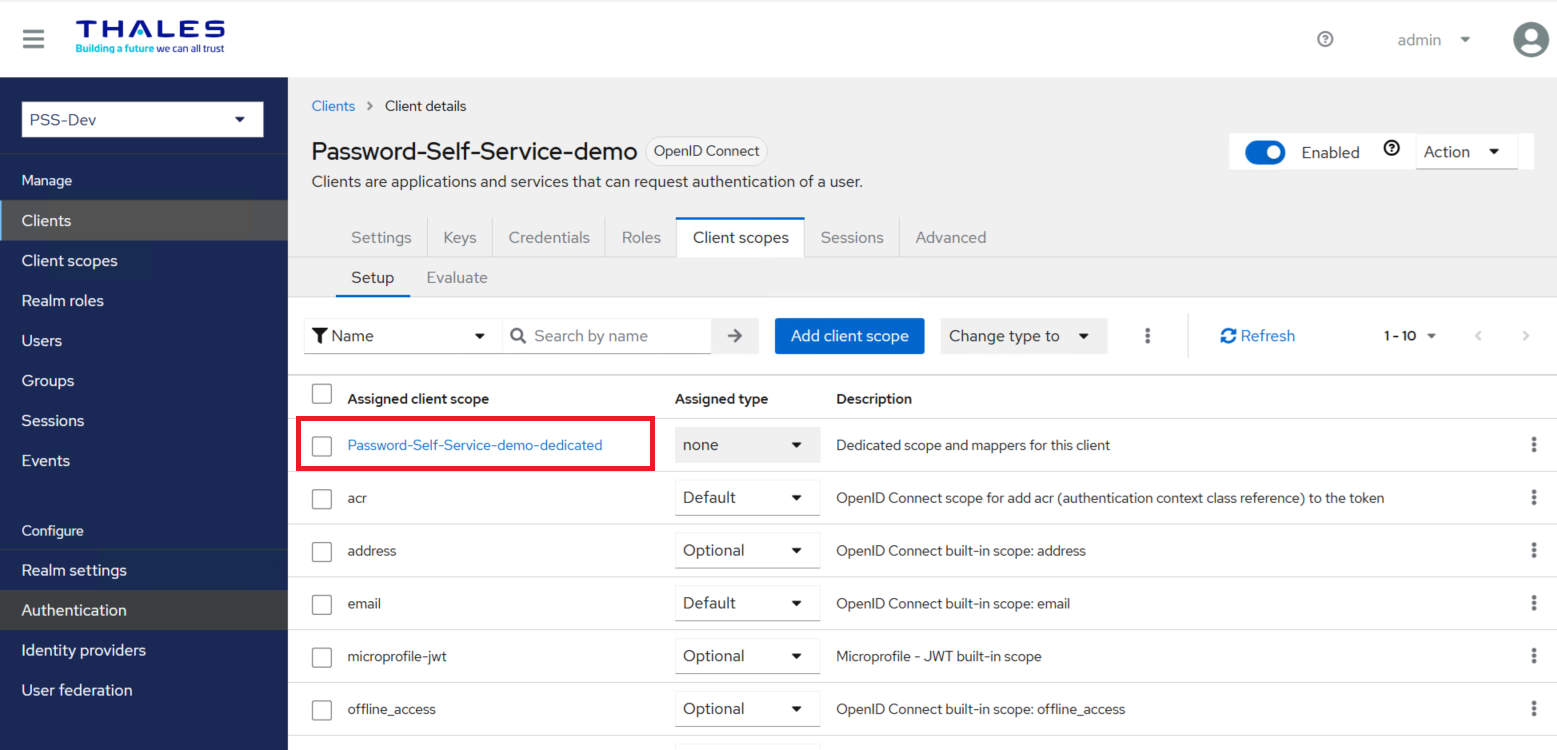
-
Go to the Mappers tab and check if a dedicated client scope exists for your client, else click Configure a new mapper to configure the following mappers:
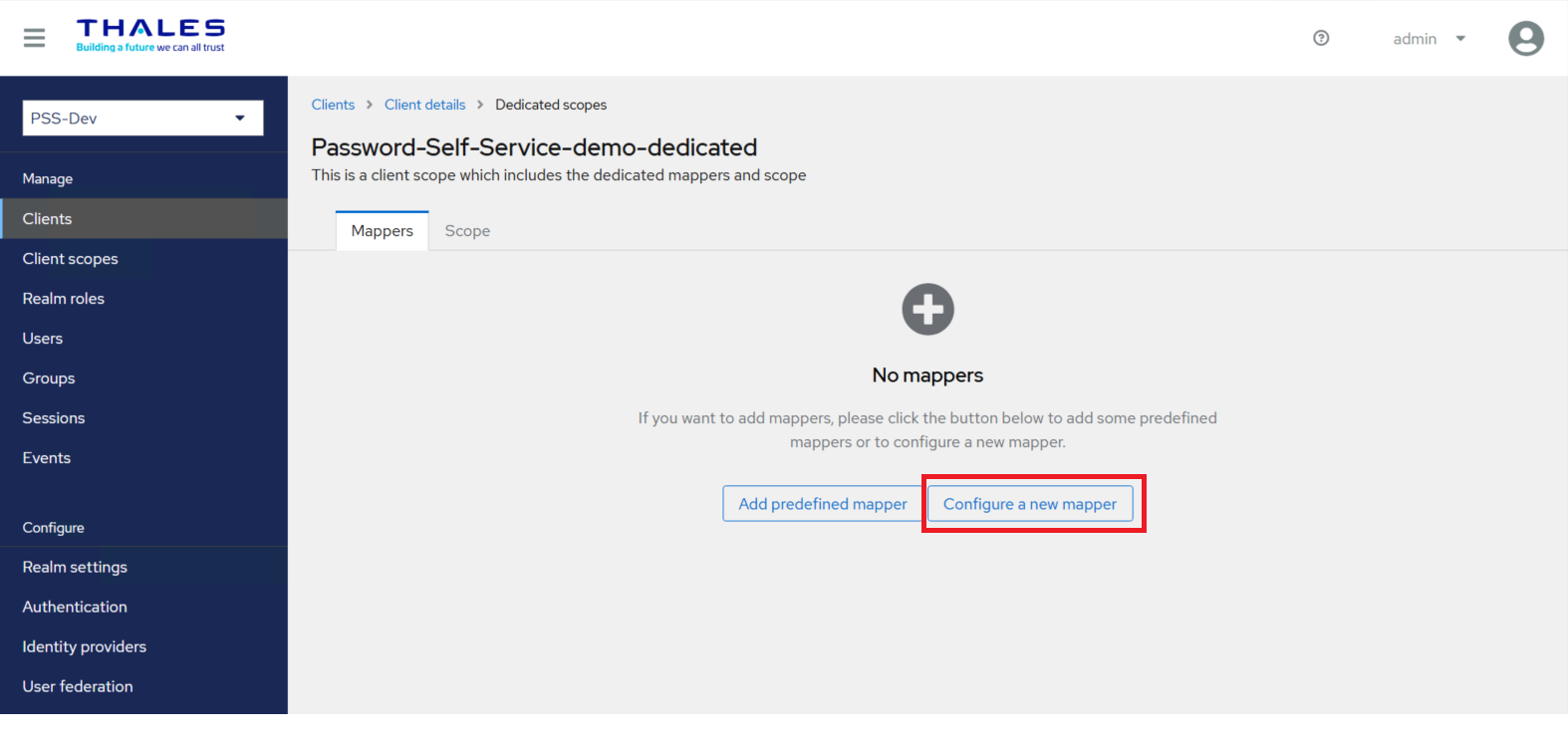
-
Add the following mappers to the client scope:
Configure the UserObjectGUID mapper
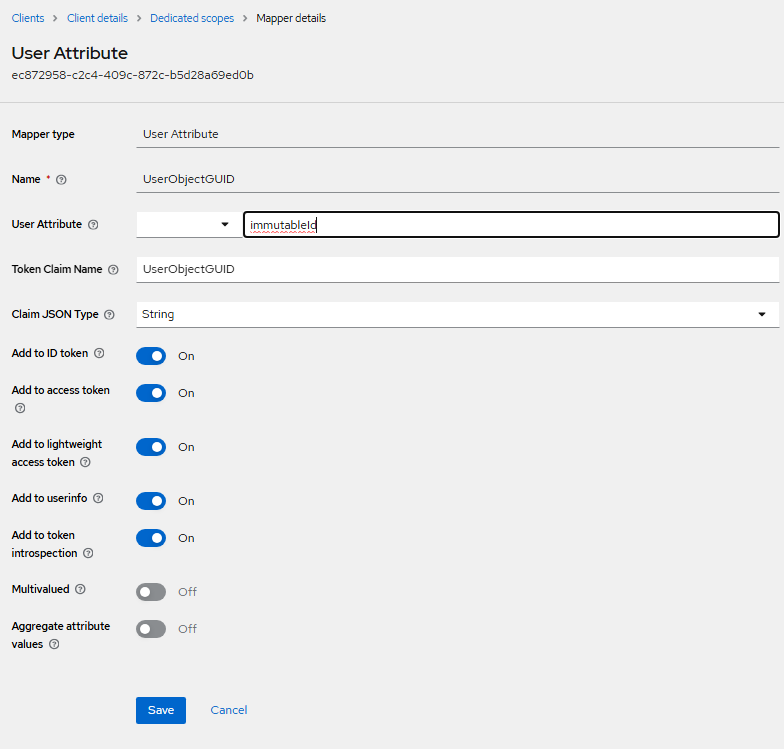
After you click Configure a new mapper, under User Attribute, perform the following steps to configure the UserObjectGUID mapper:
-
In the Mapper Type field, select User Attribute.
-
In the Name field, enter UserObjectGUID.
-
In the User Attribute field, enter immutableId.
-
In the Token Claim Name field, enter UserObjectGUID.
-
In the Claim JSON Type field, select String.
-
Turn on the following toggles:
- Add to ID token
- Add to access token
- Add to lightweight access token
- Add to userinfo
- Add to token introspection
-
Click Save.
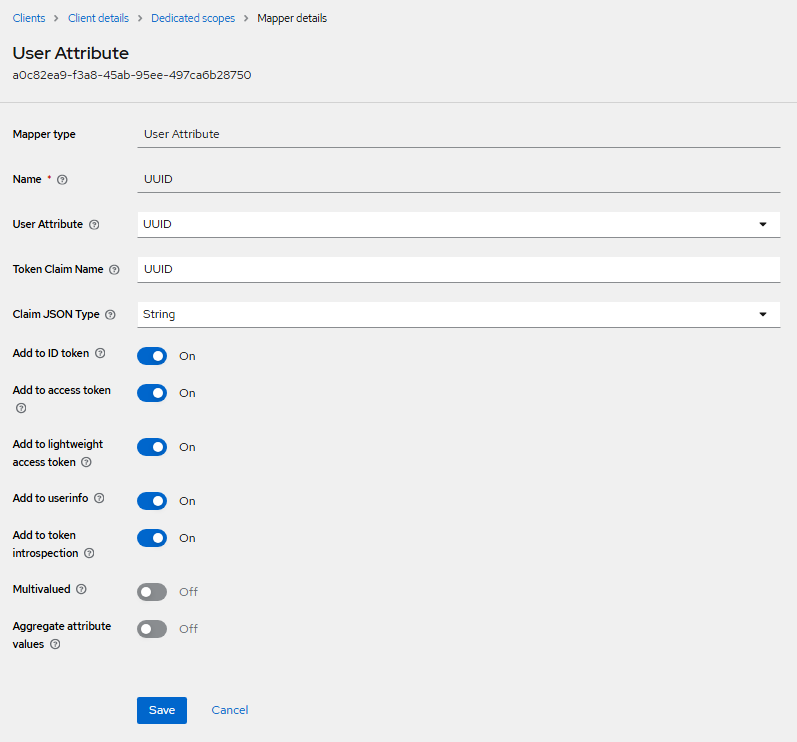
Configure the UUID mapper
After you click Configure a new mapper, under User Attribute, perform the following steps to configure the UUID mapper:
-
In the Mapper Type field, select User Attribute.
-
In the Name field, enter UUID.
-
In the User Attribute field, enter UUID.
-
In the Token Claim Name field, enter UUID.
-
In the Claim JSON Type field, select String.
-
Turn on the following toggle switches:
- Add to ID token
- Add to access token
- Add to lightweight access token
- Add to userinfo
- Add to token introspection
-
Click Save.
Configure the UserName mapper
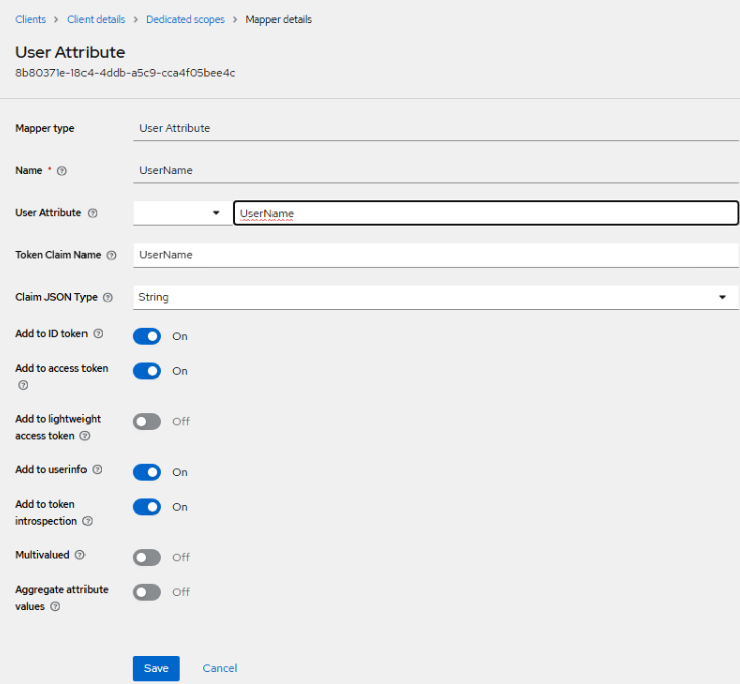
After you click Configure a new mapper, under User Attribute, perform the following steps to configure the UserName mapper:
-
In the Mapper Type field, select User Attribute.
-
In the Name field, enter UserName.
-
In the User Attribute field, enter UserName.
-
In the Token Claim Name field, enter UserName.
-
In the Claim JSON Type field, select String.
-
Turn on the following toggle switches:
- Add to ID token
- Add to access token
- Add to userinfo
- Add to token introspection
-
Click Save.
Generate a Private Key and Configure Credentials
Refer to the Generating a Private Key and Selecting the Credentials Type for the Client section for detailed instructions.
Configure and Update the Agent File
The Agent file (.agent) contains details of IdP (SAE) and non-SAML/OIDC web applications. Configuring the agent file requires:
Obtain Values for the Agent File
Before configuring the Agent file, it is required to obtain certain values. Perform the following steps:
-
Go to the administrator console of your SAE instance.
-
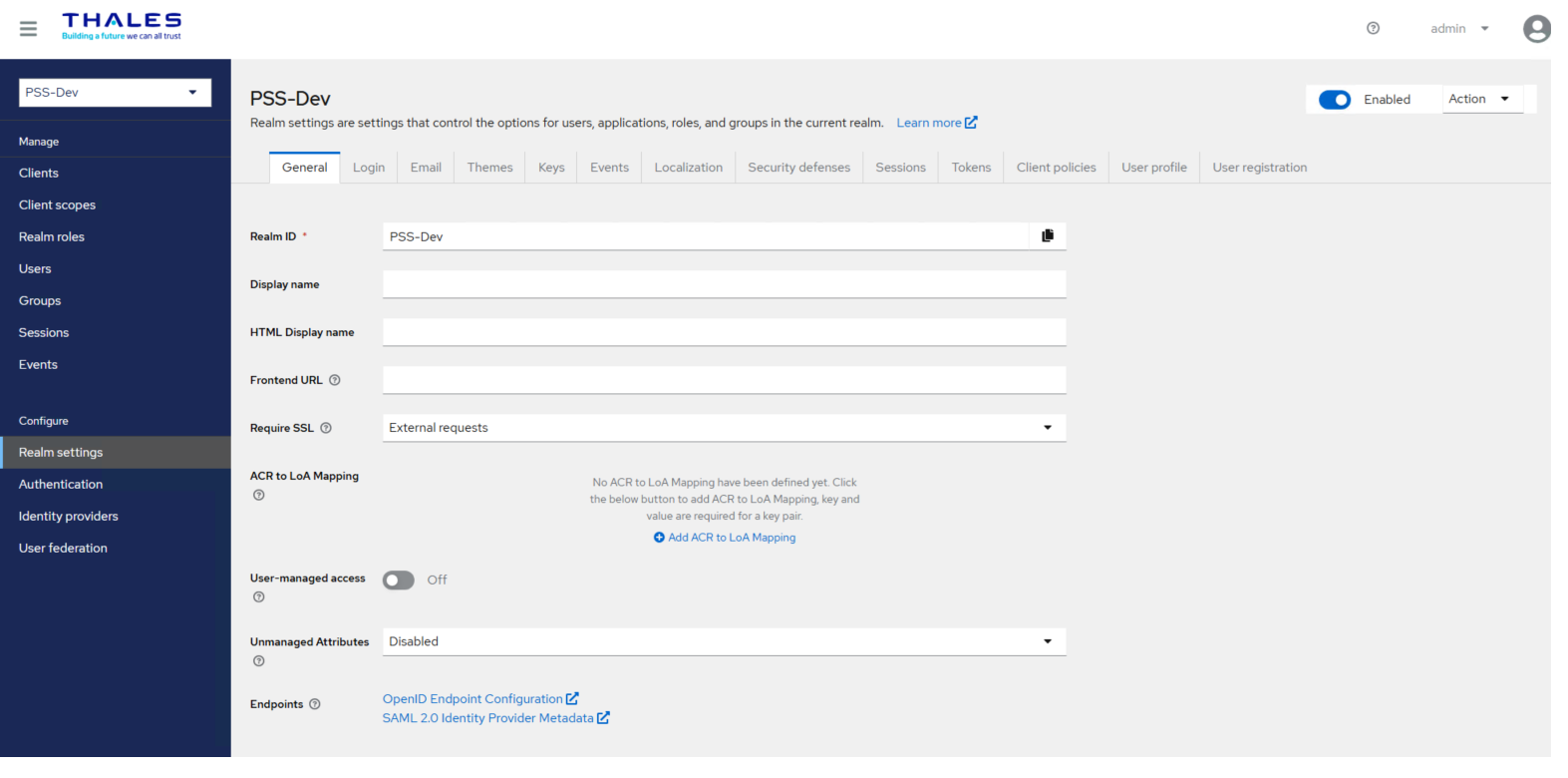
In the left pane, under Configure, select Realm Settings, and in the right pane, on the General tab, perform the following steps:
-
Copy the Realm ID field's value and paste it into a text editor.
-
In the Endpoints field, click OpenID Endpoint Configuration, and you will be redirected to another window. Copy the Issuer URL and paste it into the text editor.
-
-
In the left pane, click Clients, and copy the Client ID (for example, Password-Self-Service-demo) of the client you created earlier. Paste the value into the text editor.
Update the Agent File
Perform the following steps to update the Agent file:

-
Open the .agent file in a text editor such as Notepad++.
-
Next to the VirtualServer field, paste the Realm ID field’s value you obtained in step 2(a) of the Obtaining Values for the Agent File section.
"VirtualServer":"PSS-Dev" -
Next to the IssuerUrl field, paste the Issuer URL you obtained in step 2(b) of the Obtaining Values for the Agent File section.
"issuerurl":"http://your-sae-url/realms/PSS-Dev" -
Next to the ApplicationName field, paste the Client ID you obtained in step 3 of the Obtaining Values for the Agent File section.
"ApplicationName":"Password-Self-Service-demo" -
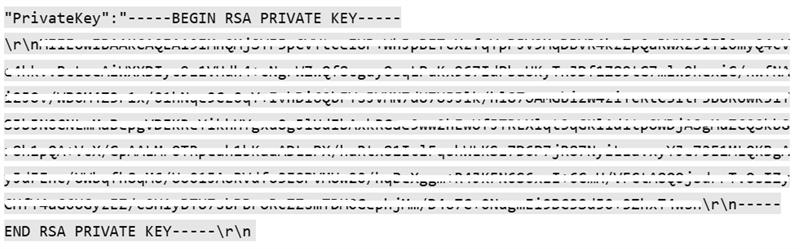
Replace the value of PrivateKey with the key you generated in the Generating a Private Key and Selecting the Credentials Type for the Client section (see the sample private key below).
-
Replace the value of RedirectUrl with the redirect URL (for example, https://pss_agent_server_fqdn/passwordselfservice) that you used while creating the client.

