



Solution Testing
Tip
It is a good practice to test the agent before deployment. After the agent is fully configured, add a policy above the Password Self-Service blocking policy. The new policy can be dedicated to the Password Self-Service agent, but also to a small group of test users. You can then test the various conditions.
Password Reset Flow
Password reset can be performed using the password reset URL.
Using password reset URL
-
Copy and paste the following URL in a browser:
https://<FullyQualifiedDomainName>/passwordselfservice?userName=<username>
where,
- FullyQualifiedDomainName is the FQDN of the agent-installed machine.
- username is the username that must be mapped to User ID field in SAE.
For example, the password reset URL for the user ID JohnDoe will be
https://<FullyQualifiedDomainName>/passwordselfservice?userName=JohnDoe -
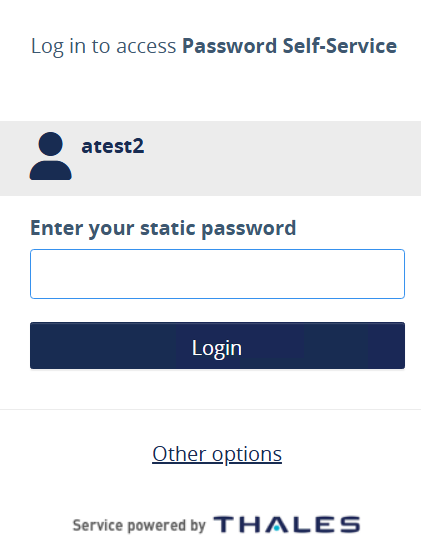
Enter the password and click Login to complete the authentication.
-
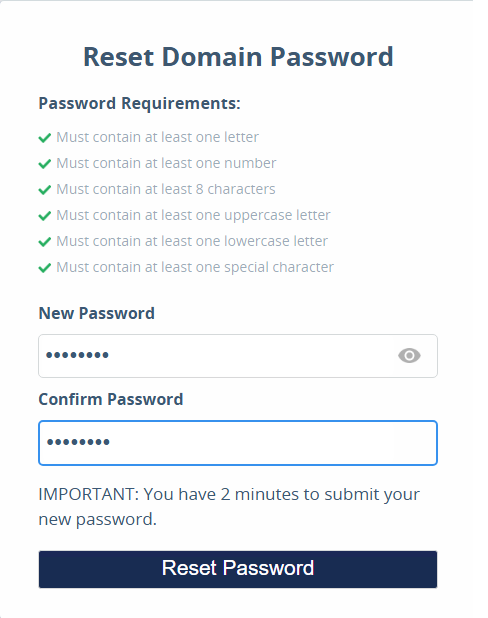
After successful authentication, the Reset Domain Password window opens, perform the following steps:
a. Enter the New Password as per the password requirements.
c. Re-enter the password in the Confirm Password field.
c. When all password requirements are met, the Reset Password button becomes enabled. Click Reset Password.
-
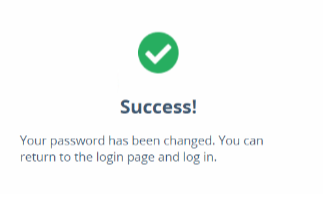
When the password is successfully reset and synchronized with SAE, the following success message is displayed:
-
If the password is reset successfully but the user’s domain password is not synchronized, the following message is displayed:
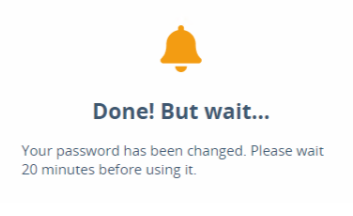
Click here to view details about message customization.
-
If the operation times out after two minutes, the following message is displayed:
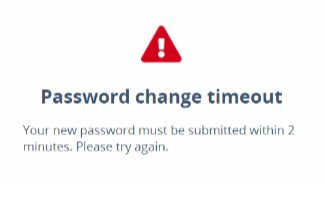
-
If the user fails to reset the password on the first attempt, the following message is displayed:
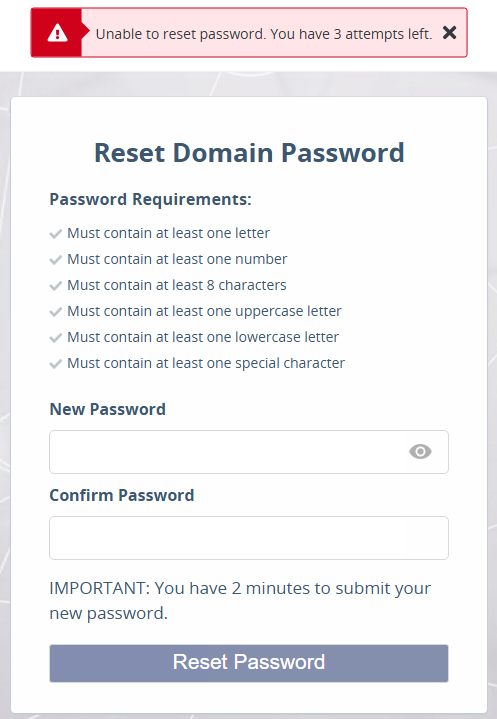
After all retry attempts are exhausted, the Unable to change password message is displayed.
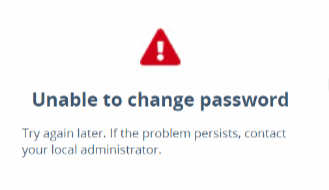
-
Customizing the Password Sync Time
The newly reset/changed password is immediately synced to SAE. However, the user may get a different wait time message (Default: 20 minutes) in the following two scenarios:
-
If for any reason, for example, network latency, the new password is not synced to SAE immediately. The new password will be effective in SAE after the next sync agent runs.
-
When AD password validation is delegated to a third-party (like Azure AD). The new password will be effective after the password synchronization between AD and third-party.
Note
This wait time duration in the message can be customized by customers, depending upon the user password synchronization frequency between the AD and SAE or third-party.
Perform the following steps to change the wait time in the message:
-
Open Windows Explorer on the agent installed machine and go to
<InstallationDirectory>\Publish\wwwroot\Json. -
Open the Json file
Configurable.jsonin any text editor. -
Modify the key
logindelayand update its value as per your requirement. For example, 30.Default: 20
-
Save the file.
The wait time duration in the message will be updated successfully.

