Import and export authenticators
SafeNet MobilePASS+ provides functionality to allow you to export your personal authenticators from one device to another. This only works for third-party authenticators, and not for managed authenticators that are provided by SafeNet Authentication Service Private Cloud Edition (SAS PCE) or SafeNet Trusted Access (STA).
Transfer third-party authenticators
To transfer your third-party authenticators from one device to another, you must have access to both devices. The following procedure refers to these devices as the exporting device and the importing device.
-
Open the SafeNet MobilePASS+ app on both of your devices.
-
Open the SafeNet MobilePASS+ app:
-
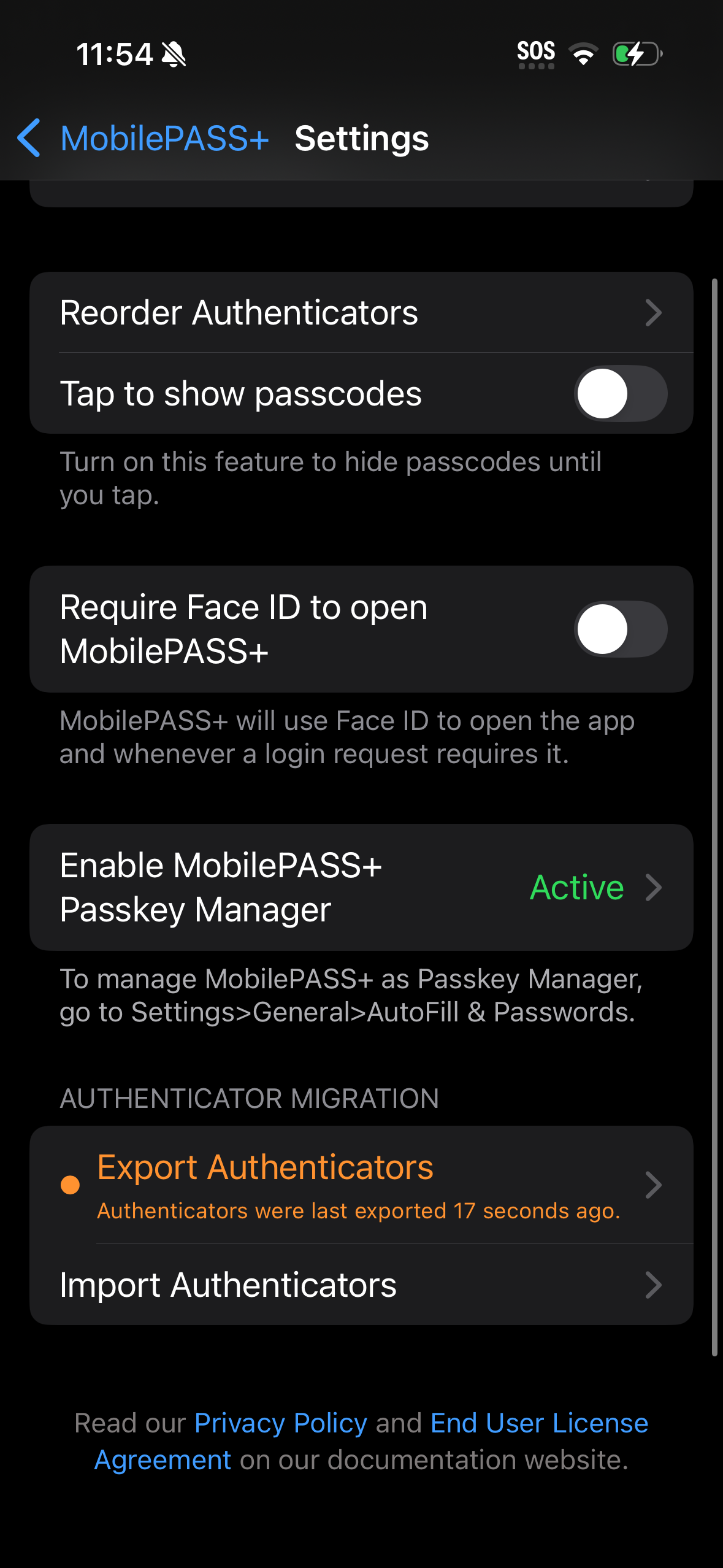
If the importing device has authenticators enrolled in the SafeNet MobilePASS+ app, on the Authenticator List screen, tap the Settings menu in the top-right corner.
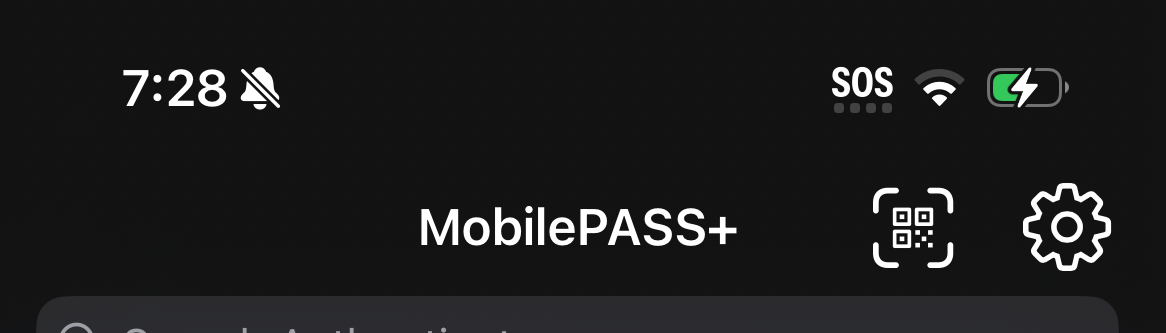
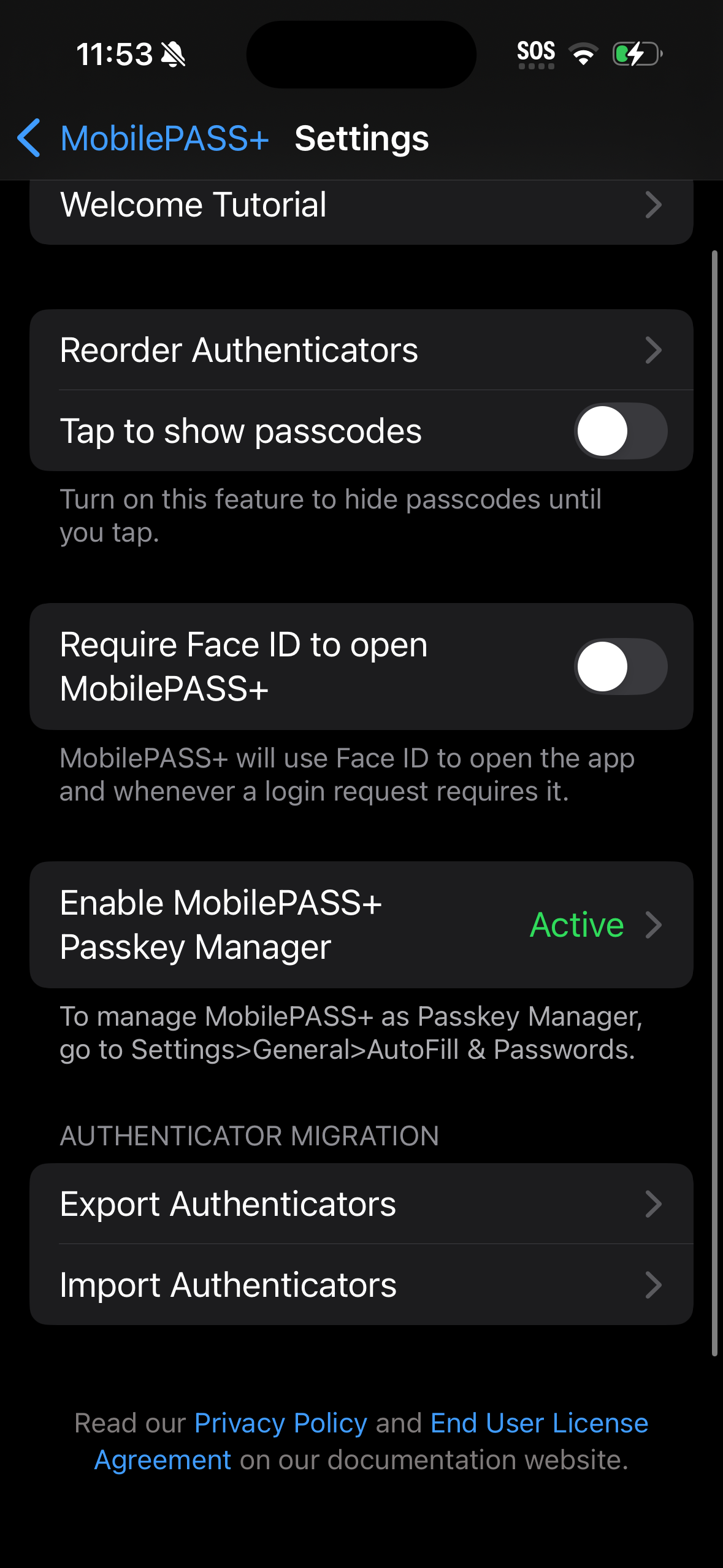
On the Settings screen, under Authenticator migration, tap Import Authenticator.
-
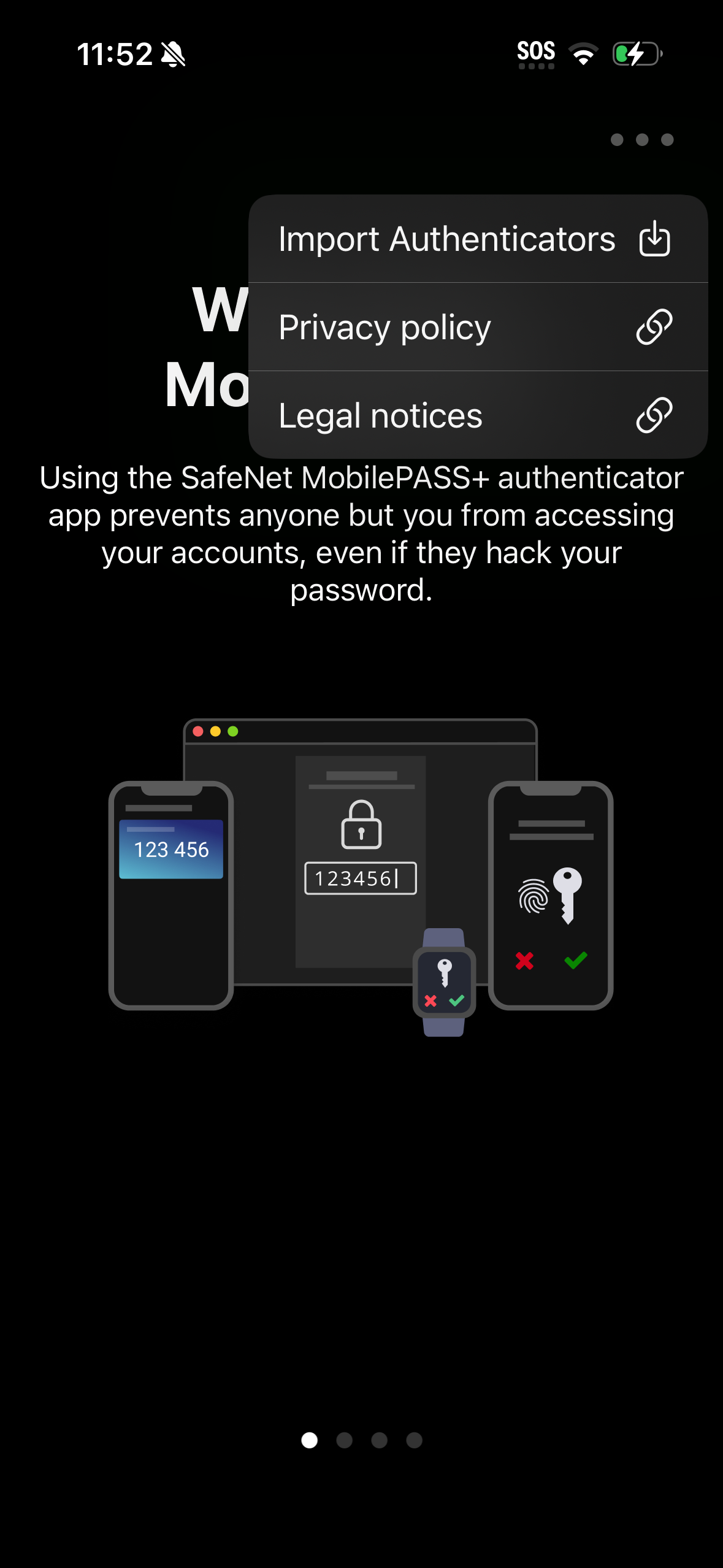
If the importing device does not yet have any authenticators enrolled in the SafeNet MobilePASS+ app, tap the three-dot menu in the top-right corner, and then tap Import Authenticator.
-
-
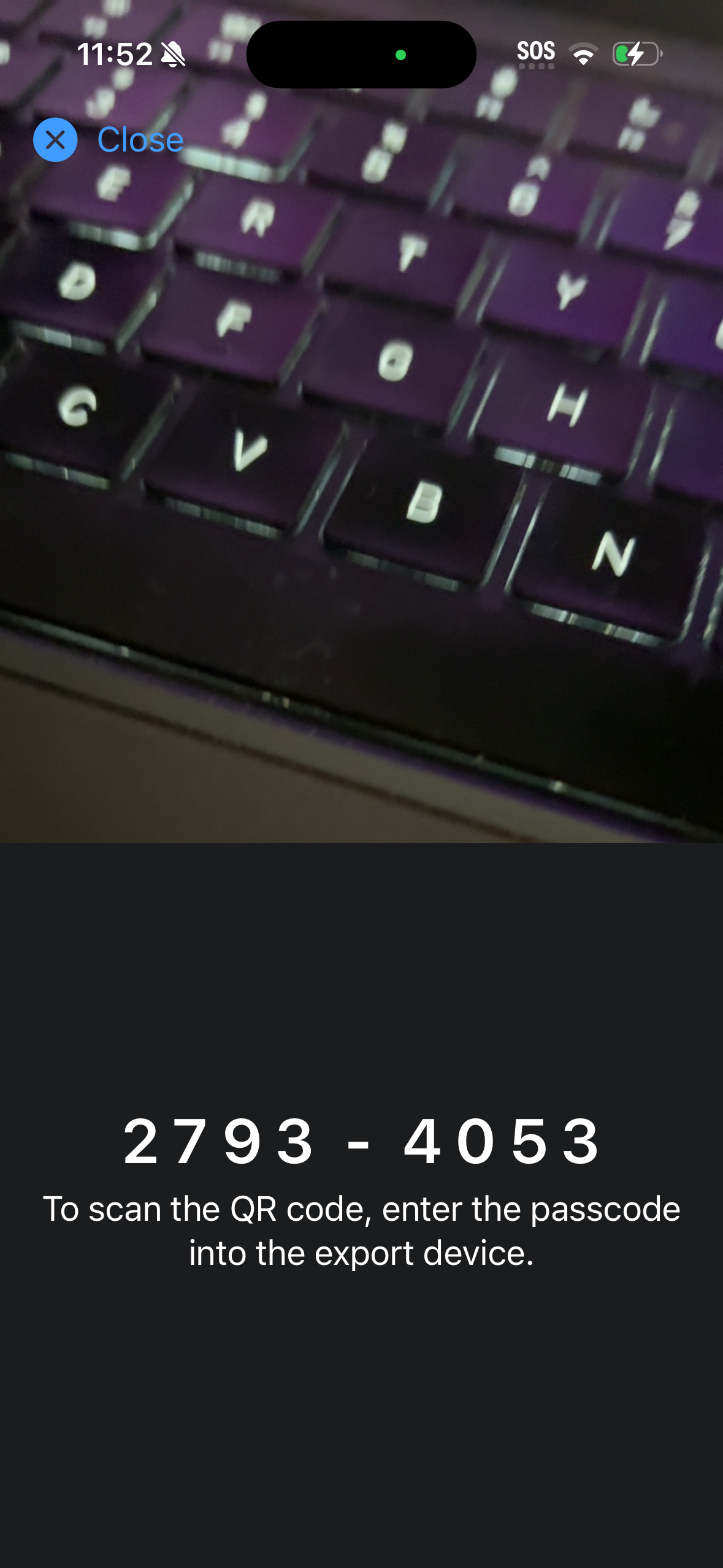
Make note of the passcode displayed on the importing device.
-
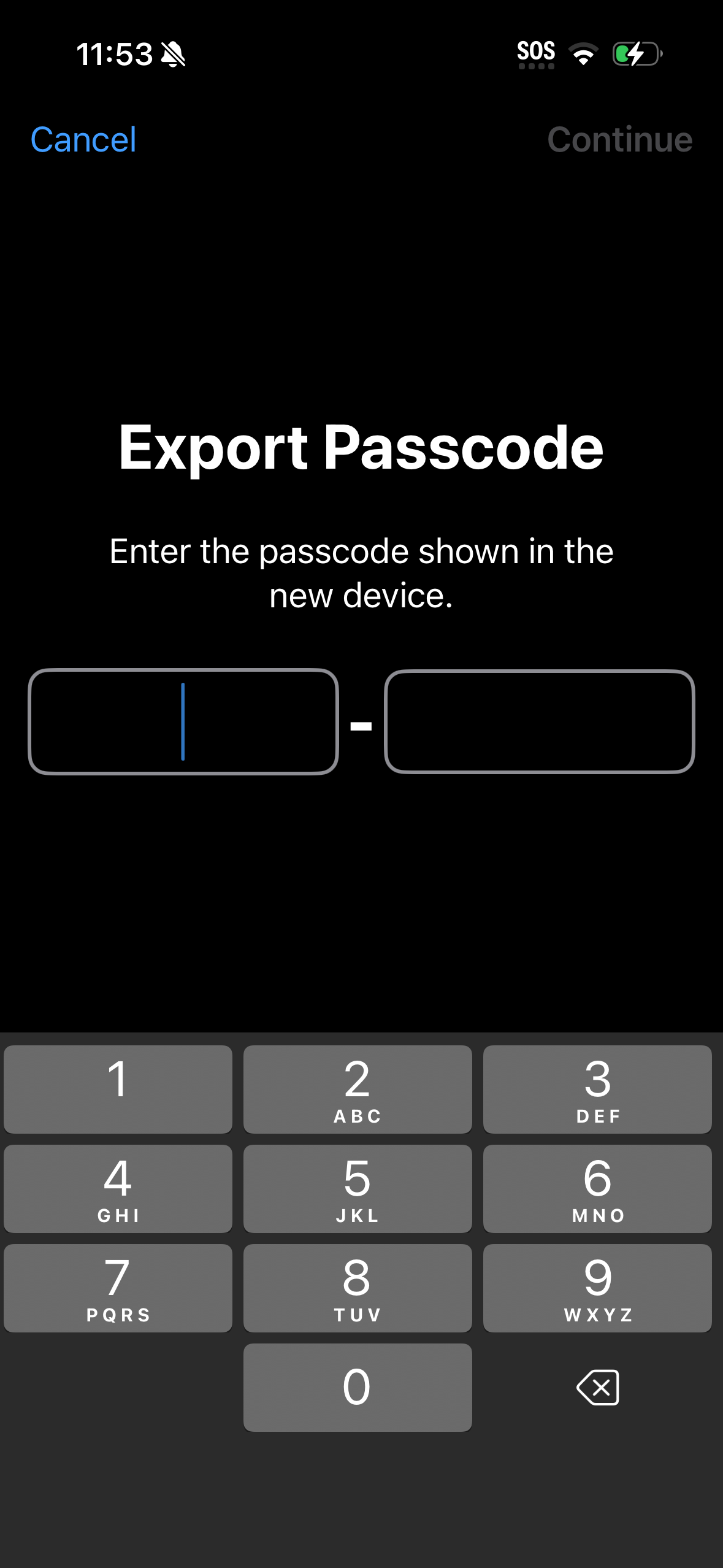
On the exporting device, enter the passcode from on the importing device.
-
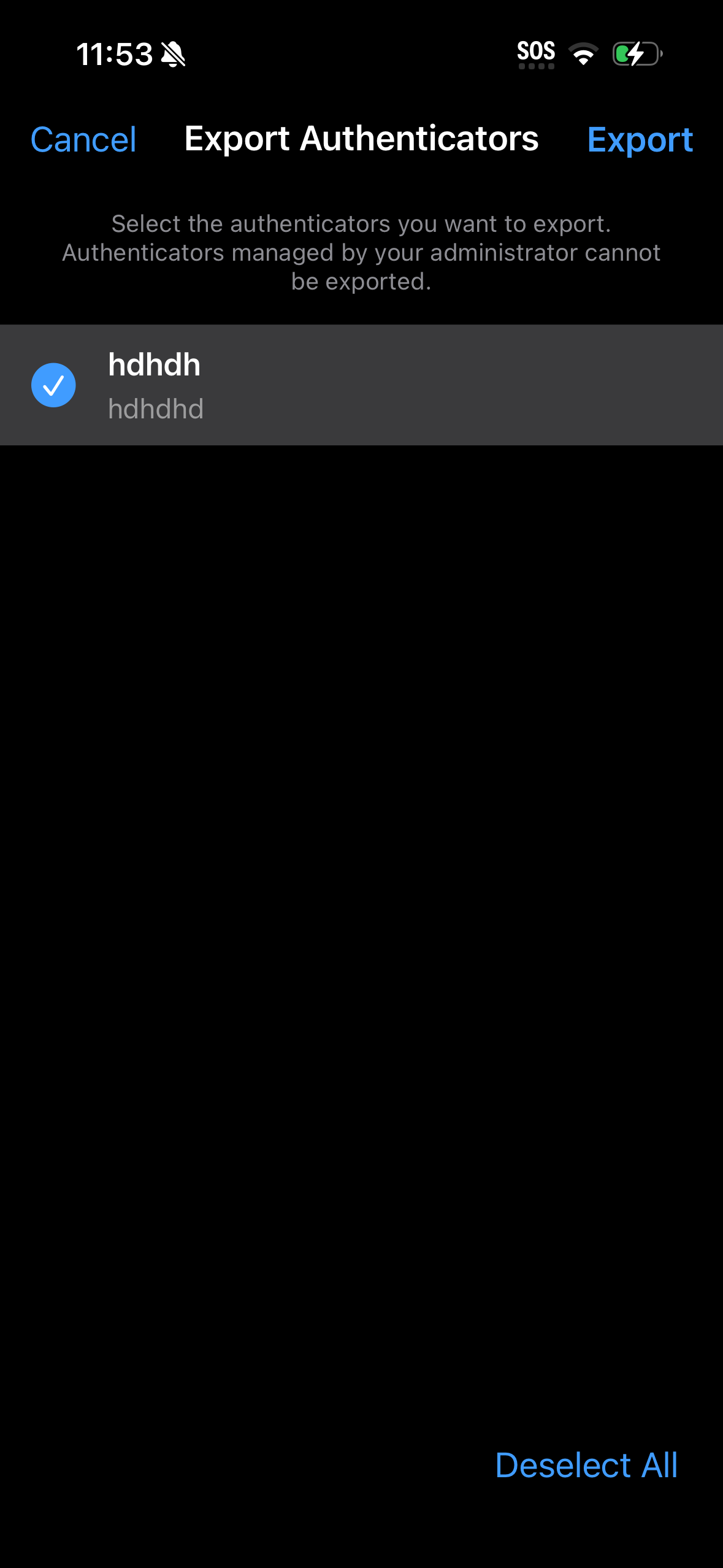
On the Export Authenticators screen, select the authenticators that you want to export and then tap Export.
-
On the importing device, use the camera to scan the QR codes that are displayed on the exporting device.
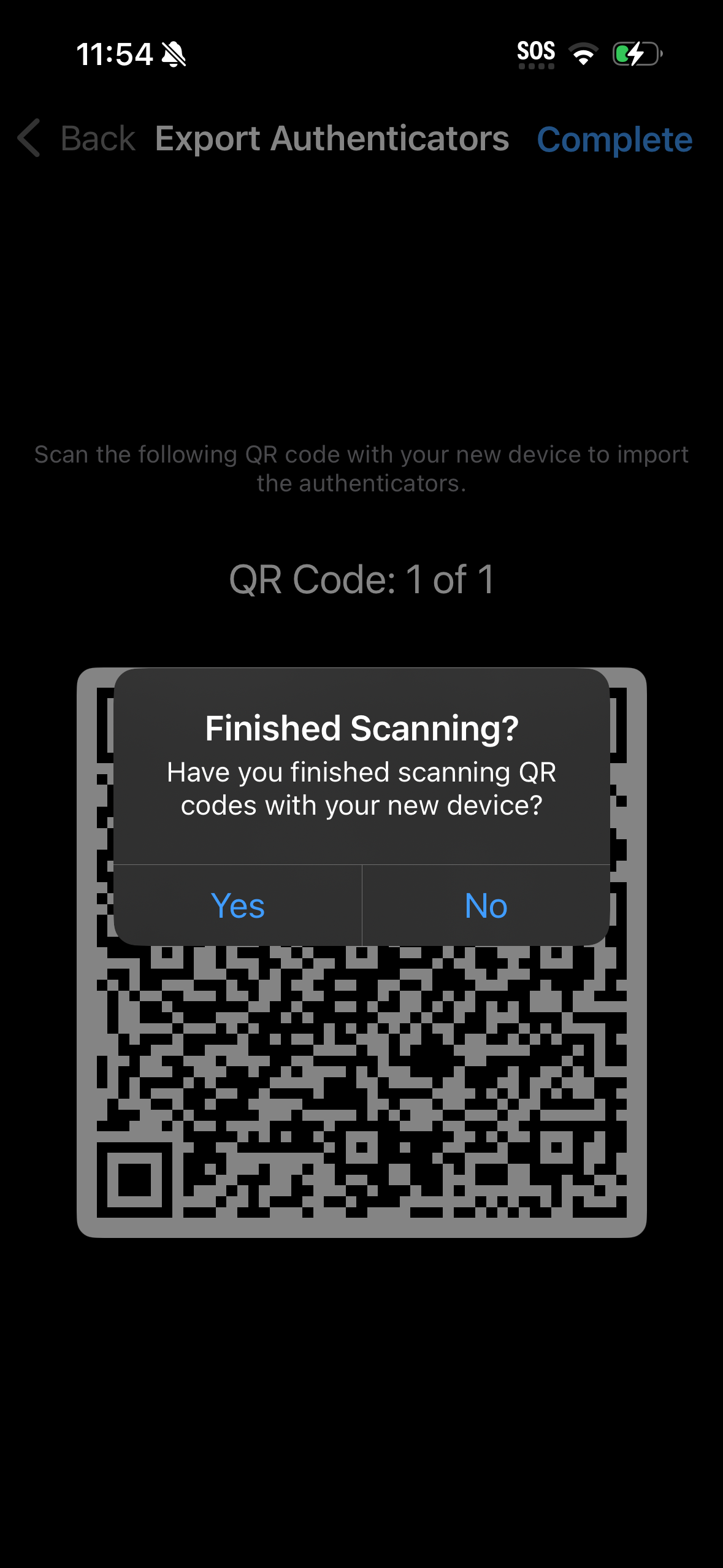
After you scan all the QR codes on the importing device, the importing process completes automatically, and you can use the authenticators on your new device.
On the exporting device, the Export Authenticators settings display an indicator. To clear this indicator, wait at least one hour after you exported the authenticators, and then open the Settings screen.