



Troubleshooting
This page provides troubleshooting strategies and the solutions for common errors.
- Unable to connect to the user directory
- Client not found.
- Done! But wait...
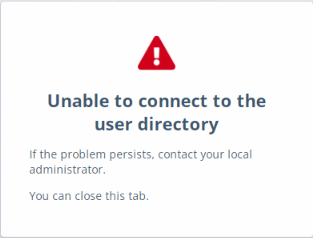
Unable to connect to the user directory
The following error message displays in the browser when the user clicks on:
- Reset password link while resetting the password.
-
CONTINUE button while changing the password.
Possible causes
This error can occur for any of the following reasons:
- The IIS Application Pool settings configuration is missed or not configured correctly.
- The Password Self-Service application in the IIS Application Pool is stopped.
- The agent is unable to connect with Active Directory over LDAPS.
For more details, refer Configuring Internet Information Services (IIS).
Solution
To fix this issue:
-
Configure the Password Self-Service application with correct credentials and restart the IIS server.
-
Ensure that:
- A valid LDAPS certificate is present on the machine where the agent is installed.
- Port 636 is open between the agent and Active Directory.
- There is a successful two way SSL communication between the agent and the domain machines using the LDP tool (Graphical User Interface used for navigating through the Active Directory namespace).
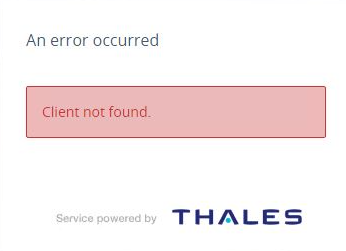
Client not found.
This error message is displayed in the browser in the following scenarios:
- When the user performs Test Authentication from SafeNet Agent for Password Self-Service console.
-
When the user clicks on Reset password link while resetting the password.
Possible causes
This error can occur for any of the following reasons:
- If the Password Self-Service application is created with the same name after being downgraded to STA Basic and re-upgraded to STA Premium/Standard.
- If the Password Self-Service application is manually deleted from application list in the STA console and re-created with the same name.
Solution
Perform the below steps to resolve the issue:
-
Rename the Password Self-Service application name in the STA console, and then change it back to the original name.
-
Download the
.agentfile and configure it in the SafeNet Agent for Password Self-Service console.
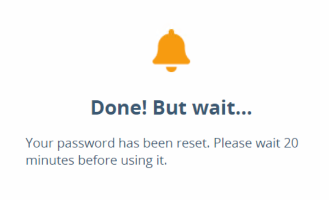
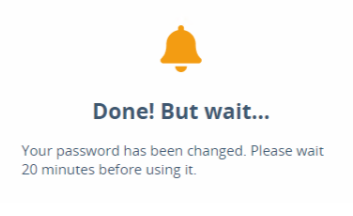
Done! But wait...
The following message displays in the browser when the user clicks on:
-
Reset Password
-
Change Password
Possible causes
- This can occur if the password sync fails with STA right away, but the password is successfully reset in AD.
Solution
You just need to wait until the Active Directory password gets synced with STA within 20 minutes.

