



Solution Testing
Tip
It is a good practice to test the agent before deployment. After the agent is fully configured, add a policy above the Password Self-Service blocking policy. The new policy can be dedicated to the Password Self-Service agent, but also to a small group of test users. You can then test the various conditions.
The flow of running the agent solution and verifying the authentication is based on the selected token type.
Password Reset Flow
Password reset can be performed by using either of the following ways:
Using STA protected application
Perform the following steps to test the Reset Password flow:
-
Navigate to the STA protected application.
-
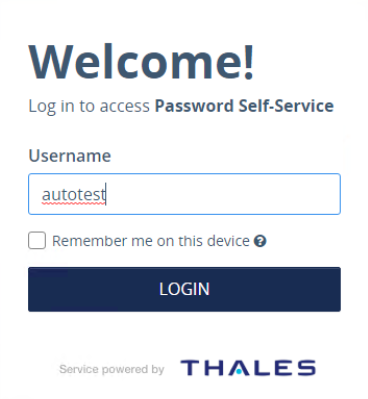
On the STA sign-in page, enter your Username, and then click LOGIN.
-
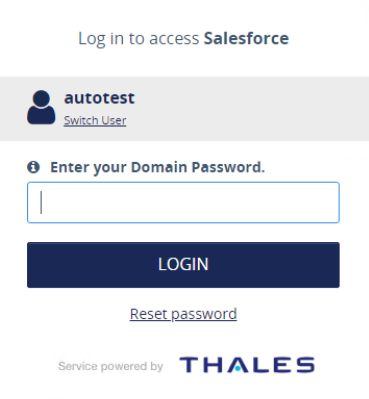
Click Reset password link to reset the password.
-
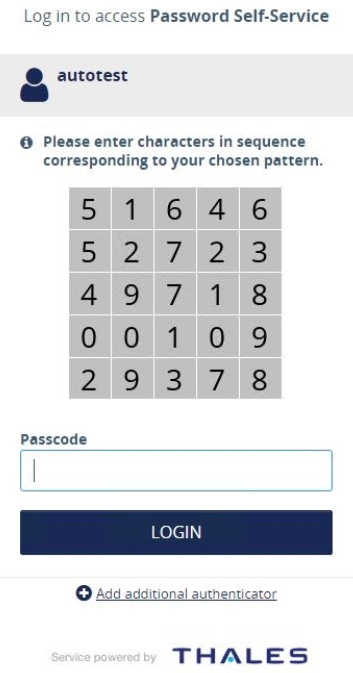
Enter the Passcode and click LOGIN to complete the authentication.
-
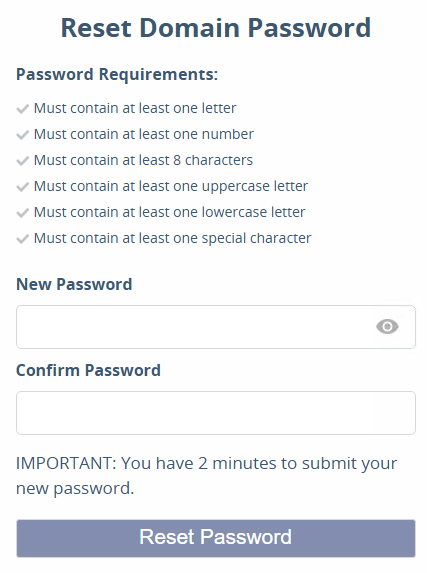
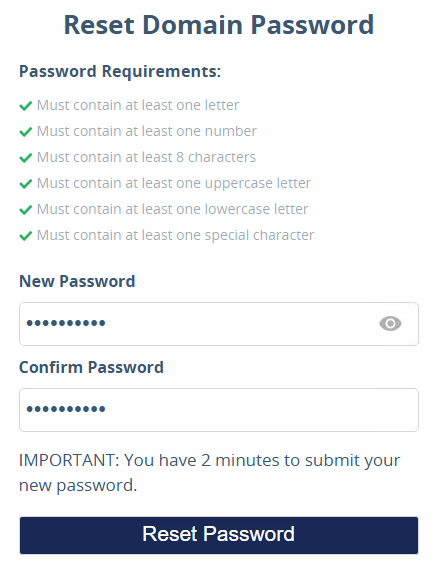
After successful authentication, the Reset Domain Password page displays listing the Password Requirements.
-
In the New Password field, enter a new password, and then enter the new password again in the Confirm Password field. Once all the password requirements matches, the Reset Password button gets enabled. Click Reset Password.
-
On the successful password reset, but if the user's domain password is not synced in STA, the following page is displayed:
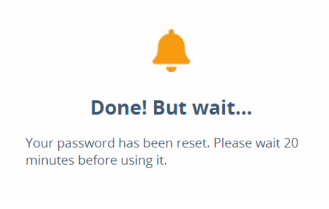
Click here to see details regarding the message customization.
-
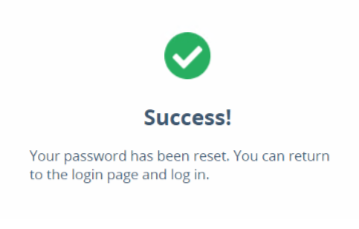
On the successful password reset in AD and sync with STA, the following success page is displayed:
-
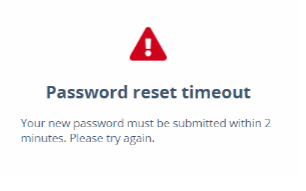
If there is a timeout of two minutes, the Password reset timeout message is displayed:
-
If the user fails to reset the password on first attempt, then the following message is displayed:
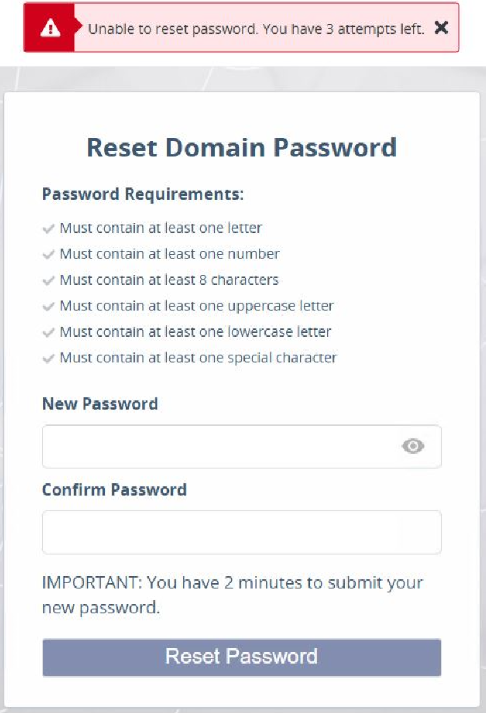
After exhausting all the attempts, the Unable to reset password message is displayed:
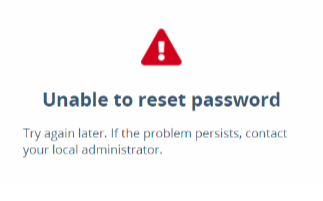
-
Using password reset URL
Copy and paste the following URL in a browser:
https://<FullyQualifiedDomainName>/passwordselfservice?userName=<username>
where,
- FullyQualifiedDomainName is the FQDN of the agent-installed machine.
- username is the username that must be mapped to User ID field in STA.
For example, the password reset URL for the user ID JohnDoe will be https://pssagent.azuredc.com/passwordselfservice?userName=JohnDoe
Now, perform step 4 to step 6 mentioned in the Using STA protected application section.
Password Change Flow
Perform the following steps to test the Change Password flow:
-
Navigate to the STA protected application.
-
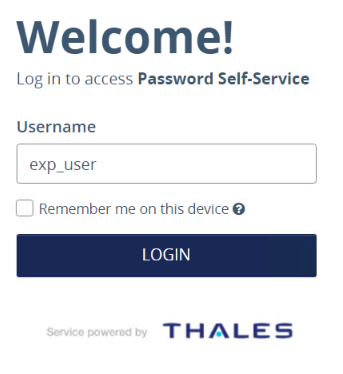
On the STA sign-in page, enter your Username.
-
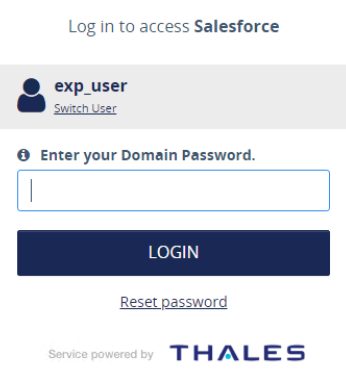
Enter Domain Password and click LOGIN.
-
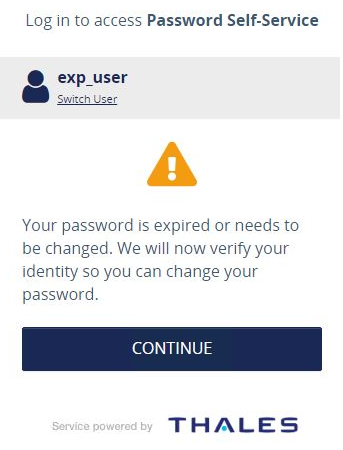
The following page will be displayed if the password is expired. Click CONTINUE to change the password.
-
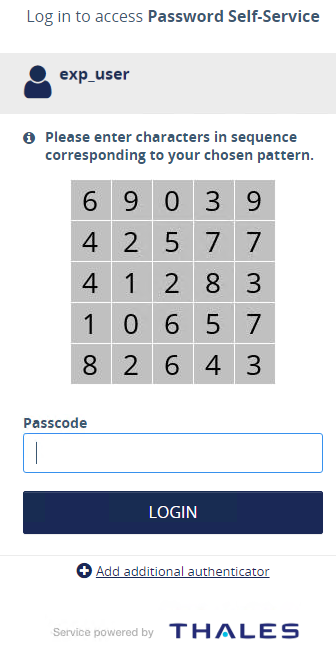
Enter the Passcode and click LOGIN to complete the authentication.
-
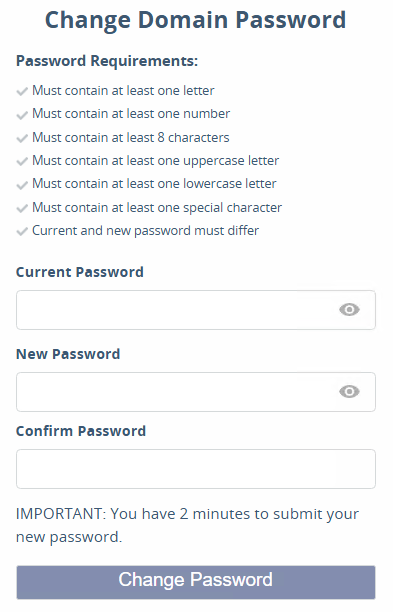
After successful authentication, the Change Domain Password page opens listing the Password Requirements.
-
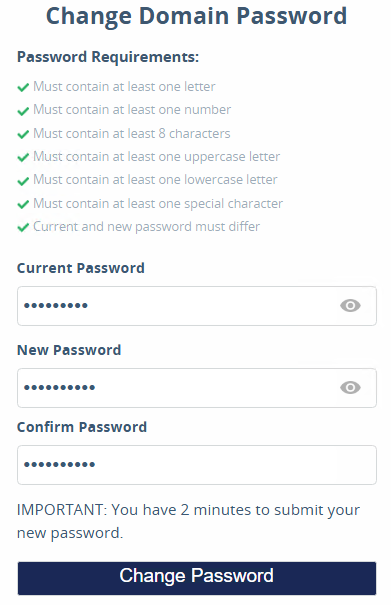
On the Change Domain Password page, perform the following steps:
a. Enter your Current Password.
b. Enter the New Password.
c. Enter the new password again in the Confirm Password field.
d. Once all the password requirements matches, the Change Password button gets enabled. Click Change Password.
-
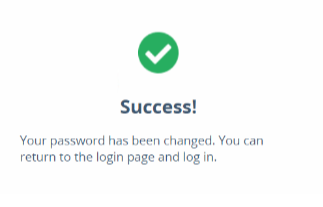
On the successful password change and sync with STA, the following success page is displayed:
-
On the successful password change, but if the user's domain password is not synced, the following page is displayed:
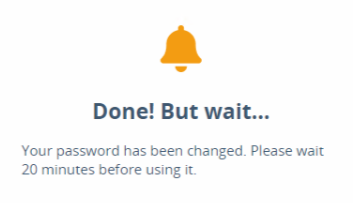
Click here to see details regarding the message customization.
-
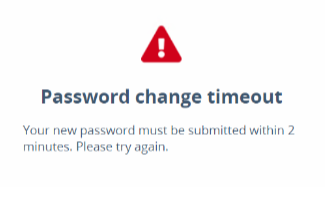
If there is a timeout of two minutes, the following error message is displayed:
-
If the user fails to change the password on first attempt, then the following message is displayed:
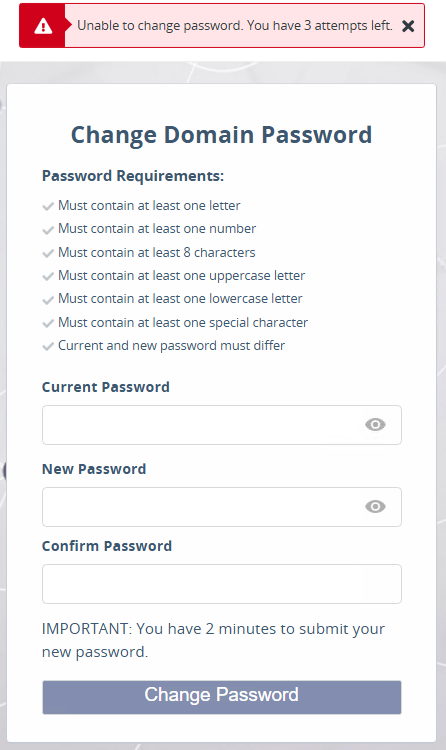
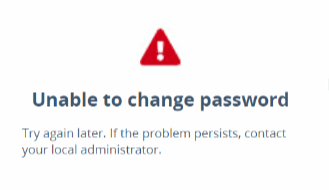
After exhausting all the attempts, the Unable to change password message is displayed:
-
Customizing the Password Sync Time
The newly reset/changed password is immediately synced to STA. However, the user may get a different wait time message (Default: 20 minutes) in the following two scenarios:
-
If for any reason, for example, network latency, the new password is not synced to STA immediately. The new password will be effective in STA after the next sync agent runs.
-
When AD password validation is delegated to a third-party (like Azure AD). The new password will be effective after the password synchronization between AD and third-party.
Note
This wait time duration in the message can be customized by customers, depending upon the user password synchronization frequency between the AD and STA or third-party.
Perform the following steps to change the wait time in the message:
-
Open Windows Explorer on the agent installed machine and go to
<InstallationDirectory>\Publish\wwwroot\Json. -
Open the Json file
Configurable.jsonin any text editor. -
Modify the key
logindelayand update its value as per your requirement. For example, 30.Default: 20
-
Save the file.
The wait time duration in the message will be updated successfully.

