



Application
You must complete the pre-installation process to ensure that you have the required installation and configuration files for an initial installation. Perform the following steps:
-
Log in to STA (SafeNet Trusted Access) as an operator.
-
On the SafeNet Trusted Access console, at the top right-hand side corner, select the required virtual server account from the drop-down list.
-
Click the Applications tab.
-
Click Add Application (if no applications are added). The Add Application window is displayed with a list of available applications.
-
On the Add Application window, type Password in the search field, click
 , and then click
  (displayed next to Password Self-Service) to select the Password Self-Service from the list of applications.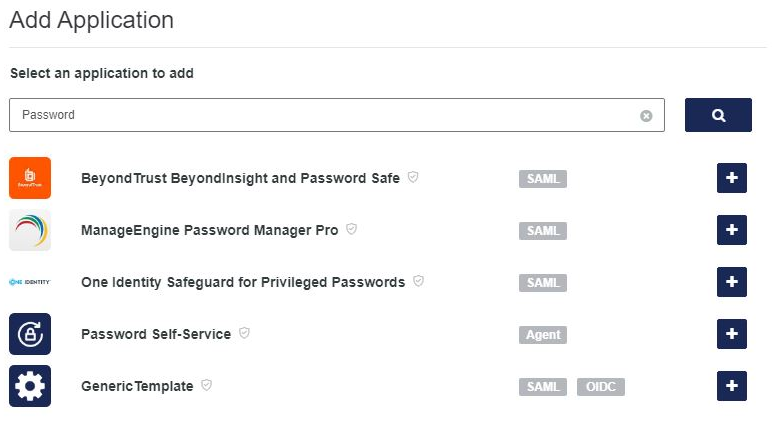
-
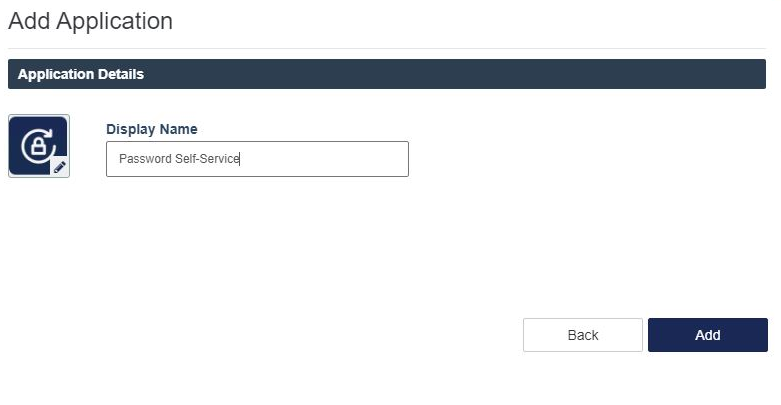
Click Add to add the Password Self-Service application.
Note
Each virtual server can only have one Password Self-Service application.
-
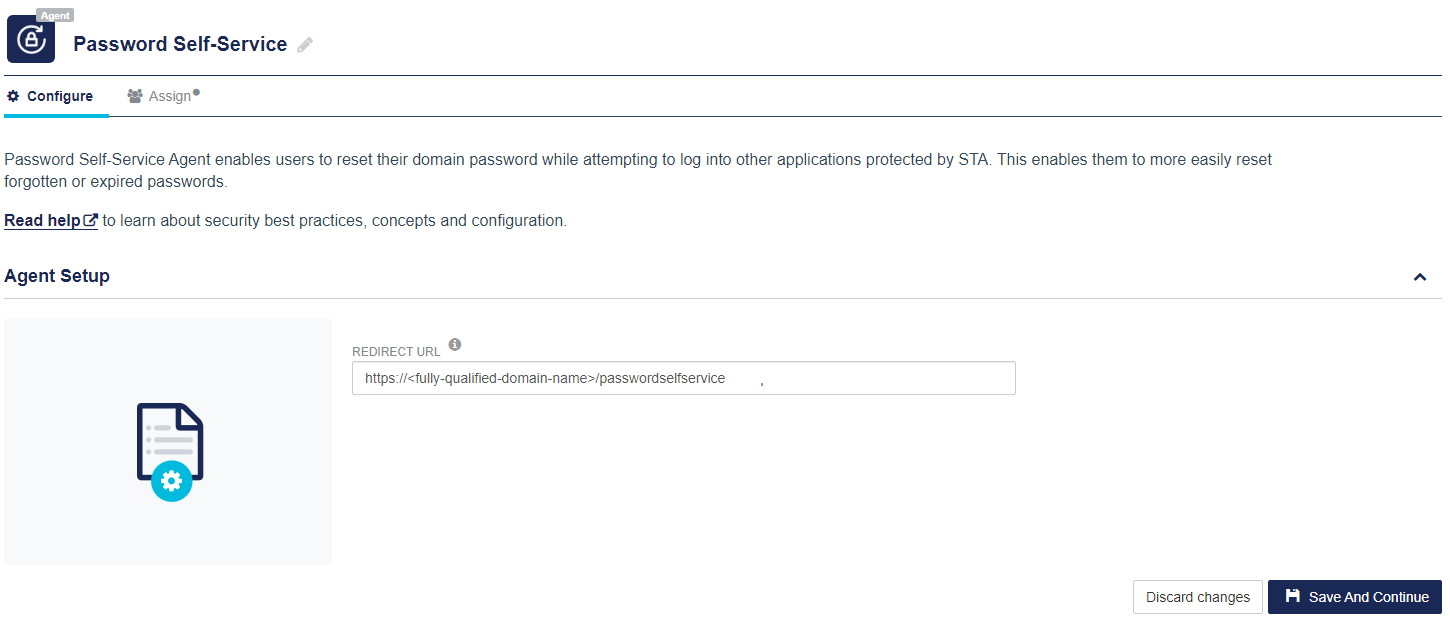
Under Agent Setup, in the REDIRECT URL field, enter the REDIRECT URL (for example, https://<Fully Qualified Domain Name>/passwordselfservice). This is the Fully Qualified Domain Name (FQDN) of the machine, where the agent will be installed.
Note
All letters in the REDIRECT URL must be in lowercase.
-
Click Save And Continue.
Note
If you update the REDIRECT URL after the initial setup, a new configuration file needs to be downloaded. For more details, refer to the Updating REDIRECT URL section.
-
Under Download and Deploy, click Install Package to download the installation and the configuration files. You can click HELP DOCUMENTATION to view the agent's documentation.
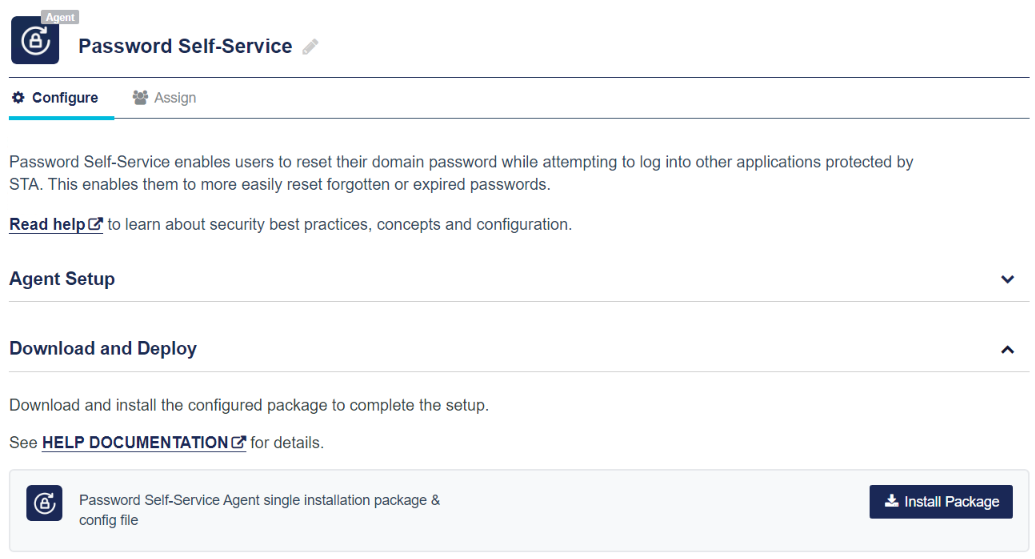
The following files will be downloaded:
-
Installation file (SafeNetAgentforPasswordSelf-Service.exe)
-
Configuration file (*.agent)
Note
Once the agent is successfully downloaded, the application Status will change to active on the SafeNet Trusted Access console. You need to refresh the console page to view any change in the setup status. This will only work when users are assigned to the agent.
-
-
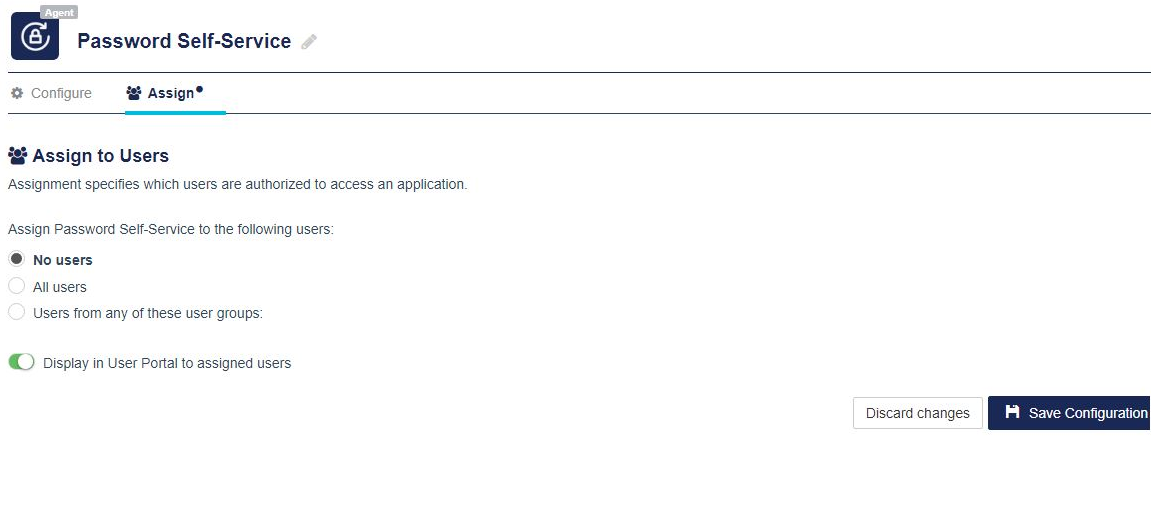
Click Assign to authorize user access to the application (as per the requirement).
Note
This feature is not available for STA Basic plan. If STA Standard or Premium customers using this feature downgrade to STA Basic, then the previously created Password Self-Service application in STA will no longer be available.
-
Click Save Configuration.
-
On the Windows Server, install the agent using the installation and configuration files.

