



Agent
This section describes the following tasks for the SafeNet Agent for Password Self-Service:
- System Requirements
- Installing the Agent
- Configuring the Agent
- Updating REDIRECT URL
- Upgrading the Agent
- Uninstallation
System Requirements
| Category | Requirement |
|---|---|
| Operating Systems |
|
| Architecture | 64-bit |
| LDAP Provider | Microsoft Active Directory |
| Network |
|
| Web Server | Internet Information Services (IIS) 10 |
| Web Browsers |
Note: JavaScript must be enabled. |
| Authentication Methods | All tokens and authentication methods currently supported by SafeNet Trusted Access. |
| Other Software Components |
|
Prerequisites
- The time of the IIS Server machine must be synchronized with the NTP server.
- Ensure that the machine is connected to AD.
- Ensure that the minimum password age is set to 0 in Microsoft GPO user password policy.
Note
Password Self-Service is not available for STA Basic customers. If STA Standard or Premium customers using this feature downgrade to STA Basic, then the previously created Password Self-Service application in STA will no longer be available.
Installing the Agent
Perform the following steps to install the agent:
Note
In case of fresh installation, while syncing user's password using the LDAP Sync Agent, you can uncheck the Enable password synchronization check box in the management console to prevent the AD password sync in STA.
-
Log in to the Windows Server as a user with domain administrative privileges.
-
Locate and execute the following installation package:
SafeNetAgentforPasswordSelf-Service.exe -
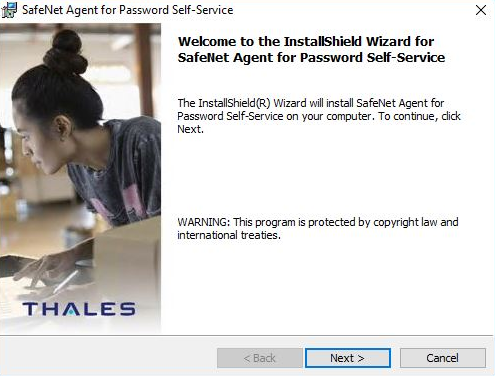
On the Welcome to the InstallShield Wizard for SafeNet Agent for Password Self-Service window, click Next.
-
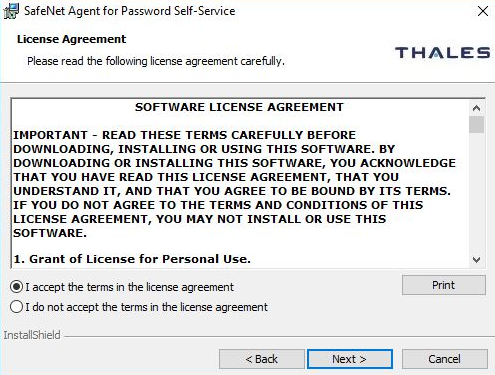
On the License Agreement window, read the software license agreement and to proceed, select I accept the terms in the license agreement option, and click Next.
-
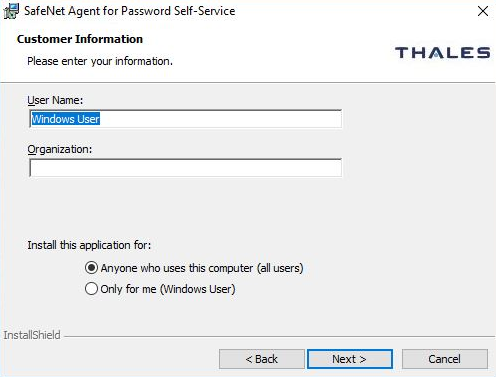
On the Customer Information window, perform the following steps:
a. In the User Name field, enter your username.
b. In the Organization field, enter the name of your organization (any custom name can be used).
c. Click Next.
Note
To determine who will have access to the application, select one of the following: Anyone who uses this computer (all users) or Only for me (Windows User).
-
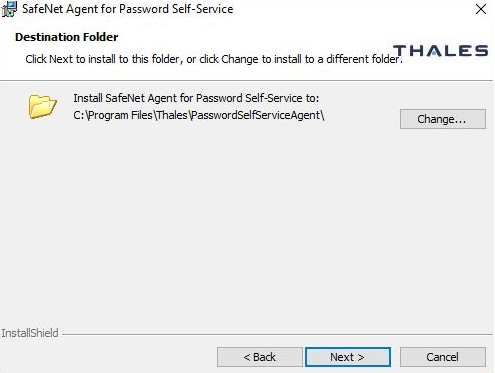
On the Destination Folder window, perform one of the following steps:
a. To change the installation folder, click Change and navigate to the required folder, and then click Next.
b. To accept the default installation folder as displayed, click Next.
-
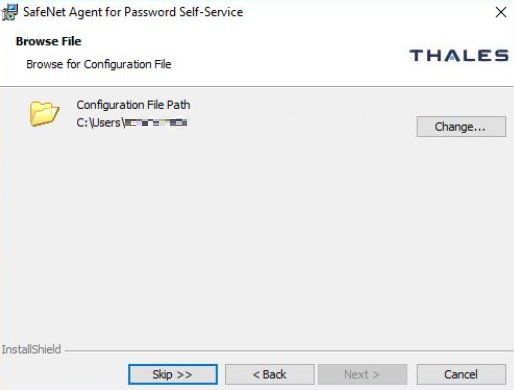
On the Browse File window, perform one of the following steps:
a. To change the path of the agent configuration file (*.agent file) as downloaded from SafeNet Trusted Access, click Change and navigate to the required folder, and then click Next.
b. To proceed without selecting an agent configuration file, click Skip. You can provide the same later, in Communications > Agent Configuration.
-
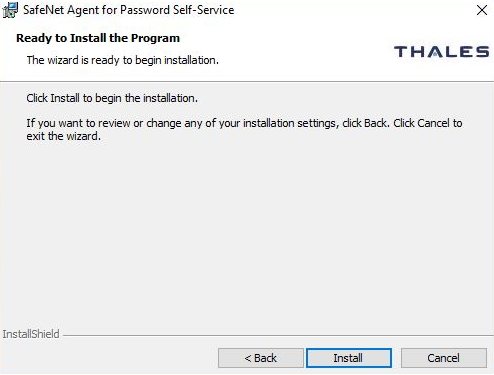
On the Ready to Install the Program window, click Install.
-
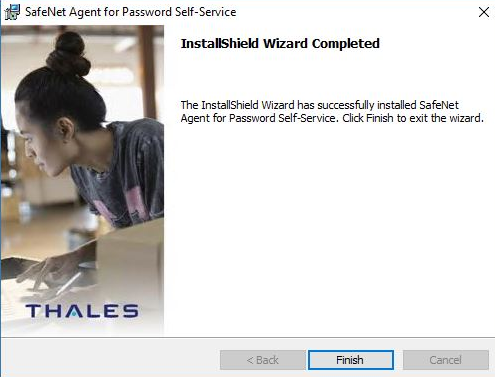
After the successful installation, the InstallShield Wizard Completed window is displayed. Click Finish to exit the wizard.
Configuring the Agent
Configuring the SafeNet Agent for Password Self-Service requires:
- Configuring Internet Information Services (IIS)
- Customizing the Background Image
- Customizing the Banner Image
- Customizing the Language file
- Setting Communications
- Setting Logging Verbose Level
Configuring Internet Information Services (IIS)
Perform the following steps to configure Internet Information Services (IIS):
-
Open IIS Manager by performing the following steps:
a. On the left end of taskbar, select the Start
 icon.
icon.b. Open Control Panel.
c. Click System and Security > Administrative Tools.
d. On the Administrative Tools window, double-click Internet Information Services (IIS) Manager.
-
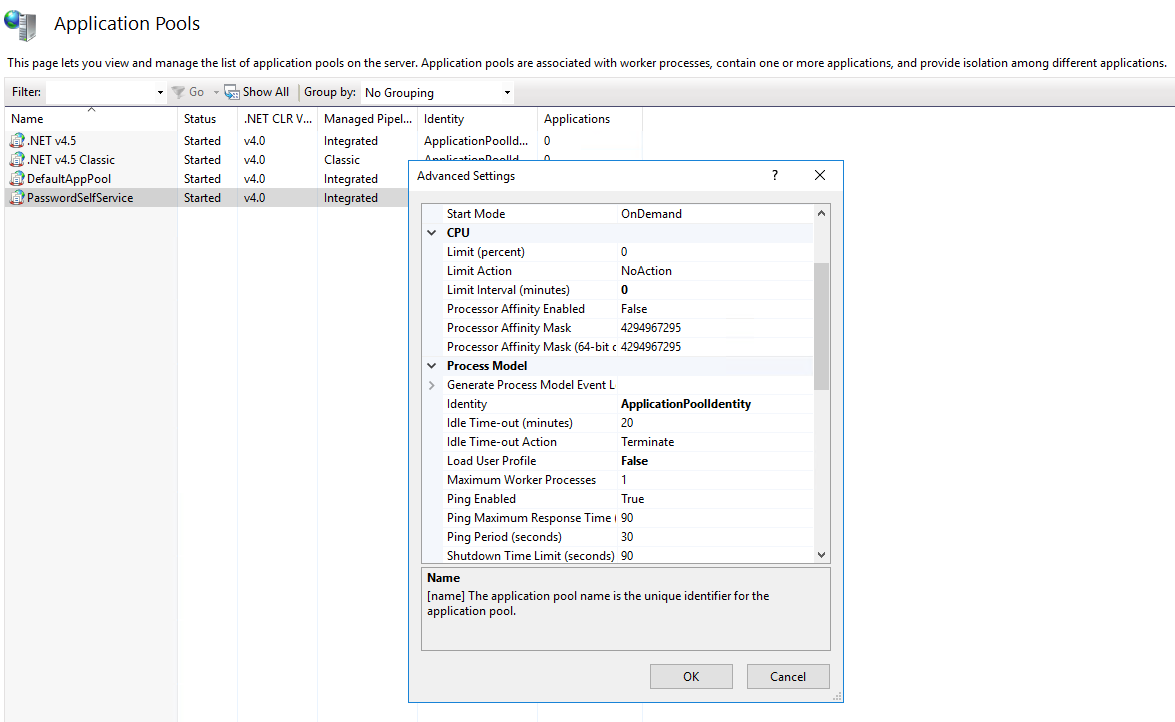
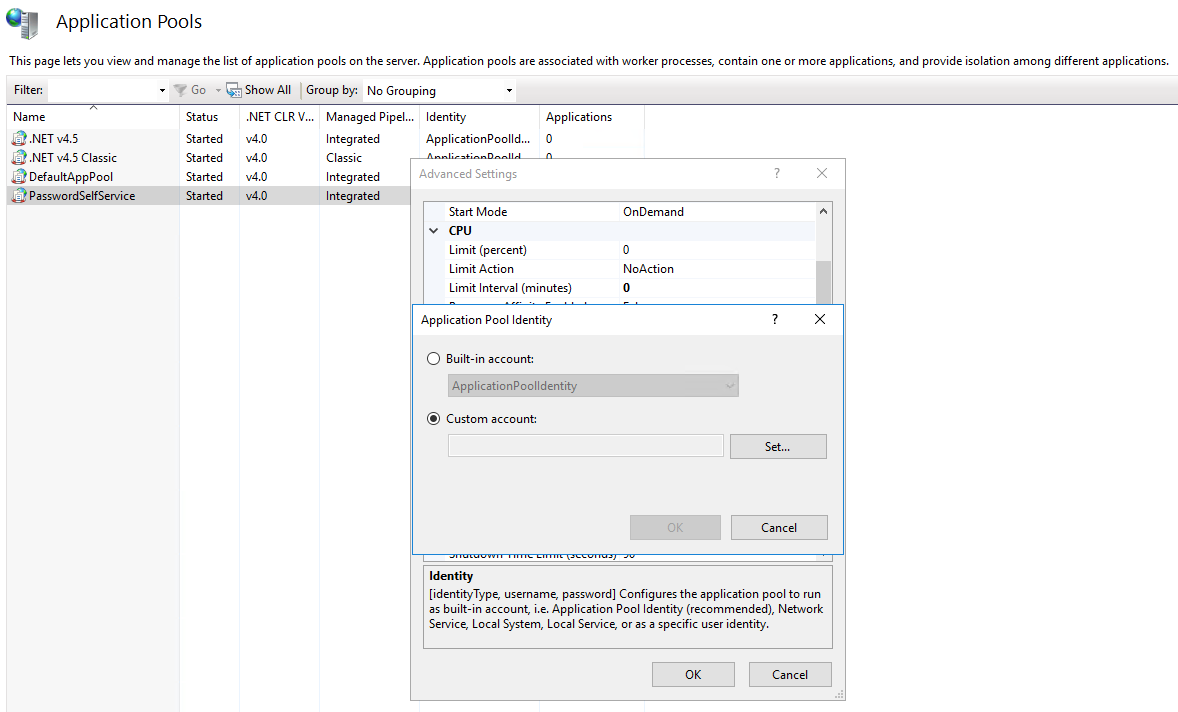
In the left pane, click Application Pools, right-click PasswordSelfService, and select Advanced Settings.
-
On the Advanced Settings window, under Process Model, next to Identity, click ....
-
On the Application Pool Identity window, select Custom account, and click Set to set the custom account to domain admin.
-
On the Set Credentials window, perform the following steps:
a. In the User Name field, enter the username (user with delegated controls). Perform these steps prior to set credentials in IIS.
b. In the Password field, enter the password.
c. In the Confirm password field, re-enter the password.
-
Click OK.
The Internet Information Services (IIS) will be configured successfully.
Note
Disable directory browsing for PasswordSelfService site in the IIS Manager.
Configuring Custom Error Page
Perform the following steps to configure the custom error page (if not configured already) to prevent verbose error message listing on IIS:
-
Open IIS Manager.
-
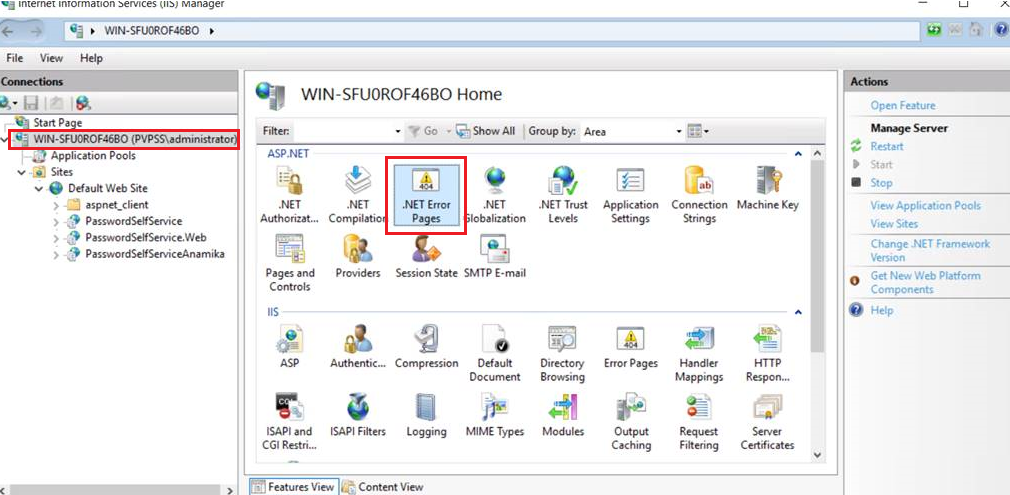
In the left pane, click on the server name and then double-click .Net Error Pages.
-
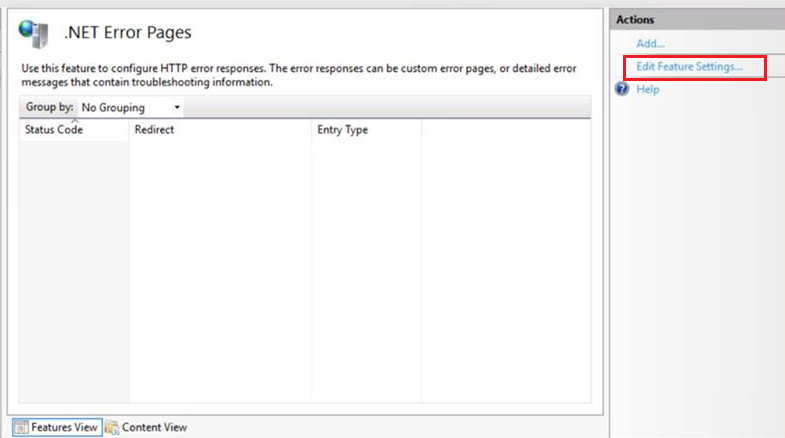
Under Actions, click Edit Feature Settings.
-
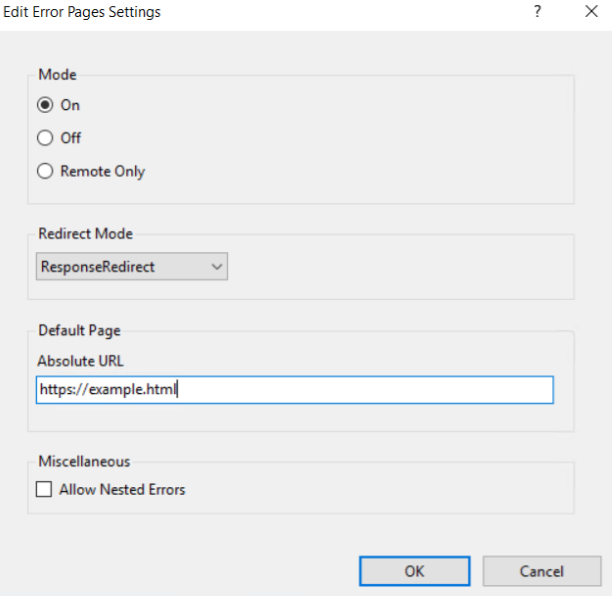
On the Edit Error Pages Settings window:
a. Under Mode, select On.
b. Under Response Mode, ensure that Response Redirect is selected.
c. Under Default Page, in the Absolute URL, enter the custom error page URL that you want to display. For example, https://example.html.
Note
As a security recommendation, to mitigate the verbose error messages, you may use the CustomErrorPage.html provided in the installation directory under IISCustomErrorPage folder.
d. Click OK.
-
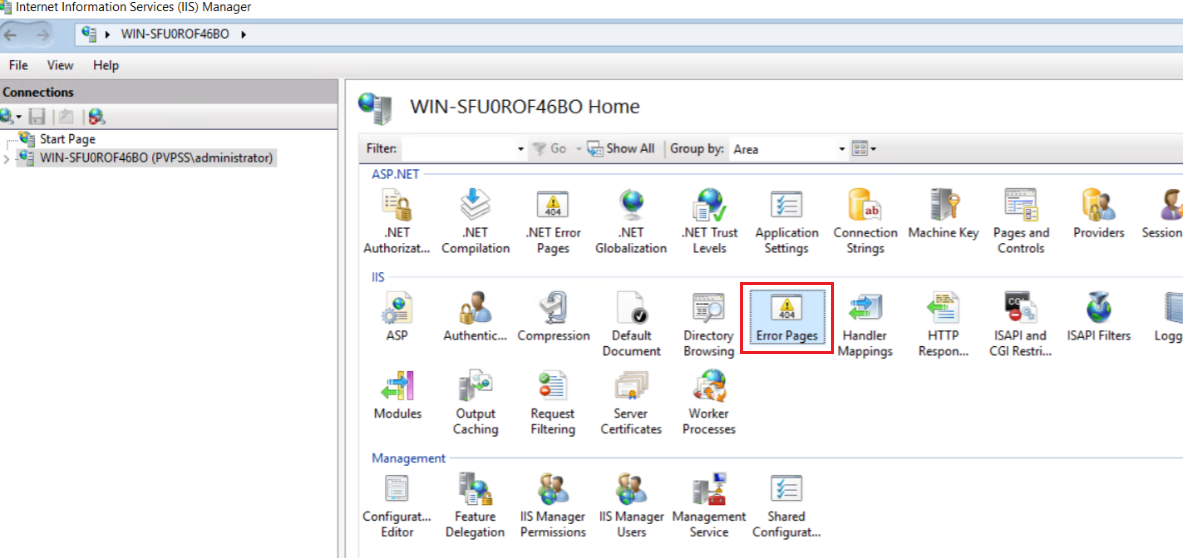
Navigate back to the IIS Manager and double-click Error Pages.
-
Under Actions, click Edit Feature Settings.
-
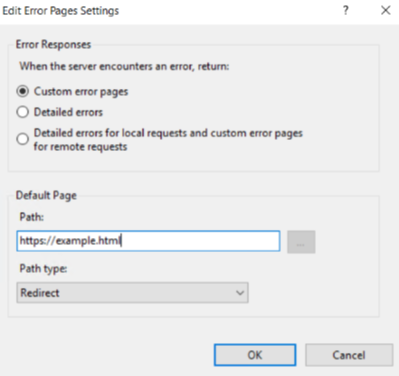
On the Edit Error Pages Settings window:
a. Under Error Responses, select Custom error pages.
b. Under Default Page:
-
In the Path field, enter the same custom error page URL that you entered earlier. For example, https://example.html.
-
In the Path type field, select Redirect.
c. Click OK.
-
Delegate Controls to Domain User
Perform the following steps to create a domain user with delegated controls:
-
Log in to the parent machine in an Active Directory domain hierarchy.
-
Open Active Directory Users and Computers.
-
Create a domain user.
Delegate control to reset or change password
a. Open Active Directory Users and Computers.
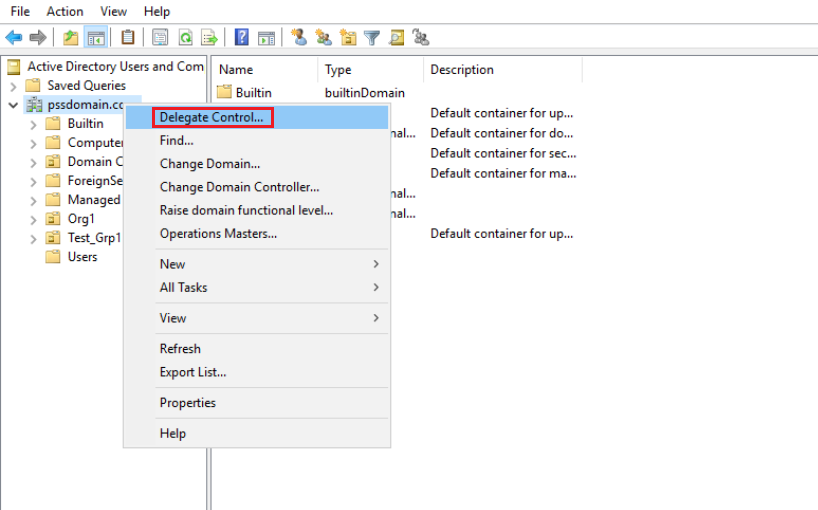
b. Right-click the domain, and then click Delegate Control.
c. In Delegation of Control Wizard, click Next.
d. Click Add to select the user that you created earlier to delegate controls, and then click Next.
e. Select Reset user passwords and force password change at next logon control and click Next.
f. Click Finish.
Delegate control to fetch fine-grained password complexity
b. Select Create a custom task to delegate radio button and click Next.
c. Select This folder, existing objects in this folder, and creation of new objects in this folder radio button and click Next.
d. In the Permissions list, select Read and Read All Properties, and click Next.
e. Click Finish.
Perform the following steps to configure the Security Settings:
-
From the Windows taskbar, select Start > All Programs > Accessories > Run.
-
Enter
gpmc.mscand click OK to open Group Policy Management window. -
Right-click the GPO and select Edit from the drop-down. The Group Policy Management Editor window displays.
-
Now, perform the following steps in the Group Policy Management Editor:
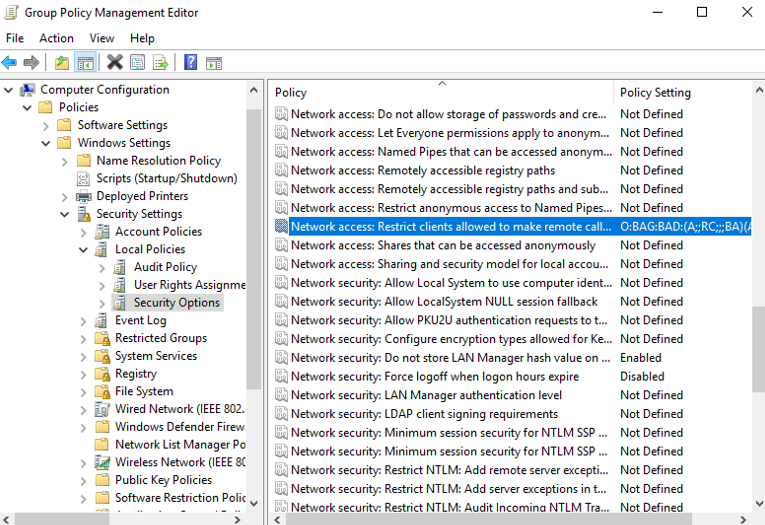
a. Select Computer Configuration > Policies > Windows Settings > Security Settings > Local Policies > Security Options.
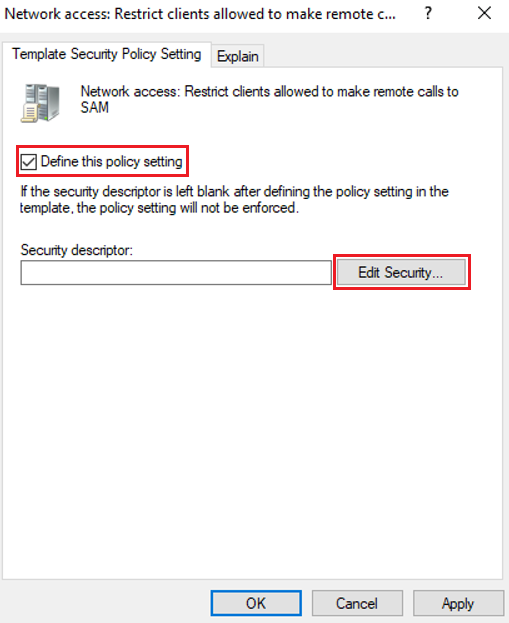
b. Double-click the Network access: Restrict clients allowed to make remote calls to SAM policy.
c. Select Define this policy setting check box and click Edit Security.
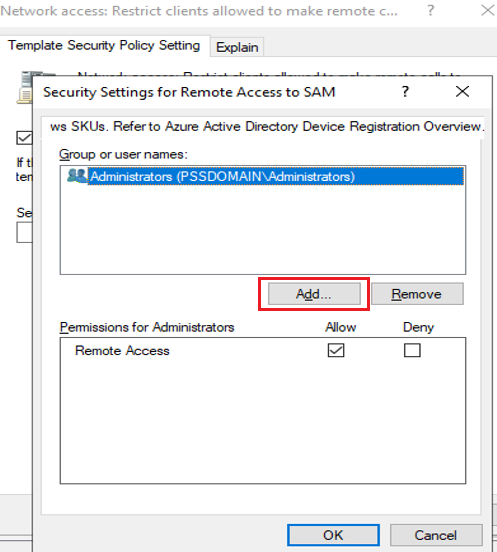
d. Click Add to add the same domain user that you created earlier to delegate controls.
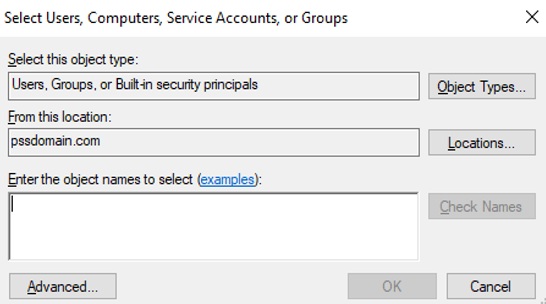
e. Click OK.
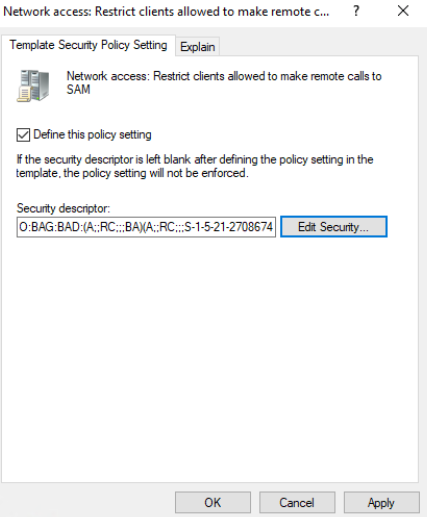
f. Click OK.
g. Click Apply and then click OK.
-
Finally, open the command prompt and run the following command:
bash
gpupdate /force
Note
In case of multiple domains, you need to delegate controls and configure security settings for the user created above in all the domains in an Active Directory domain hierarchy.
Customizing the Background Image
Perform the following steps to change the background image of the agent:
-
Rename your custom background image file to
background.jpg(in the JPEG format). -
Open Windows Explorer on the agent installed machine and navigate to
<InstallationDirectory>\Publish\wwwroot\Images. -
Replace the existing
background.jpgimage file with your custombackground.jpg.
The background image of the SafeNet Agent for Password Self-Service web page will be updated successfully.
Customizing the Banner Image
Perform the following steps to change the banner image of the agent:
-
Rename your custom banner image file to
top-banner.png(in the PNG format). -
Open Windows Explorer on the agent installed machine and navigate to
<InstallationDirectory>\Publish\wwwroot\Images. -
Replace the existing
top-banner.pngimage file with your customtop-banner.png.
The top banner image of the SafeNet Agent for Password Self-Service web page will be updated successfully.
Customizing the Language file
Perform the following steps to change the text that appear on the agent web pages to a particular language:
-
Open Windows Explorer on the agent-installed machine and navigate to
<InstallationDirectory>\Publish\wwwroot\Local.This folder contains the language files for SafeNet Agent for Password Self-Service. These language files are JSON files that can be edited in any text editor. Each JSON file contains the same list of key-value pairs.
-
Open the required language file and change text string for the key.
-
Save the file.
The text strings on SafeNet Agent for Password Self-Service web page will be updated successfully. Refresh the web page to see the changes.
Setting Communications
This tab deals with connection options between the agent and SafeNet Trusted Access (STA). The settings under the Communications tab is common to all websites.
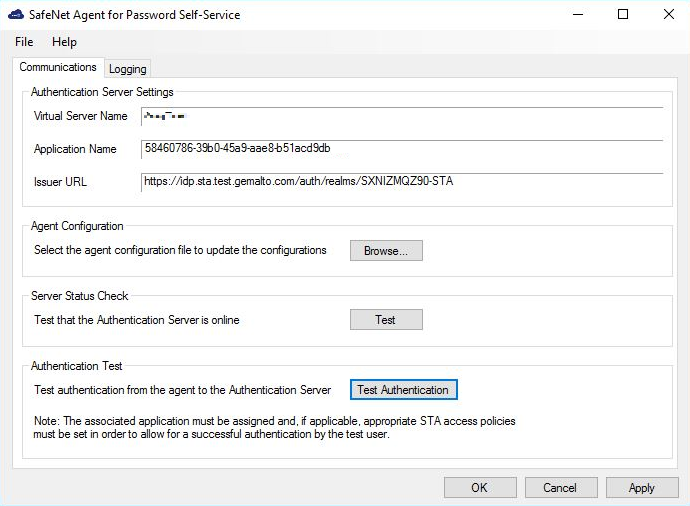
Authentication Server Settings
The values in the following fields are populated from the data in uploaded configuration file:
- Virtual Server Name [The STA account.]
- Application Name [The name of the template as provided in STA.]
- Issuer URL [The authentication end-point for STA.]
Note
The above mentioned fields are read-only.
Agent Configuration
If you skipped and did not provide the agent configuration file during installation, you need to provide it here. Click Browse to select the agent configuration file (as downloaded from STA) to update settings. Click Apply to save the configuration.
During the installation, if you provided the agent configuration file or it was detected automatically, values in the fields under Authentication Server Settings will be automatically populated.
Server Status Check
Click Test to confirm if the Authentication Server is online, or not. The test response is displayed in a pop-up window.
Authentication Test
Enable the agent and then run a communication test to verify the connection between the agent and STA. Clicking Test Authentication opens a browser window, with the STA URL, to allow connection testing.
Note
This feature is not available for STA Basic plan.
Setting Logging Verbose Level
This tab depicts the logging level and specifies the log file location.
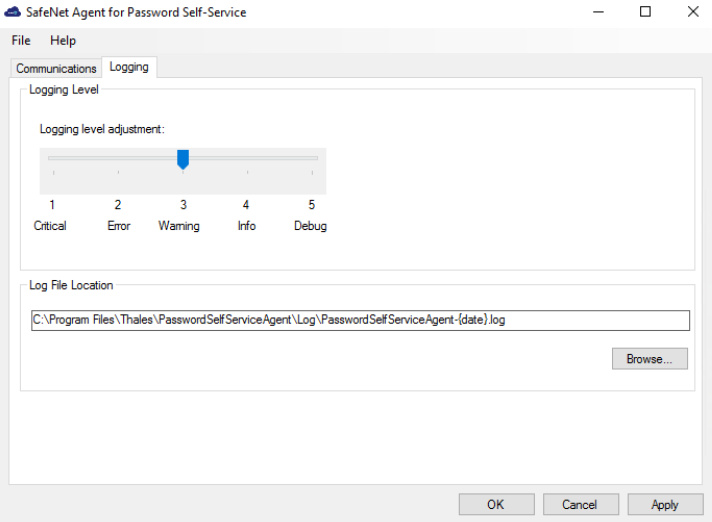
Logging Level
It helps adjust the logging level. Each log message has an associated LogLevel, which depicts the importance and urgency of the message. The logs are maintained according to the set LogLevel. For log levels 1, 2, and 3, only the initial connection between the agent and server attempts are logged.
Drag the pointer on the Logging level adjustment scale to the required level:
- 1 – Critical: [Only critical] Very severe error events that might cause the application to terminate.
- 2 – Error: [Critical and errors] Error events that prevent normal program execution, but might still allow the application to continue running.
- 3 – Warning: [Critical, errors, and warnings] Potentially harmful error events. (Default Option)
- 4 – Info: [Critical, errors, warnings, and information messages] Informational error events that highlight the progress of the application.
- 5 – Debug: [All available information] Detailed tracing error events that are useful to debug an application.
Note
If the Log level is set to 4 – Info or 5 – Debug, Unified Logging is enabled. In this format, along with the plain text, standardized logs are captured in JSON format for the ease of debugging, monitoring, reporting, and auditing.
Log File Location
It specifies the location of the log file. The log file is rotated on a daily basis. The default log file location is:
C:\Program Files\Thales\PasswordSelfServiceAgent\Log\PasswordSelfServiceAgent-{date}.log
The maximum size of a log file is 15 Mb and the maximum number of log files that can be created is 10.
Updating REDIRECT URL
If you need to update the REDIRECT URL after the pre-installation setup, a new agent configuration file needs to be downloaded. Perform the following steps:
-
Log in to STA (SafeNet Trusted Access) as an operator.
-
On the SafeNet Trusted Access console, at the top right-hand side corner, select the required virtual server account from the drop-down.
-
Click the Applications tab.
-
From the list of (already) added applications, select the Password Self-Service application.
-
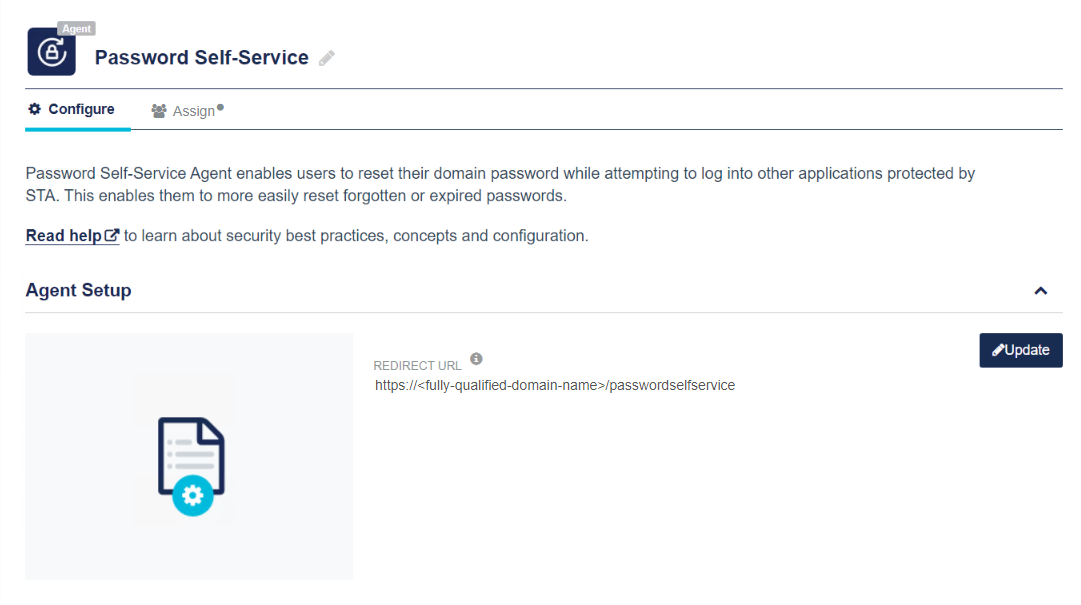
Under Agent Setup, click Update (displayed next to the REDIRECT URL field).
-
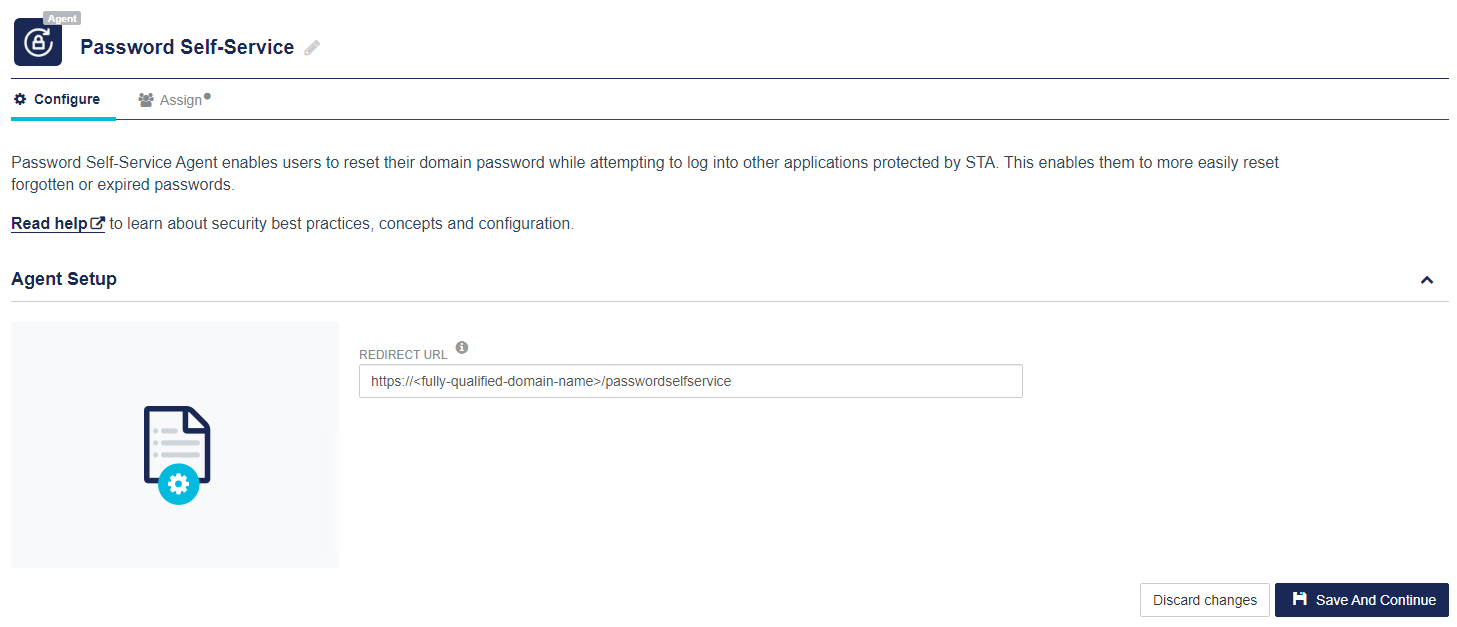
In the REDIRECT URL field, change the REDIRECT URL, and click Save And Continue.
Note
All letters in the REDIRECT URL must be in lowercase.
-
Under Download and Deploy, click Install Package to download the installation and configuration file.
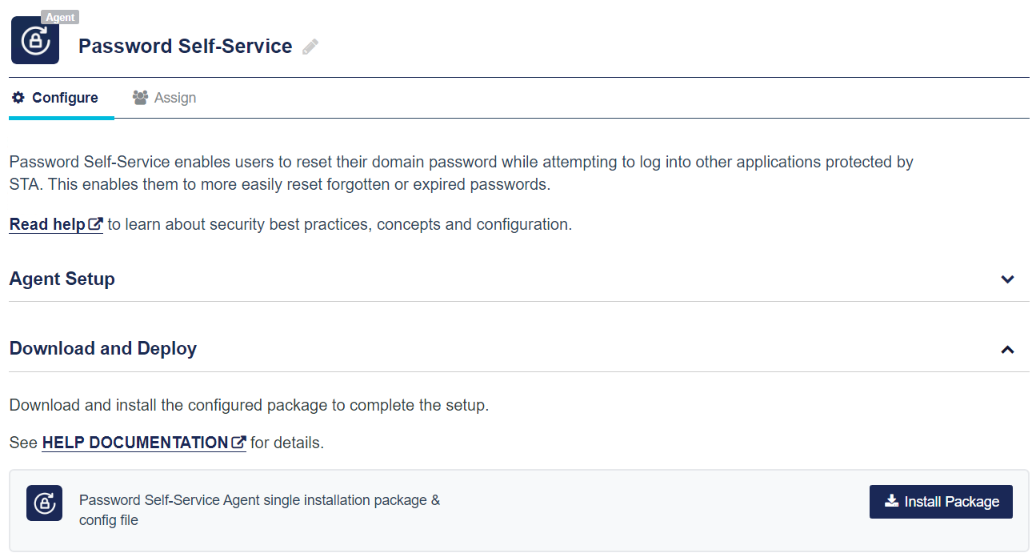
Note
Once the agent's configuration file is successfully downloaded, the application Status will change to active on the SafeNet Trusted Access console. You need to refresh the console page to view any change in the setup status. This will only work when users are assigned to the agent.
Upgrading the Agent
The SafeNet Agent for Password Self-Service 3.1.0 supports upgrade from 1.0.0 (and later).
Perform the following steps to upgrade the agent:
-
Double-click and execute the installer.
If there exists an older version of the agent, the installer detects it.
-
Click Yes to upgrade.
-
Select appropriate options in the subsequent prompts.
-
After the upgrade, perform the following steps:
a. Open the STA console.
b. Update the REDIRECT URL using these steps.
c. Download the new configuration file from the STA console.
d. Upload the new agent configuration file in the management console.
Note
The upgrade should be performed during non-peak hours to avoid disruption of services.
Uninstalling the Agent
To uninstall the agent, perform the following steps:
-
Navigate to Start > Control Panel > Programs and Features.
-
Select the SafeNet Agent for Password Self-Service program.
-
Click Uninstall.
All the installed files of SafeNet Agent for Password Self-Service will be uninstalled.

