



Installation
Installing SafeNet Agent for Microsoft IIS
Note
Administrative rights to the Windows system are required when installing, migrating, upgrading, configuring, and uninstalling SafeNet Agent for Microsoft IIS.
-
Log on to the Microsoft IIS web server as a user with administrative privileges.
-
Locate and execute the following installation file:
64-bit:
SafeNet Agent for Microsoft IIS.exe -
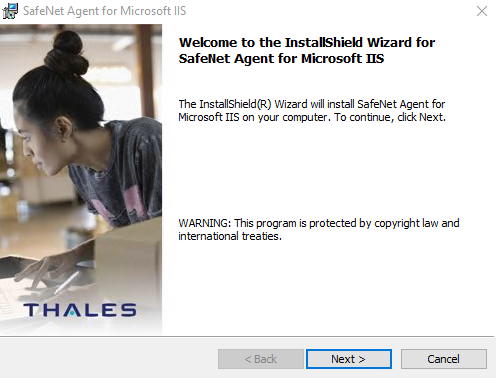
On the Welcome to the InstallShield Wizard window, click Next.
-
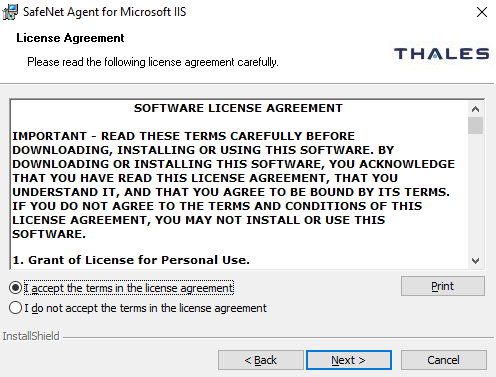
On the License Agreement window, read the software license agreement, select I accept the terms in the license agreement, and then click Next.
The InstallShield Wizard searches for the agent configuration file (as downloaded from the SafeNet Trusted Access) in the background. If the file is available, it will take you to step 5. If it is unavailable, it prompts for the following additional requirements:
-
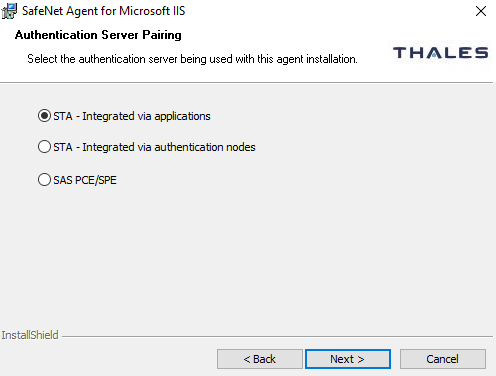
Authentication Server Pairing: Select STA - Integrated via applications from the Authentication Server types and then click Next.
-
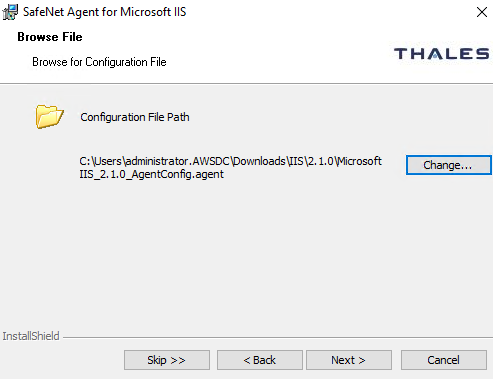
Click Change to select the agent configuration file (as downloaded from STA) to update settings and then click Next.
Note
Click Skip to proceed without selecting an agent configuration file. You can provide the same later in ../Configuration/Communications.htm > ../Configuration/Communications.htm#Agent.
-
-
On the Customer Information window, enter User Name and Organization (any names can be used) and click Next.
Note
To determine who will have access to the application, select one of the following:
- Anyone who uses this computer (all users)
- Only for me (Windows User)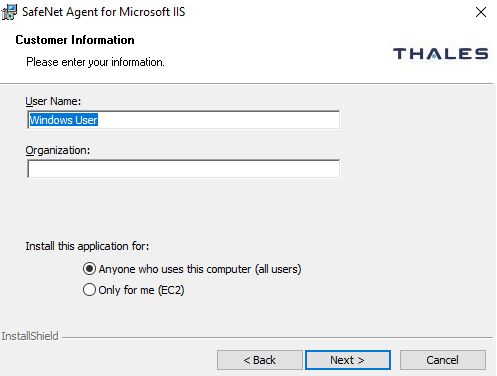
-
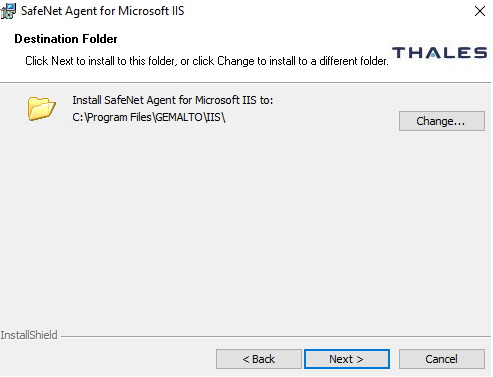
On the Destination Folder window:
-
To change the installation folder, click Change, navigate to the required folder, and then click Next.
-
To accept the default installation folder as displayed, click Next.
Note
We strongly recommend installing the application in a system-protected folder accessible only by an account with management (read) privileges. The default location is in the Program Files folder, which is not read-protected. This means the location must be changed to a protected location that cannot be read by non-administrative accounts.
-
-
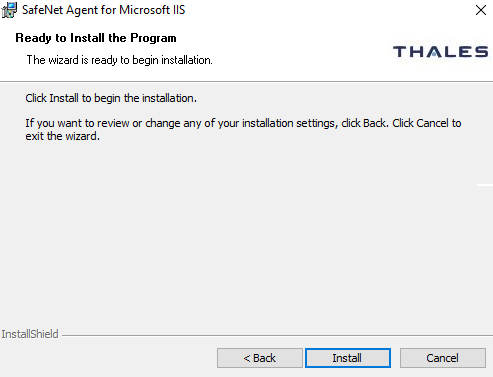
On the Ready to Install the Program window, click Install.
-
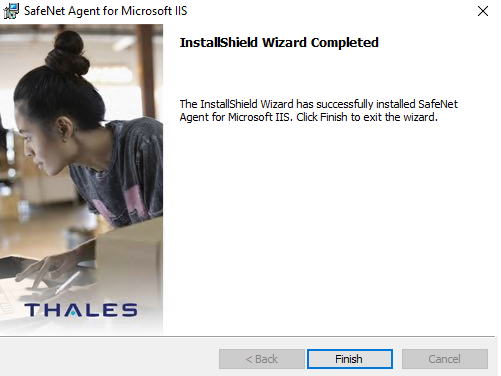
Once the installation is completed, the InstallShield Wizard Completed window is displayed. Click Finish to exit the wizard.
-
Once you click Finish, open the IIS Agent Configuration Tool to configure the agent.
Configuring the agent
The SafeNet Agent for Microsoft IIS requires that the protected website be configured to use Anonymous Authentication.
Prior to enabling the SafeNet Agent for Microsoft IIS, the following steps must be performed.
Activating anonymous authentication
To prevent superfluous prompts for credentials when logging in, set the web pages to Basic Authentication.
-
Launch the IIS Manager from Administrative Tools.
-
Navigate to Computer Name > Sites. Select the website to be protected.
-
In the IIS section of the Features View pane, select Authentication.
-
Enable Anonymous Authentication and ensure that all other authentication types are disabled.
Upgrading the agent
The latest version of the SafeNet Agent for Microsoft IIS supports upgrade from v2.0.0 (and above).
To upgrade, run the installation wizard and select appropriate options when prompted.
-
Double-click and execute the installer, as downloaded from the SafeNet Trusted Access console.
If there exists an existing version of the agent, the installer detects it and auto-directs to the following screen. Click Yes.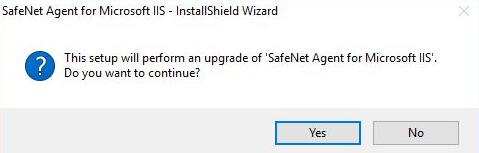
-
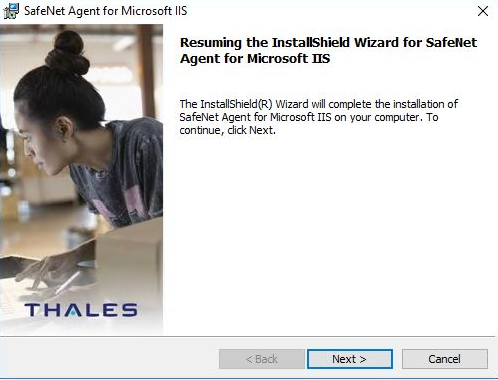
The Resuming the InstallShield Wizard for SafeNet Agent for Microsoft IIS window is displayed. Click Next, and follow the remaining prompts.
-
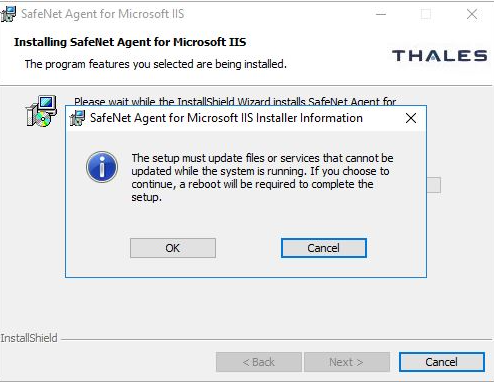
On the SafeNet Agent for Microsoft IIS Installer Information pop-up, click OK, and then click Next.
-
After the upgrade completes, the InstallShield Wizard Completed window is displayed. Click Finish.
Uninstalling the agent
Note
Administrative rights to the Windows system are required when installing, migrating, configuring, and uninstalling SafeNet Agent for Microsoft IIS.
-
Navigate to Start > Control Panel > Programs and Features.
-
Select the SafeNet Agent for Microsoft IIS program.
-
Click Uninstall.

