



Installation
This section describes tasks related to installing, upgrading, and uninstalling the agent.
Note
Always work in Run as administrator mode when installing, upgrading, or uninstalling the agent.
Installing the Agent
To install the SafeNet Agent for Epic, perform the following steps:
-
Double-click and execute the installer (EXE). Use MSI for Group Policy Object (GPO) installation.
Note
If a user has logged in to the system as an administrator or if the user(s) is a member of the Domain Admin group, the installation process will continue. Otherwise, a window will appear requiring the user to provide administrator credentials.
-
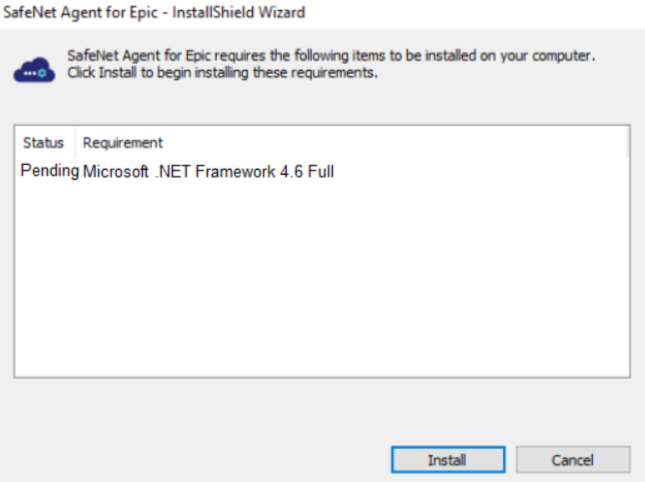
The installer will verify if the Microsoft .NET Framework 4.6 is installed on the system, or not. If it is not, the following InstallShield Wizard screen will appear, which will guide the user to install the required framework.
Note
If the required .NET Framework (4.6) is not available during the GPO installation, the installation process will execute successfully, without any interruptions. In such a case, only when the Epic Management Console is opened, an error stating the unavailability of .NET Framework is encountered. To proceed, install Microsoft .NET Framework 4.6.
-
-
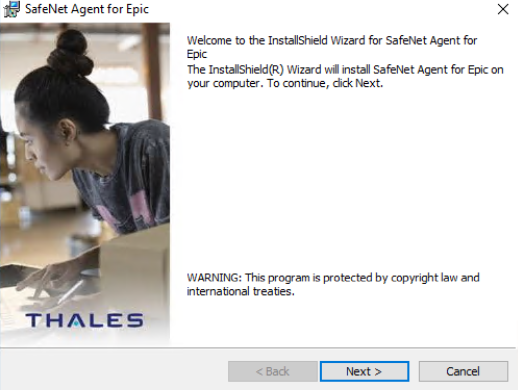
On the Welcome to the InstallShield Wizard for SafeNet Agent for Epic window, click Next.
-
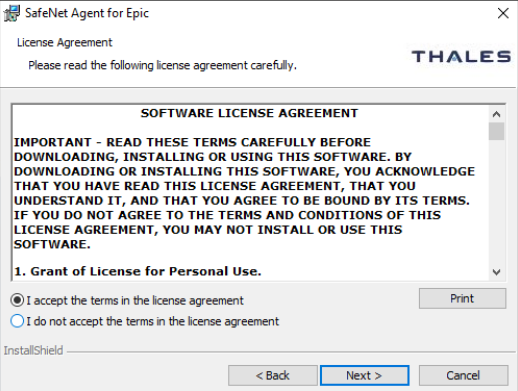
On the License Agreement window, read the software license agreement and to proceed, select I accept the terms in the license agreement option, and click Next.
-
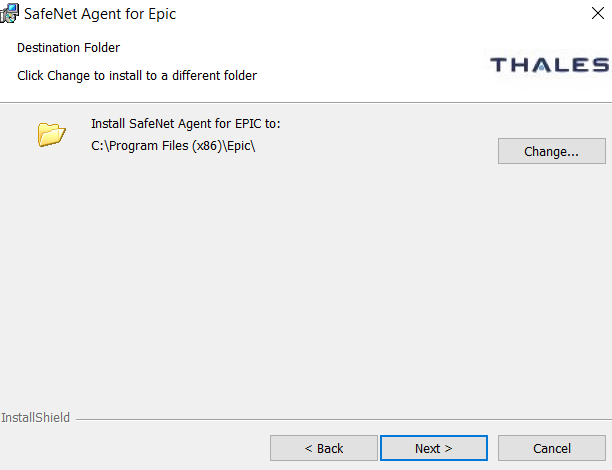
On the Destination Folder window,
a. To accept the default installation destination folder, click Next.
b. To change the installation folder, other than the default one, click Change, and then browse to provide a different path for agent installation.
c. Click Next.
Note
As highlighted in the screenshot (above), choose the same folder or directory (for the agent's installation) where you have installed the Epic software. For example,
C:\Program Files (x86)\Epic\. The complete installation path should be,C:\Program Files (x86)\Epic\. -
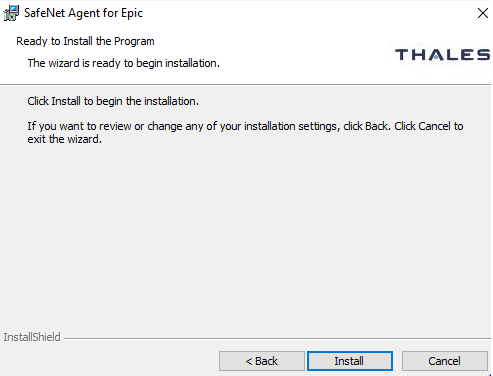
On the Ready to Install the Program window, click Install.
-
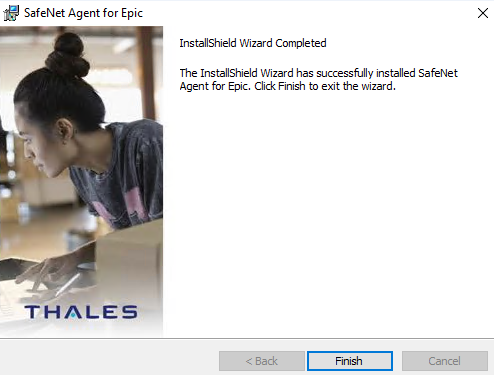
When the installation process completes, the InstallShield Wizard Completed window is displayed. Click Finish to exit the installation wizard.
Installing the Agent Silently
To install the SafeNet Agent for Epic in silent mode, perform the following steps:
-
Open the command prompt in Administrator mode.
-
Navigate to the folder which contains the installer.
-
Execute the following command:
- Using EXE:
bash
"SafeNet Agent for Epic.exe" /s /v"/q INSTALLDIR=\"<Path>\""
For example,
bash "SafeNet Agent for Epic.exe" /s /v"/q INSTALLDIR=\"C:\Program Files (x86)\Epic\""- Using MSI:
bash
msiexec /i "SafeNet Agent for Epic.msi" /quiet
Note
Once the agent is successfully installed and its configuration file (with .agent extension) is available at the installation folder, the agent gets configured automatically. This enables the file to be auto-picked when the Epic Management Console is accessed to configure the agent.
Note
Once the agent is successfully installed, an icon of the SafeNet EPIC Management Console utility is created on the desktop, to allow editing of the configuration details.

