Configuration
The SafeNet Agent for Epic is configurable using the Epic Management Console utility.
Double-click the utility icon to edit or enter the configuration details. The Epic Management Console window has the following tabs:
- Communication
- Logging
- Certificate
You can click the Help link (at the top-left) to know about the version and copyright details of the product.
Note
After making any change in the management console, ensure to click Apply and then OK for the changes to take effect.
In addition, policy settings of the SafeNet Agent for Epic can be configured using the Group Policy Object (GPO) Editor.
Communication
On opening the Epic Management Console, the Communication tab is displayed by default.
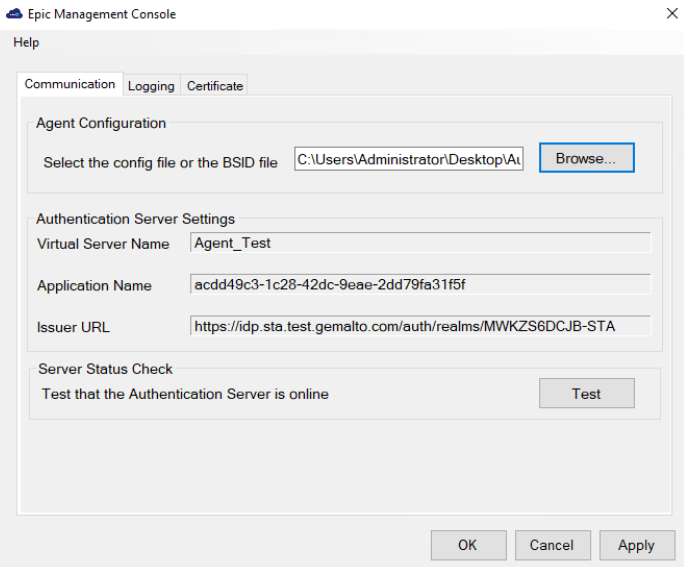
If the agent is successfully installed, its configuration file (with .agent extension) gets automatically placed at the installation folder. This enables the file to be auto-picked for populating appropriate fields on the tab.
Note
If you have manually placed the configuration file at another location, on opening the Epic Management Console, you will be presented with the following message:
Agent configuration file not detected. Browse and select the file.
Click Browse displayed against the Select the config file or the BSID file field to select the file and update the required settings.
Note
If you have upgraded the agent to a newer version, you need to upload the configuration file manually by clicking Browse displayed against the Select the config file or the BSID file field to update new settings.
This tab has the following three sections:
Agent Configuration
This setting is used when the agent configuration file is browsed.
- Select the config file or the BSID file: If you have manually placed the agent configuration file at another location or have upgraded the agent, click Browse to select the file and update the required settings.
Authentication Server Settings
- Virtual Server Name: SafeNet Trusted Access account.
- Application Name: Name of the application, as provided during the SafeNet Trusted Access setup.
- Issuer URL: Authentication end-point for the SafeNet Trusted Access.
Server Status Check
- Test that the Authentication Server is online: Click Test to confirm if the Authentication Server is available, or not.
Logging
Log files record events that occur during the software execution process.
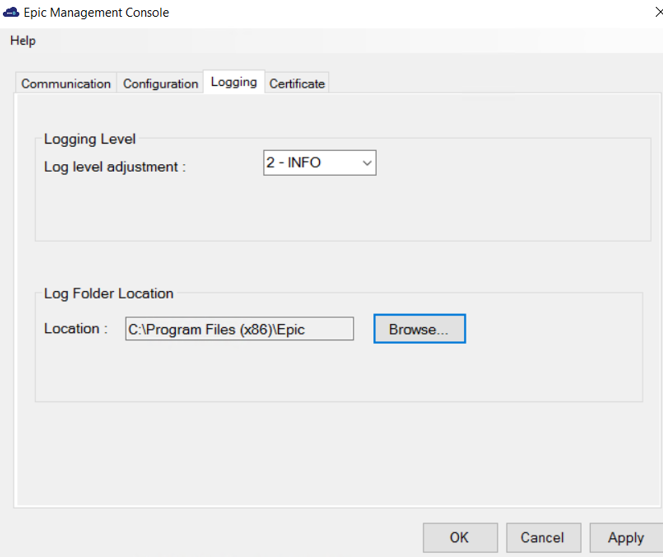
The Logging tab has the following two sections:
Logging Level
Log level adjustment
The field allows to specify the level of log that will be created. According to debugging needs, the logs can be recorded at different levels. Four consecutive levels are configured, namely DEBUG, INFO, ERROR, and OFF, wherein DEBUG is the highest log level, and OFF is the lowest. The higher the log level is, the more detailed the log is recorded. Each log level also contains information for all its following log levels. For example, the DEBUG level also contains information for INFO and ERROR log levels (and thus is more detailed). Similarly, the INFO level also contains information for the ERROR log level.
-
1 - DEBUG: This option allows to view diagnostic information that is useful to debug the application.
-
2 - INFO: This option allows to view informational messages that highlight the running, management and progress of the application. It includes information, the administrator wants available but usually need not to refer under normal circumstances. Some examples of INFO types:
- Service Start or Stop Details
- Configuration Details
- Authentication Success or Failure Details
- Assumptions
-
3 - ERROR: This option allows to log all unhandled exceptions. It record errors which are fatal to the operation but not the service or application, and thus require Administrator intervention. Some examples of ERROR types:
- Unable to open (or access) required resources
- Missing data
- Incorrect connection strings
- Missing services
-
4 - OFF: This option allows to turn off logging.
Note
None of the four log levels record events that stop the running of the application. The events recorded are not critical, in the sense that they do not interfere with the functioning of the application.
Log Folder Location
Location
The field specifies the location where the logs will be created. By default, the logs will be created in the logs folder at the agent's working directory. The Location can be secured using standard System Policy settings of the Windows.
Recommendation: One of the best ways to secure log files is to direct them to a separate server, whenever possible. By storing your log files on a separate server, your log files are always one more step away from hackers.
Certificate
The Certificate tab enables to upload the signing certificate issued from a valid authority.
Note
- This is only applicable for Epic Hyperdrive.
- The agent supports certificates that are stored using Microsoft Software Key Storage Provider for CNG-based cryptography and Microsoft RSA SChannel Cryptographic Provider for CryptoAPI (CAPI)-based cryptography.
Prerequisite
Ensure that the certificate is already deployed on the machine.
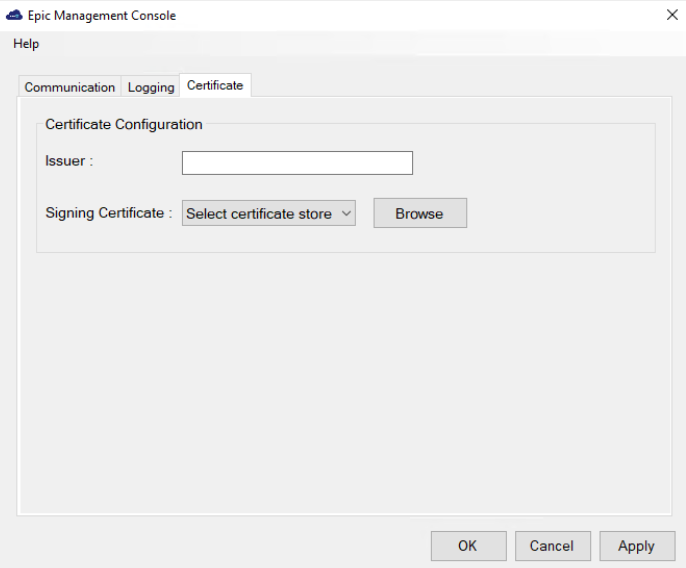
The Certificate tab has the following two fields:
-
Issuer: Enter the Entity ID of the SAML token. The Issuer in the SAML token must be added to an E0G record in the Epic database. It must be a unique identifier of the authentication device in the Epic environment.
-
Signing Certificate: This settings is used to select the certificate for signing in.
a. Choose the certificate store location by selecting either of the following options from the dropdown:
- Current user
- Local machine store
b. Click Browse to select the certificate, and then click OK. The Select Certificate window shows all the valid certificates that has a private key.
Note
- Multiple certificate selection is not allowed.
- In case of a non-admin user, if the certificate is present in the Personal folder of the local machine, then the user must be provided with the read access for managing the certificate's private key.
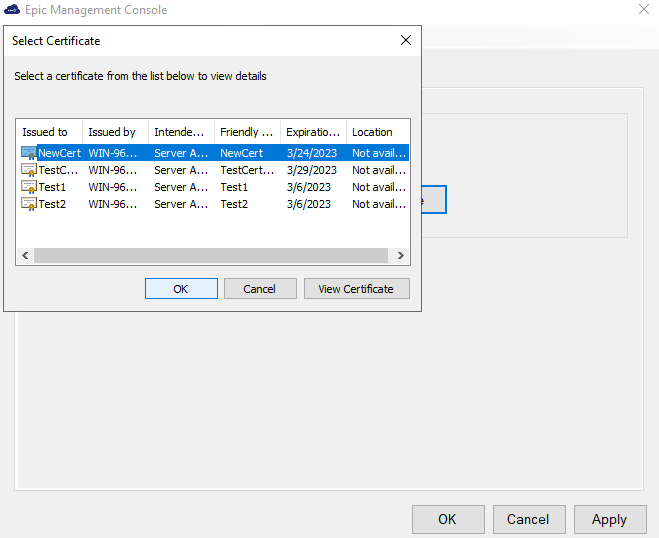
The selected certificate is used to sign the SAML token response generated when using with Epic Hyperdrive.
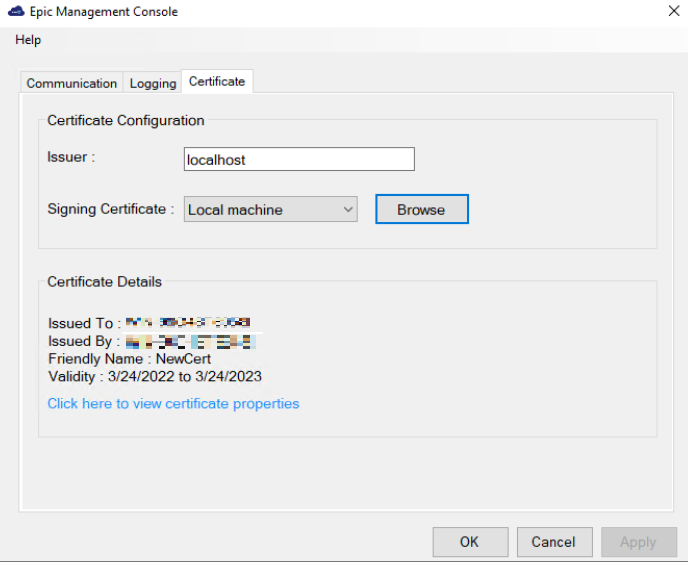
After selecting the certificate, the certificate details gets listed on the Epic Management Console.
- Issued To - Specifies the entity name to whom the certificate was issued.
- Issued By - Specifies the entity name that issued the certificate.
- Friendly Name - [Optional] It will be visible if the user selected certificate contains a friendly name.
- Validity - Specifies the certificate validity.