



MobilePASS target and Push OTP settings
Select the targets (operating system and device type combinations) on which users can self-enroll MobilePASS+ tokens. Enrolled and active tokens cannot be transferred between MobilePASS 8 and MobilePASS+. The settings apply to the current Virtual Server.
Starting with SAS PCE 3.22 SP2, MobilePASS 8 is deprecated. New MobilePASS 8 tokens can no longer be provisioned, and MobilePASS 8 is no longer available for selection for any target. Existing enrolled tokens continue to work. For details, see MobilePASS 8 deprecation.
You can control the availability of push based on the target. For example, you can enable push on mobile devices but not on desktop devices, such as Windows, where push authentication is more complex to implement.
Configure targets and Push notifications for MobilePASS tokens
-
On the SAS console, select Policy > Token Policies > Software Token & Push OTP Setting.
-
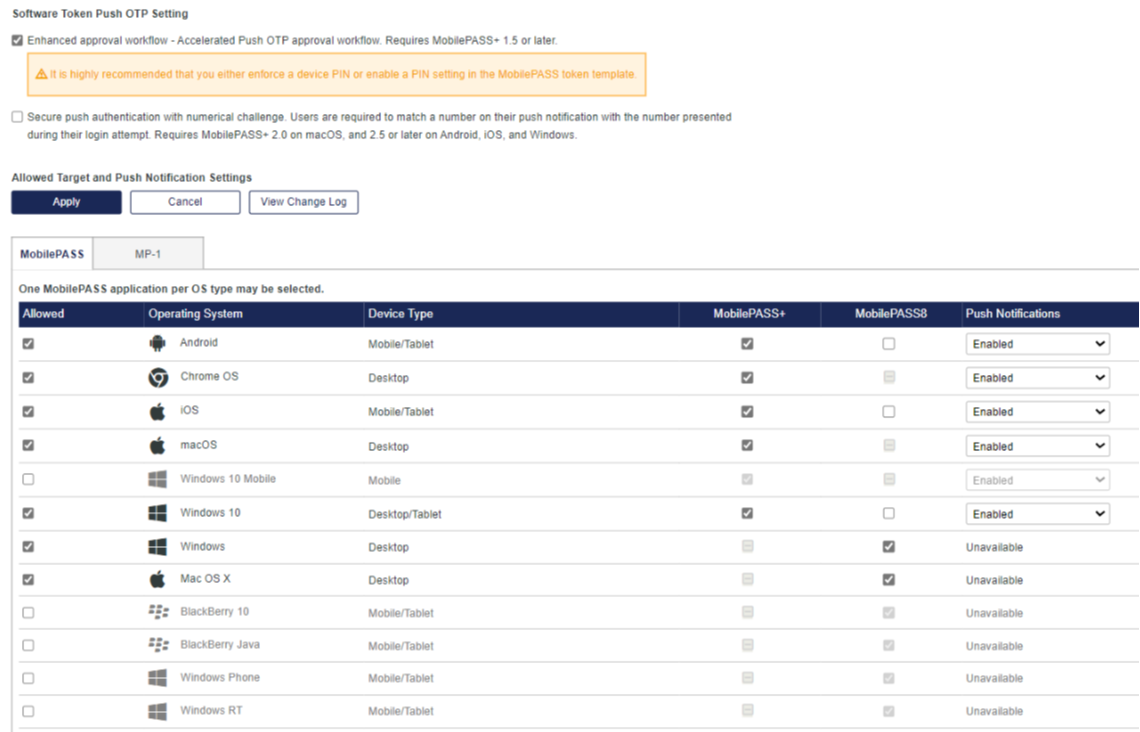
Each row represents a target. Configure the settings for each target:
Setting Description Allowed Indicates whether an operating system and device type is available for enrollment. For example, if Android is not allowed, enrollment fails on all mobile devices and tablets running any version of the Android™ platform.
If an operating system and device type is not allowed, the row is inactive.
When you select Allowed, the default token for that target is enabled.
MobilePASS+
MobilePASS8
MobilePASS+ is the only MobilePASS application available for selection for each operating system and device type. The MobilePASS8 column is disabled because provisioning new MobilePASS 8 tokens is no longer supported.
If the MobilePASS+ check box is not selected, the corresponding Allowed check box is also not selected, and the row is inactive.
Push Notifications Determines whether a push message is triggered, based on the operating system and the push capability of the user's enrolled tokens.
The following are the default settings for new Virtual Servers:
Operating System Device Type Allowed Token Push Notifications Android Mobile/Tablet Enabled MobilePASS+ Disabled Chrome OS Desktop Enabled MobilePASS+ Disabled iOS Mobile/Tablet Enabled MobilePASS+ Disabled macOS Desktop Enabled MobilePASS+ Disabled Windows 10 Mobile Mobile Disabled MobilePASS+ Disabled Windows Desktop/Tablet Enabled MobilePASS+ Disabled -
Select Apply.
For a list of supported operating systems and devices, see the MobilePASS+ Release Notes.
MobilePASS 8 deprecation
Starting with SAS PCE 3.22 SP2, MobilePASS 8 is deprecated. The following changes apply:
-
New MobilePASS 8 tokens can no longer be provisioned, and MobilePASS 8 can no longer be selected for any target. The Allowed Target and Push Notification Settings grid and the device list on the self-enrollment page include only the targets that support MobilePASS+.
-
SAS displays the banner New MobilePASS8 token provisioning is now disabled. Please refer to the latest release notes for more details. in the Allowed Target and Push Notification Settings grid, and when MobilePASS is selected as the authentication type for provisioning tokens to individual or multiple users.
-
The legacy Windows (earlier than Windows 10) and Mac OS X (macOS 10.15 and earlier) targets, which supported only MobilePASS 8, are disabled and no longer listed.
-
After an upgrade, targets configured for MobilePASS 8 are switched to MobilePASS+ and their Push Notifications setting is set to Disabled. Targets already configured for MobilePASS+ retain their existing settings.
-
Existing enrolled MobilePASS 8 tokens continue to work. To move users to MobilePASS+, see How do I migrate current users?.
Accelerate Push OTP approval for MobilePASS+
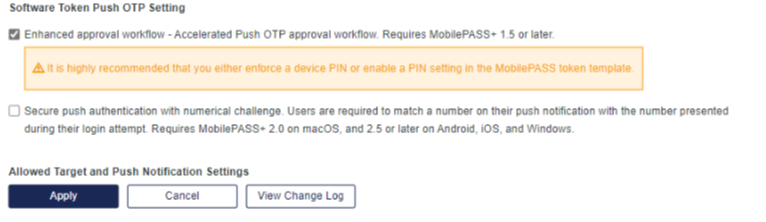
The enhanced approval workflow significantly accelerates the authentication process for MobilePASS+ tokens, and enables users to manage push login requests without unlocking their mobile device.
It is highly recommended that you either enforce a device PIN or enable a PIN setting in the MobilePASS token template, so that only the device owner or token assignee can approve a push request.
If the enhanced approval workflow is enabled, users with incompatible versions of MobilePASS+ receive an error message when the application opens. The enhanced approval workflow can be disabled at any time, restoring full functionality with earlier MobilePASS+ versions.
-
On the SAS console, select Policy > Token Policies > Software Token & Push OTP Setting.
-
Select the Enhanced approval workflow check box.
-
Select Apply.
Secure Push authentication with numerical challenge
Select this checkbox to enable the MobilePASS+ Push with number matching feature and then select Apply. It forces the user to match the number on the login screen with the number in their SafeNet MobilePASS+ authenticator push notification.
It is highly recommended that the MobilePASS+ app is updated to the latest version on all your user's devices before this feature is enabled.

