



SAS PCE Enterprise Advanced Features
Introduction
The SAS PCE Enterprise Admin Console is a single, web-based operational view for SafeNet Authentication Service Private Cloud Edition (SAS PCE) Enterprise. It brings authentication activity, token and MFA adoption, agent health, and core service status together on one screen, eliminating the need for administrators to switch between multiple consoles, reports, and log files to understand the state of their deployment.
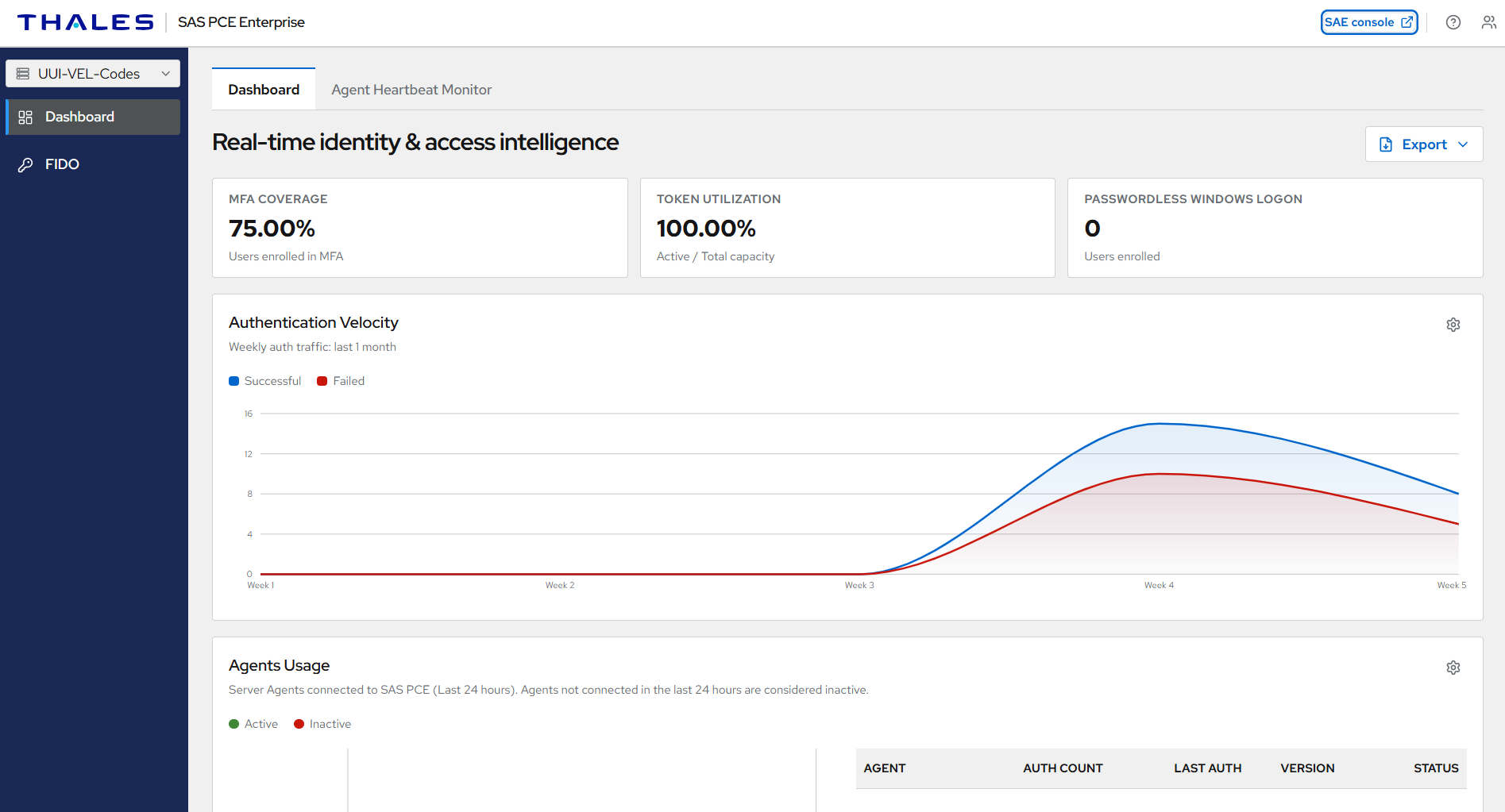
Purpose
The SAS PCE Enterprise Admin Console helps administrators to:
- Monitor authentication in near real time – View successful and failed authentications, MFA method usage, and risk-related events as they occur.
- Track adoption and token lifecycle – Monitor MFA coverage, passwordless Windows logon enrollment, the status of every token in the system, and token utilization.
- Detect agent and infrastructure issues early – Identify offline Windows/macOS logon agents, inactive server agents, and unhealthy SAS PCE components before they affect users.
- Report to stakeholders – Export the dashboard as a PDF for operational reviews and audits.
- Manage FIDO settings – Control whether FIDO authenticators can be imported through the API.
Setup
The SAS PCE Enterprise Admin Console is delivered as a hardened, pre-integrated Ubuntu image that includes the Unified UI and its dependencies as pre-loaded Docker images. It is distributed as an AWS AMI and a VMware OVA, and is configured on first boot through an interactive wizard. For more information, see Installation of Enterprise Advance Features.
Elements in this page
| Feature | Description |
|---|---|
| Dashboard | The Dashboard tab gives a real-time overview of identity and access activity for the selected virtual server. To open it, click Dashboard in the left menu and select the Dashboard tab. |
| FIDO | Control whether FIDO authenticators can be imported through the API. |
Virtual server selector (top of the left menu)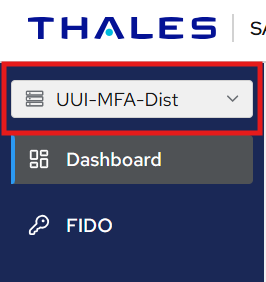 |
- Users can switch between virtual servers to view their respective data. - Users can enter a name to filter the list. - A virtual server appears in the list only if: 1. It is present in SAS PCE. 2. Its code is added in the Tenant List of the user in SAE. |
 |
A quick access link to open the SAE Console in a new browser tab. |
 Help Button |
A quick access link to open this documentation. |
 User Profile Button |
Hovering over the button shows a pop-up containing the following details: - Selected Virtual Server - User Name - Log Out button 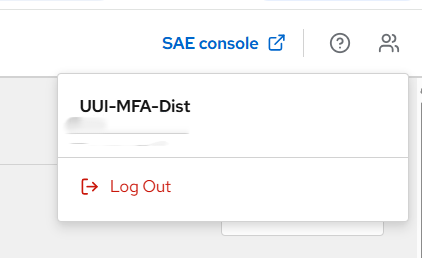 |

