



Running the AD FS solution
This section describes the authentication flows with SafeNet Agent for ADFS.
User choice of authenticator
User choice of authenticator (UCA) allows users to select from their available authentication methods during AD FS sign-in. When a user signs in, they are presented with a list of the authentication methods that they have enrolled in SafeNet Authentication Service Private Cloud Edition (SAS PCE).
For the user, the login flow with the user choice of authenticator is as follows:
-
The user goes to the ADFS sign-in page, selects the site to sign in to, and then selects Sign in.
-
The user enters their AD credentials and selects Sign in.
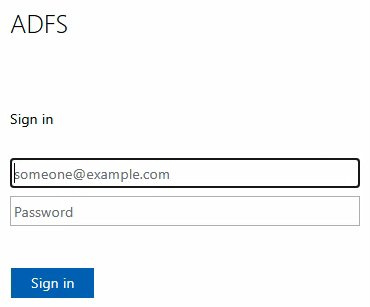
-
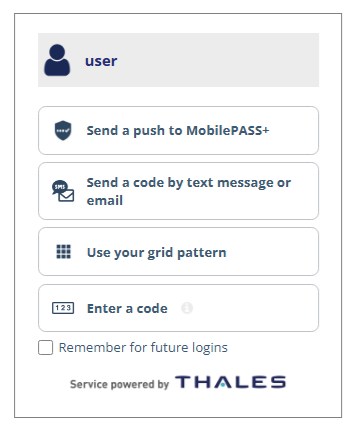
After the user signs in with their AD credentials, they select their preferred authenticator on the UCA screen.
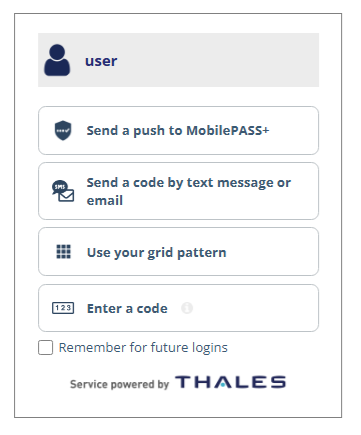
The list includes only the authentication methods that the user has enrolled in SAS PCE. The UCA login screen can include the following possible authentication methods:
-
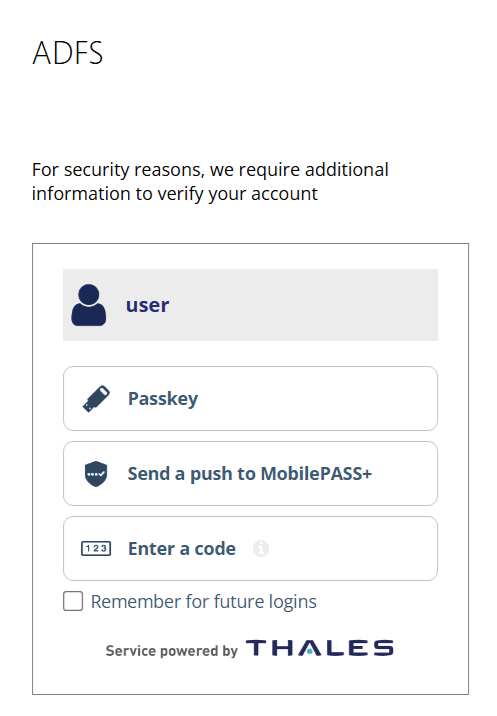
Send a push to MobilePASS+: Sends a push notification to the user's MobilePASS+ authenticator application.
-
Send a code by text message or email: Sends an OTP via SMS or email.
-
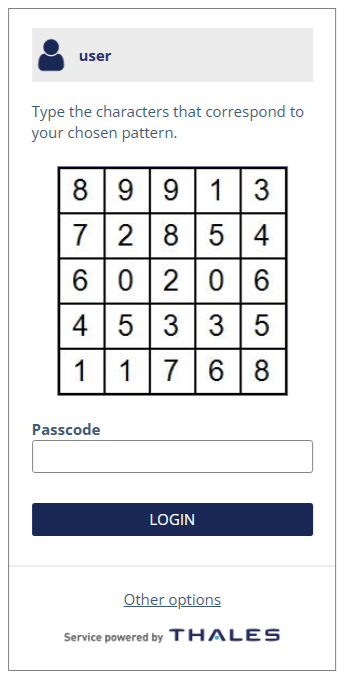
Use your grid pattern: Opens the GrIDsure authentication screen, where the user enters their grid pattern.
-
Enter a code: Allows the user to enter an OTP manually through an authenticator app, a hardware token, or a temporary static password.
-
-
To save their preferred authentication method, users can select the Remember for future logins check box on the UCA screen.
When the user selects this option, the UCA screen is skipped during subsequent sign-ins, and the user is directed to their selected authentication method.
For example, if the user selects Use your grid pattern, the next time they log in, they are directed to the GrIDsure authentication screen. To return to the UCA screen and select a different authentication method, the user can select Other options.
-
After they user selects their preferred authenticator, they are redirected to the corresponding authentication screen, where they enter the required credentials and select Login.
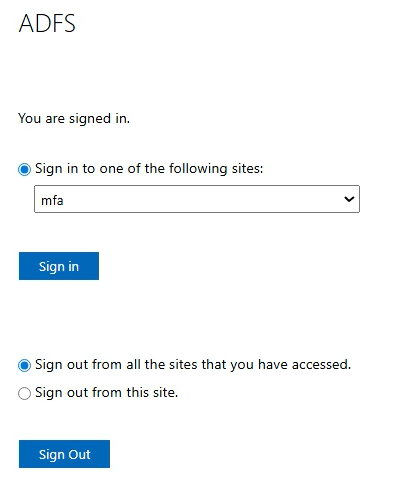
After successful authentication, the user is signed in and the protected page is displayed.
Push with number matching
In SAS PCE, you can configure MobilePASS+ authenticators to use the number matching feature instead of the Approve and Deny buttons. Number matching forces the user to match the number on the login screen with the number in their SafeNet MobilePASS+ authenticator push notification.
Number matching makes push notifications more secure. Adding number matching to push notifications can protect against push fatigue or push bombing attacks, where the user is spammed with multiple push notifications until they eventually approve a notification just to make them stop. Number matching also prevents users from approving push notifications by mistake.
For the user, the login flow with push with number matching is as follows:
-
On the UCA login screen, the user selects Send a push to MobilePASS+.
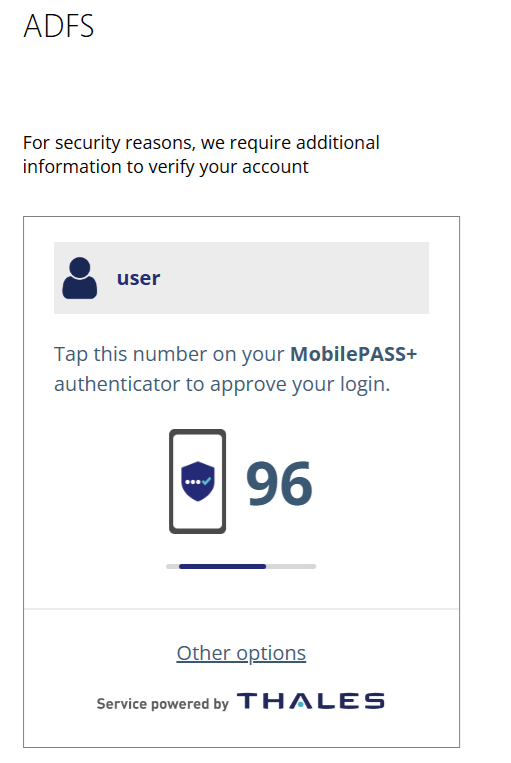
The screen shows the number that the user needs to match in their MobilePASS+ authenticator.
-
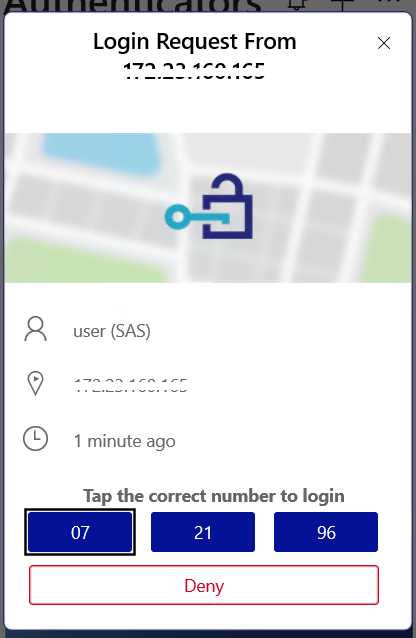
The user opens the MobilePASS+ authenticator on their mobile device or computer.
MobilePASS+ shows some numbers.
-
The user selects the number that matches the number on the SafeNet Agent for ADFS sign-in screen.
FIDO authenticators
SAS PCE leverages FIDO (Fast IDentity Online) standards to deliver secure, simplified passwordless and multi-factor authentication (MFA) for enterprises. This integration helps minimize password-related risks, prevent phishing attacks, and enhance the overall user experience.
To use FIDO authentication, you must configure it in the SafeNet Agent for ADFS.
FIDO authenticator enrollment
For the user, the FIDO enrollment flow is as follows:
-
The user goes to the ADFS website, selects the site to sign in to, and selects Sign in.
-
The user enters their AD credentials and selects Sign in.
-
The user selects Add Authenticator.
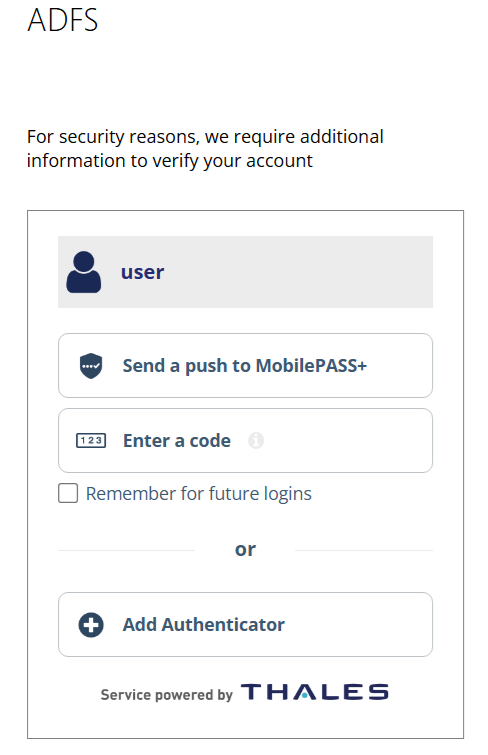
After the user selects Add Authenticator, they are redirected for FIDO enrollment.
-
Go to the FIDO enrollment flow section and continue from step 3.
FIDO authentication
For the user, the FIDO authentication flow is as follows:
-
The user enters their AD credentials.
-
On the UCA login screen, the user selects Passkey.
-
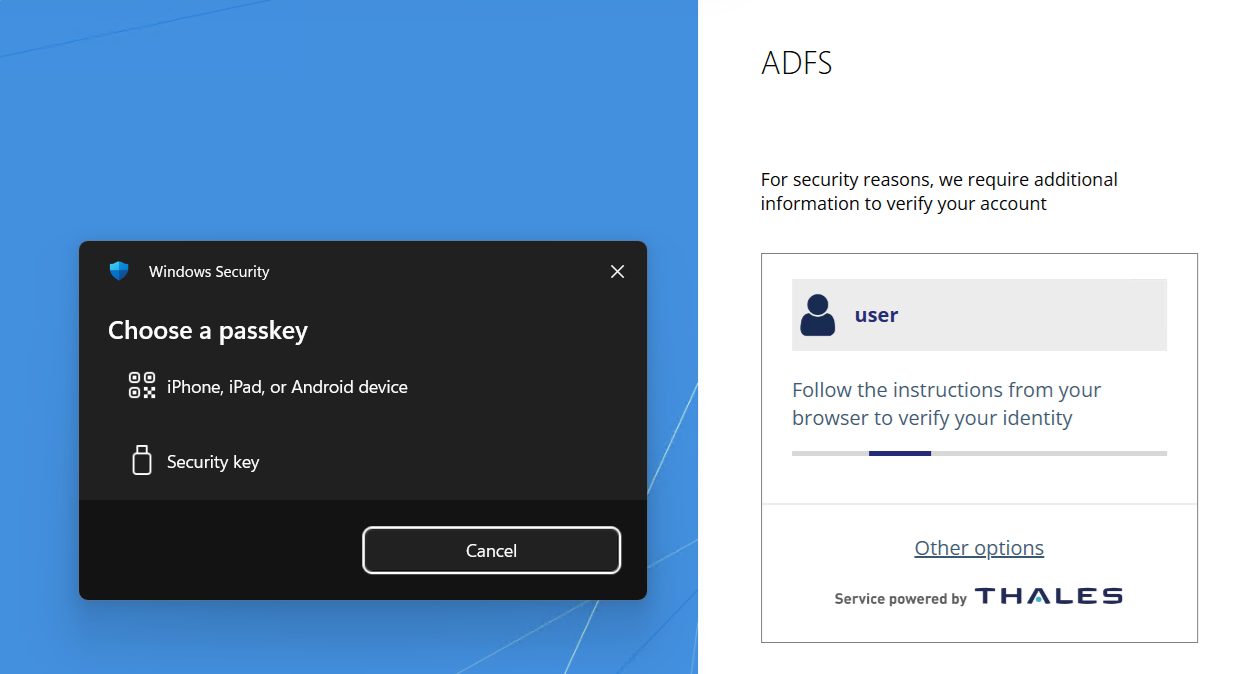
The user selects their preferred passkey option.
-
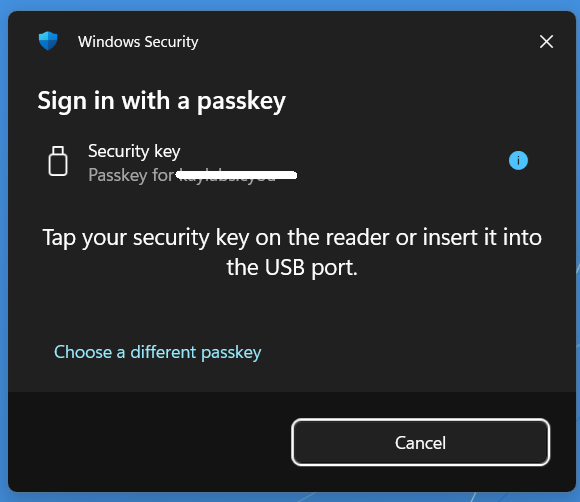
The user follows the on-screen instructions.
-
The user enters their Security Key PIN and selects OK.
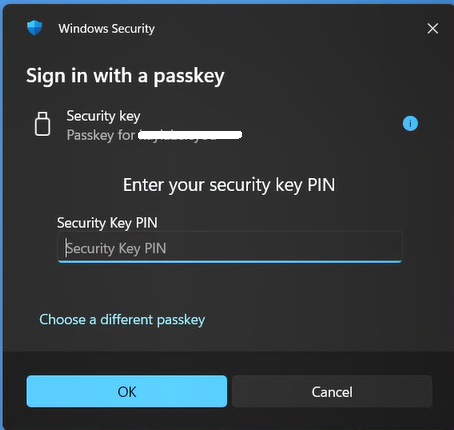
The user is redirected to the website.
Office 365 and SafeNet Agent for ADFS
Ensure that you have registered for the Microsoft Office 365 service and promoted your domain to a federated domain.
Logging in to Office 365
-
Open AD FS Manager.
-
Enable the agent and then enable Forms Authentication as the Primary Authentication method.
-
Force MFA at the Extranet or Internet level.
-
Force MFA at the Global or Individual SP level.
-
Open a browser and log in to Microsoft Online.
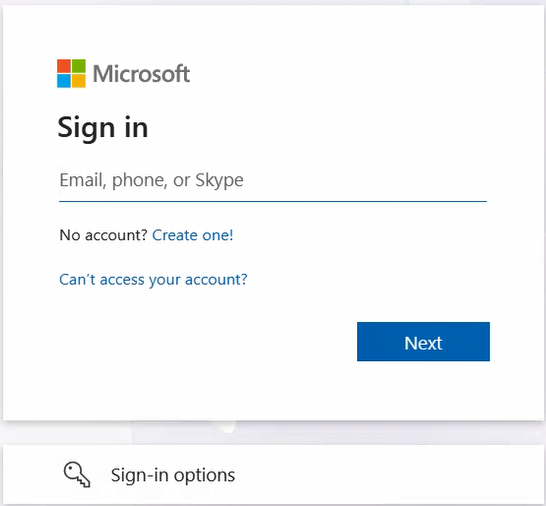
Sign-in Window examples
Primary authentication (Windows credentials)
Secondary authentication (SafeNet GrIDsure authenticator)

