



Installing SafeNet Agent for ADFS
Pre-installation checklist
Complete the following tasks before installation:
- Ensure that the ADFS server is installed and operational.
-
Install Microsoft .NET Framework 4.8
Note
The installer will automatically download and install .NET Framework on the Primary Server if it is not already available.
.NET Framework must be installed manually on Secondary Servers to enable MFA after the installation/upgrade to this version of SafeNet Agent for ADFS. -
Execute the following PowerShell command, if you are using ADFS 4.0:
Set-AdfsProperties -EnableIdpInitiatedSignonPage $trueThe ADFS 4.0 login page (https://
/adfs/ls/IdPInitiatedSignOn.aspx) is disabled, by default. Executing the PowerShell command enables the page.
Add Relying Party Trust for ADFS
For AD FS 5.0 (on Windows Server 2025), AD FS 2019 (on Windows Server 2019 and Windows Server 2022), and AD FS 4.0 (on Windows Server 2016), the Relying Party Trust must be added manually. The MFA page will not display if the Relying Party Trust is not configured.
After a user successfully logs in, using the AD, view the OTP page (with two sign-in options) as follows:
-
Open ADFS Management.
-
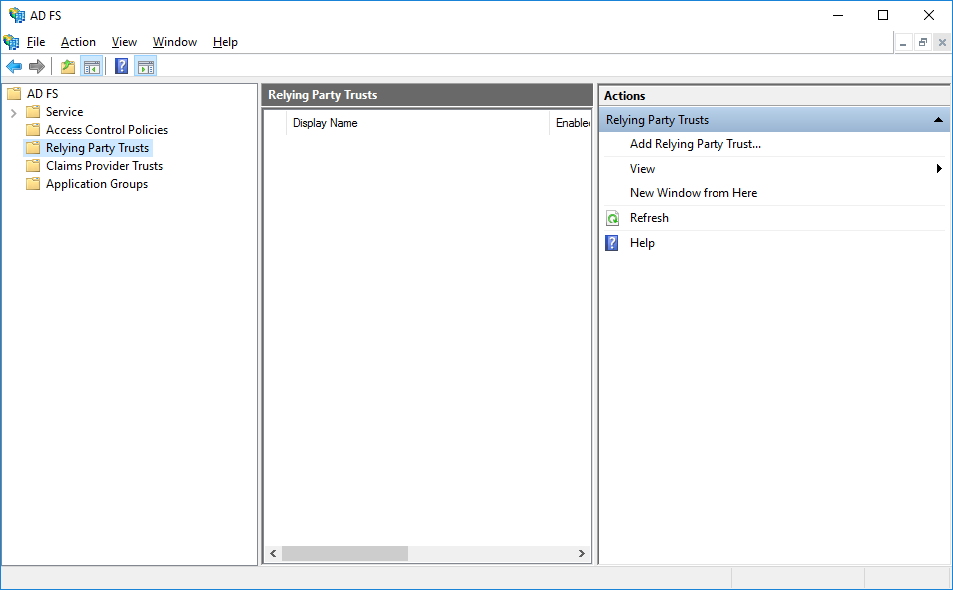
Highlight Relying Party Trusts, and click Add Relying Party Trust from the Actions pane.
-
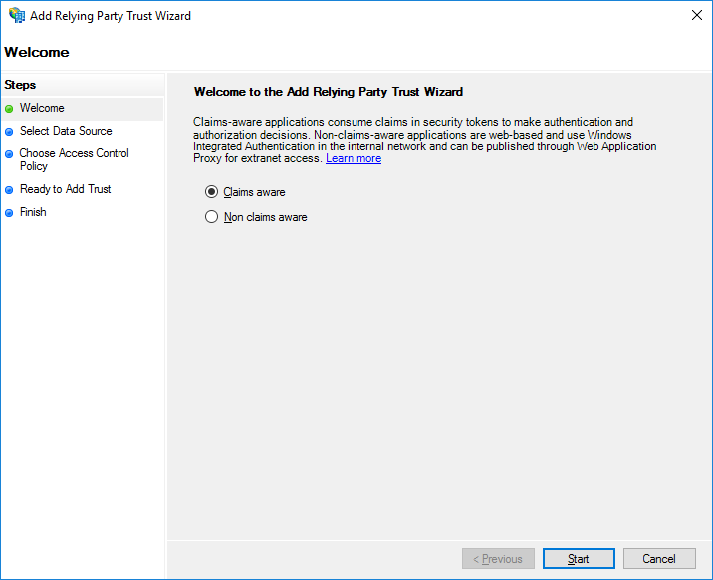
Select the Claims aware radio option, and click Start.
-
Enter the URL of the metadata file.
https://<fqdn>/federationmetadata/2007-06/federationmetadata.xml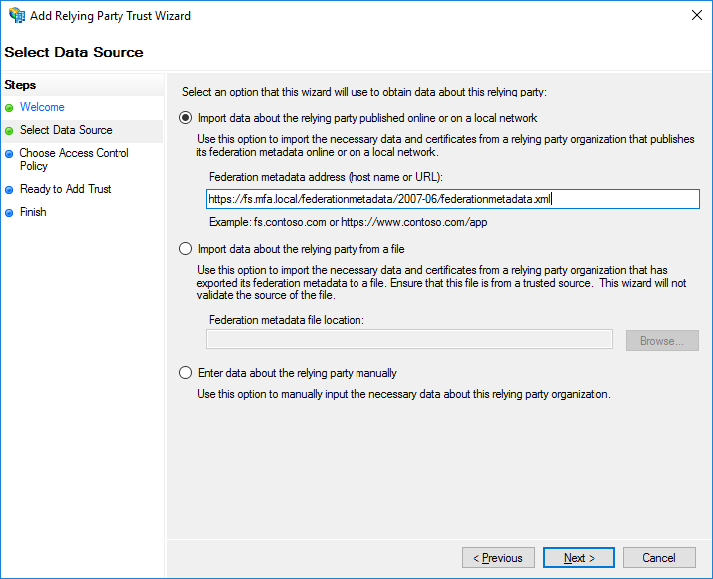
-
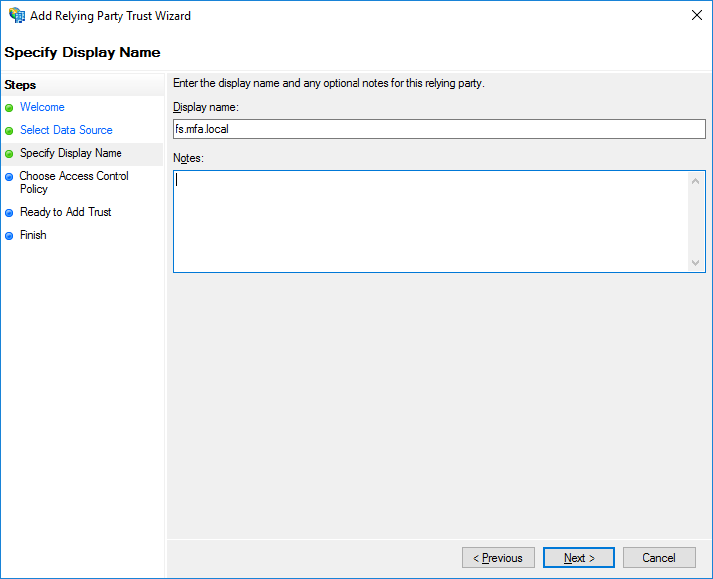
In the Display name field, enter a display name, and click Next.
-
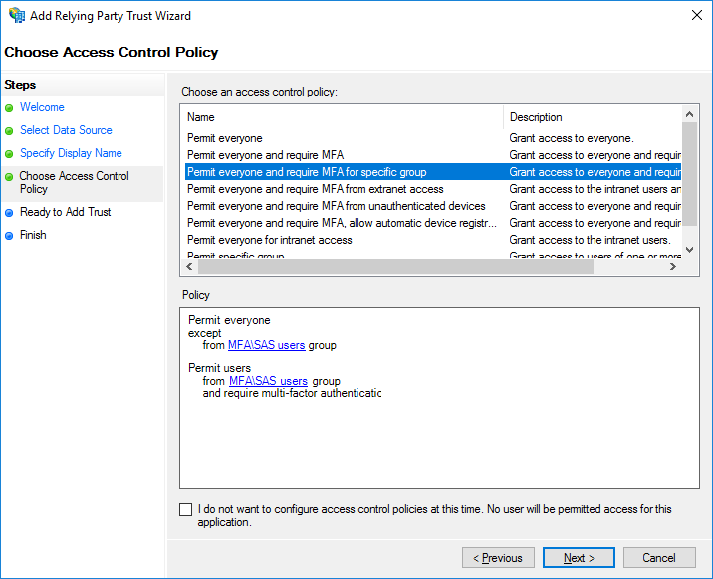
Select an Access Control Policy, and click Next.
In the following example, the Permit everyone and require MFA for specific group option is selected.
-
Click Next.
-
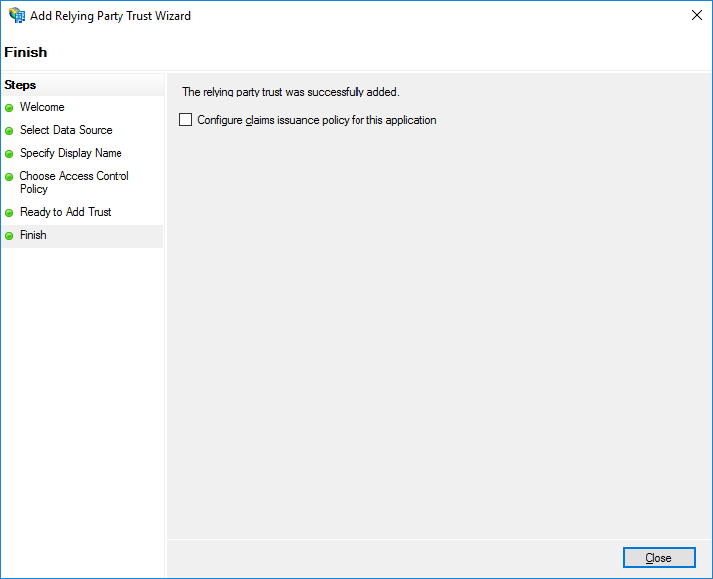
Clear the Configure claims issuance policy for this application checkbox, and click Close.
Note
Documentation to add Relying Party Trust for Windows Server 2016 references the Microsoft documentation. Please refer to the official documentation for detailed, accurate, and updated instructions.
Known issue
Due to technical limitations, push OTP does not work using Chrome or Edge browsers. Push OTP users in an ADFS environment do not receive push notification and hence are unable to complete their authentication journey. Customers using ADFS 4.0 on Windows Server 2016 are impacted.
Workaround
MFA is expected to work with push OTP service for Internet Explorer. If Internet Explorer is not an option, it is recommended to execute the following command from the ADFS server’s command prompt, as a one-time activity:
Set-AdfsResponseHeaders -SetHeaderName “Content-Security-Policy” -SetHeaderValue “default-src 'self' https://*.sascloudservice.com https://*.safenetid.com 'unsafe-inline' 'unsafe-eval'; script-src 'self' https://ajax.googleapis.com 'unsafe-inline' 'unsafe-eval'; img-src 'self' data:;”"
Note
Alternatively, customers can upgrade to ADFS 2019 on Windows Server 2019 or 2022.
Install SafeNet Agent for ADFS
Note
Always work in Run as administrator mode when installing, uninstalling, enabling, or disabling the SafeNet Agent for ADFS.
To install the SafeNet Agent for ADFS:
-
Run as administrator the SafeNet Agent for ADFS installer:
SafeNet Agent for ADFS.exe -
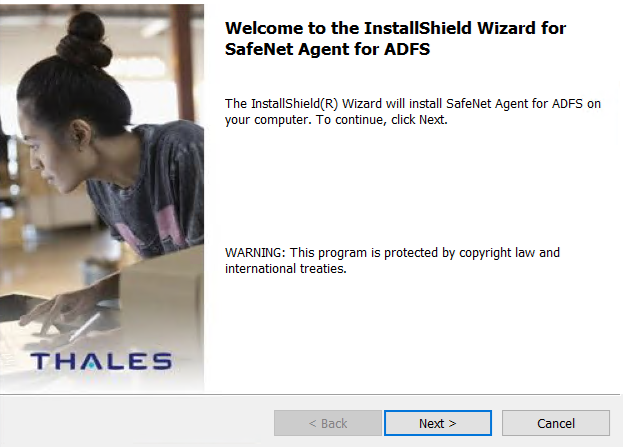
On the Welcome to the InstallShield Wizard for SafeNet Agent for ADFS screen, click Next.
-
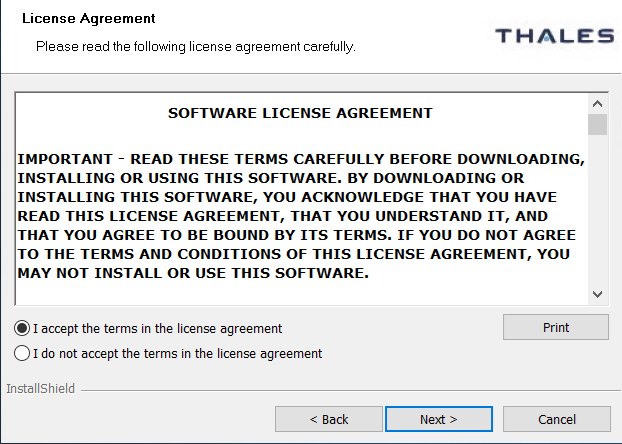
On the License Agreement window, read the software license agreement and to proceed, select I accept the terms in the license agreement, and click Next.
-
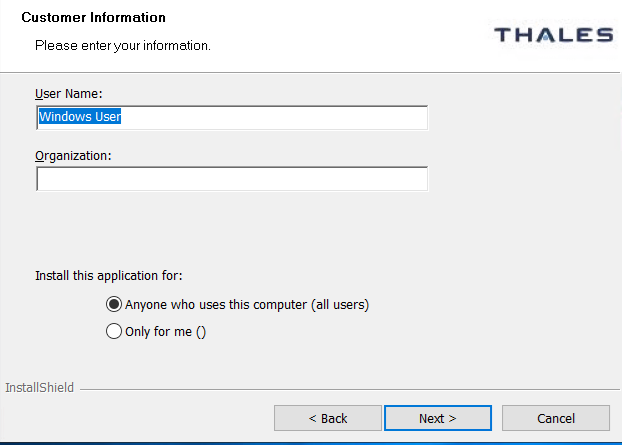
On the Customer Information window, perform the following steps:
- In the User Name field, enter your user name.
- In the Organization field, enter the name of your organization.
- Click Next.
-
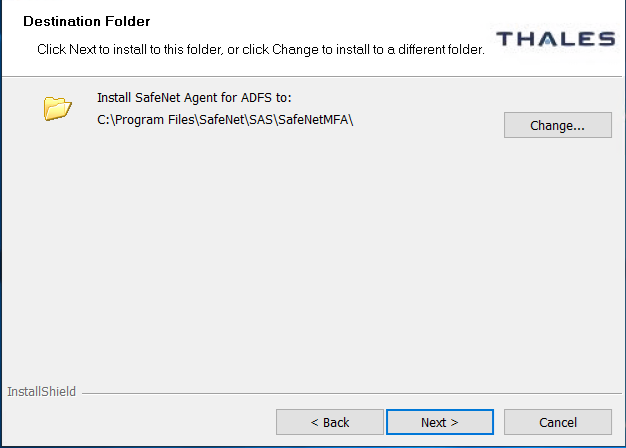
On the Destination Folder window, do one of the following:
- To accept the default installation destination folder, click Next.
- To change the installation folder, other than the default one, click Change, and then browse to locate and select the required folder.
- Click Next.
-
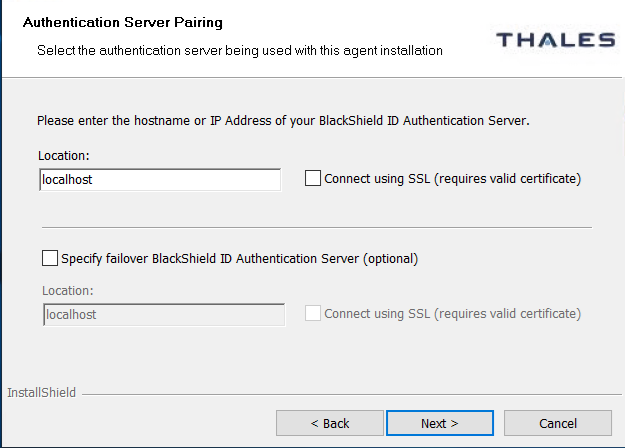
On the Authentication Service Setup window, enter the hostname or IP address of the SafeNet primary and failover servers.
-
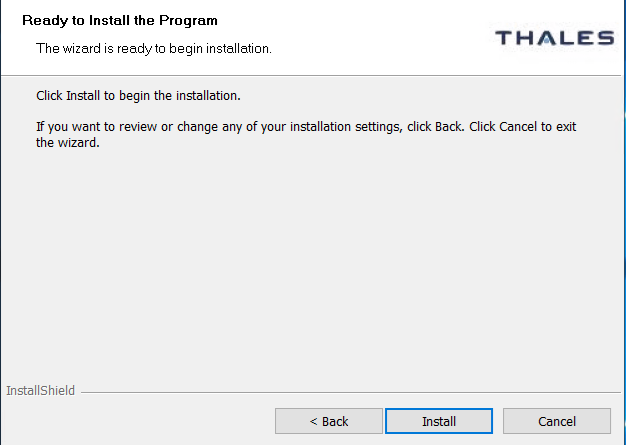
On the Ready to Install the Program window, click Install.
-
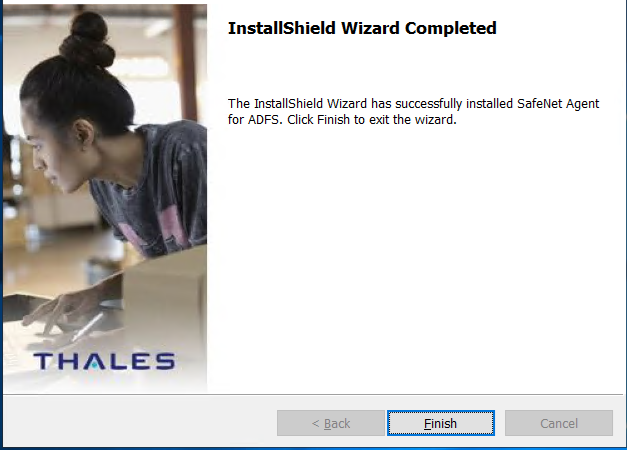
When the installation process completes, the Installshield Wizard Completed window displays. Click Finish to exit the installation wizard.
Upgrading and migrating settings for ADFS
SafeNet Agent for ADFS version 3.0.0 supports upgrades from version 2.01 and later.
Upgrades from version 2.0 and earlier (for example, v1.0, v1.01, and v2.0) are not supported. However, you can migrate settings from these versions to version 2.43 of the agent.
Upgrade to SafeNet Agent for ADFS 3.0.0
Before starting the upgrade process, it is strongly recommended to back up the existing SAFENET-MFA.ini file. This file is located in the agent installation directory (for example: C:\Program Files\SafeNet\SAS\SafeNetMFA\ini).
Follow the steps below to upgrade the agent:
-
Run the SafeNet Agent for ADFS v3.0.0 installer on the same system where the existing agent version is installed.
-
After the upgrade is complete, open SafeNet Agent for ADFS in Run as Administrator mode.
- Under the Policy tab, clear the Enable Agent check box if it is selected, and then close the console.
-
Open the backed-up version of the
SAFENET-MFA.inifile in a text editor.-
Copy your customized configuration entries and paste them one by one into the latest version of the
SAFENET-MFA.inifile. -
Repeat this process until you have transferred all required custom entries.
-
-
If you are using a language other than English (1033) or French-Canada (3084), you must translate any newly introduced localization strings and add them to the
SAFENET-MFA.inifile.For more information about configuring localization, see localization.
-
After you complete the transfer of all customized entries, save the SafeNet-MFA.ini file.
-
Open SafeNet Agent for ADFS in Run as Administrator mode.
-
Verify that all customized configurations are correctly reflected in the SafeNet Agent for ADFS dialog box.
-
On the SafeNet Agent for ADFS console, under the Policy tab, select the Enable Agent check box.
Migrate settings to SafeNet Agent for ADFS 3.0.0
Migration of settings from previous versions directly to SafeNet Agent for ADFS version 3.0.0 is not supported.
You must manually transfer customized configurations by following the upgrade procedure described above.
Removing users and groups
After you uninstall or deactivate the SafeNet Agent for ADFS, you must remove the users and groups from the ADFS server. Failure to do so can result in subsequent failure to authenticate through the ADFS server.
However, if you are preparing to install a later version of the SafeNet Agent for ADFS, you don't need to remove users and groups from the ADFS server.
Edit an MFA policy for users and groups
To edit an MFA policy for users and groups in the ADFS server 4.0:
-
In the ADFS management console, click Relying Party Trust.
-
Select the required Relying Party Trust application and Edit Access Control Policy.
-
Select any policy (from the Access control policy list) that does not require MFA, and apply the changes.

