


Password policies
Password policies define the rules a user's password must meet, how long it remains valid, and what happens after repeated failed sign-in attempts. You can create multiple policies and apply different policies to different users, for example, stricter rules for administrators than for ordinary customers, by naming the policy when their passwords are created.
A policy is assigned to a password when the password is created. The assigned policy is the one specified in the request or, if none is specified, the tenant's default policy. A tenant can have at most one default policy. If no default policy is set, built-in rules apply. Subsequent password changes, resets, and sign-ins continue to use the policy assigned when the password was created, even if the tenant's default changes.
Note
This page describes the password policies available in the OneWelcome Identity Platform console under Authentication > Password policies. The separate Password policy (Classic) entry configures the legacy policy and is documented in Password policies (Classic).
Classic and OIP password policies are configured independently and differ in an important way: Classic has a single password policy for the entire tenant, whereas the policies described on this page let you define multiple policies and choose which policy applies to each user.
View policies
Select Authentication > Password policies to view all policies in the tenant, identify the default policy, and see whether each policy is active.
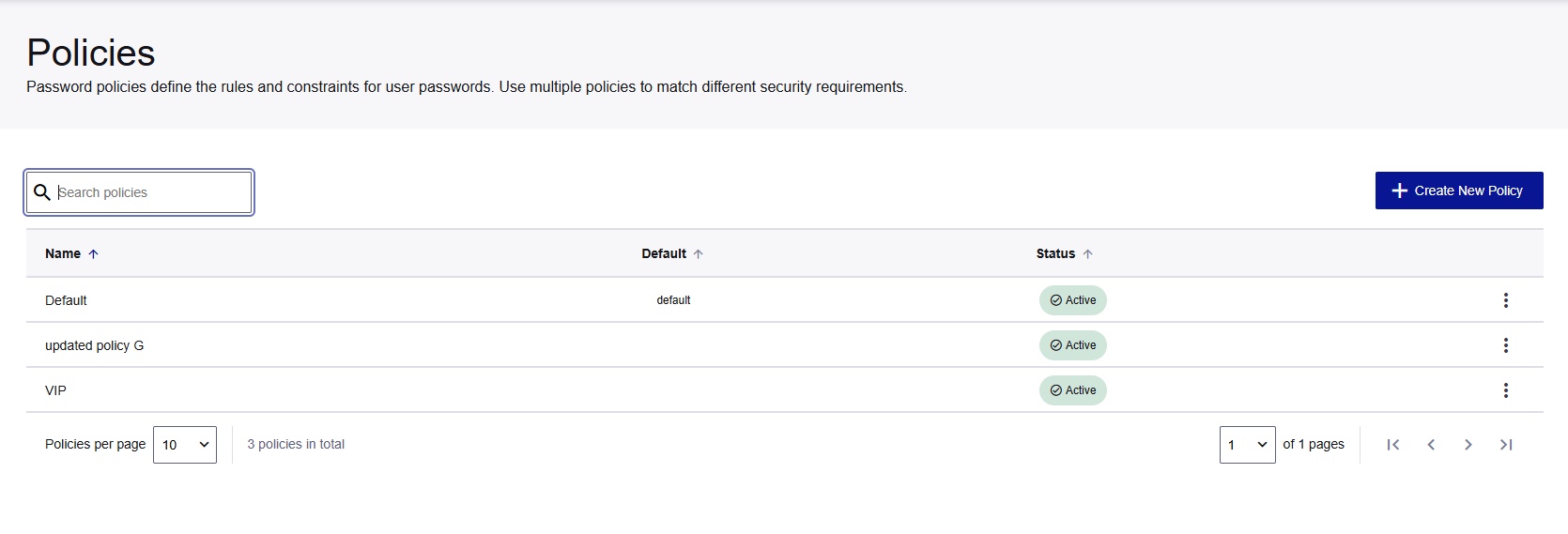
Use the search box to filter policies by name. The list is paginated, and you can change the number of policies displayed per page.
Create a policy
- Select Create New Policy.
- Enter a Policy name. The name must be between 3 and 50 characters and must be unique within the tenant.
- Set Default policy if this policy should apply whenever a request does not specify a policy. Only one policy can be the default; setting this policy as the default replaces the current default policy.
- Complete the four sections described below.
- Select Save.
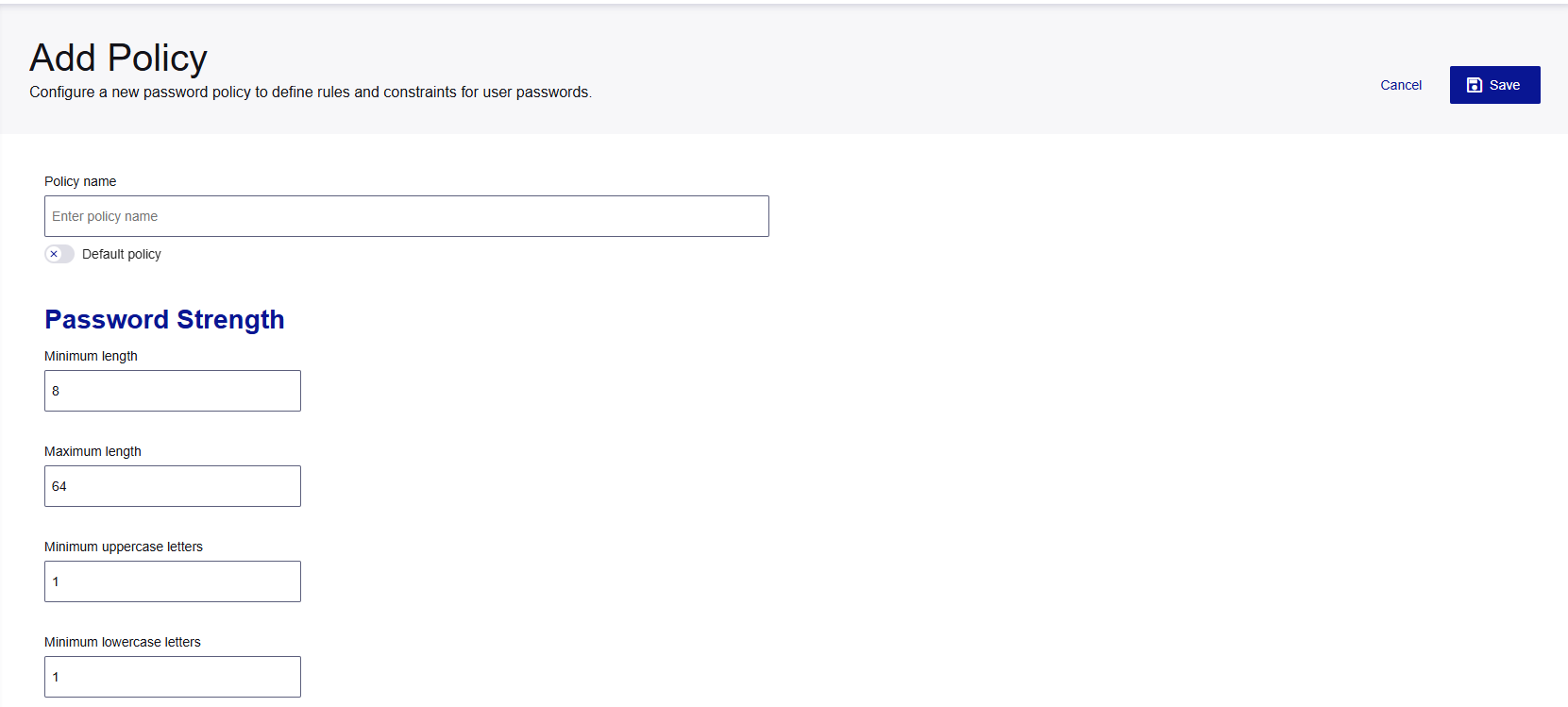
Password strength
These rules are checked whenever a password is created, changed, or reset.
| Setting | Default | Accepted values |
|---|---|---|
| Minimum length | 8 | 1 to 1024 |
| Maximum length | 64 | 1 to 1024, and must not be less than the minimum length |
| Minimum uppercase letters | 1 | 1 to 1024 |
| Minimum lowercase letters | 1 | 1 to 1024 |
| Minimum numeric characters | 1 | 1 to 1024 |
| Minimum special characters | 1 | 1 to 1024 |
| Spaces allowed | Off | On or off |
Note
Each of the four character-class settings has a minimum value of 1. Therefore, every policy requires at least one uppercase letter, one lowercase letter, one digit, and one special character. A value of 0 is not accepted.
Content rules
These checks are optional and disabled by default. They validate passwords against known-bad values rather than checking for specific character patterns.
| Setting | What it does |
|---|---|
| Pwned Check on Store | Checks the password against breach databases when it is created, changed, or reset, and rejects a password that appears in a known breach. |
| Pwned Check on Auth | Performs the same check when the user signs in, catching passwords that were safe when set but have since appeared in a data breach. |
| Disallow Common Words | Rejects passwords found in lists of commonly used passwords. |
| Disallow Sequences | Rejects passwords containing sequential patterns, such as 123 or abc. |
Expiration and locking
| Setting | Default | Accepted values |
|---|---|---|
| Expiration days | 90 | 1 to 366 |
| Lock attempts | 5 | 1 to 42 |
| Auto-unlock seconds | 1800 | 0 to 86400 |
- Expiration days is the number of days a password remains valid before the user must set a new one.
- Lock attempts is the number of consecutive failed sign-in attempts after which the account is locked.
- Auto-unlock seconds is how long a locked account remains locked before it unlocks automatically. Set this value to
0to disable automatic unlocking. In this case, the account remains locked until an administrator intervenes. The maximum value is 86400 seconds (24 hours).
Password history
| Setting | Default | Accepted values |
|---|---|---|
| Check previous passwords | 5 | 0 to 20 |
The number of the user's previous passwords checked when a new password is set, to prevent users from reusing passwords they have used before. Set this value to 0 to disable the check. Previous passwords are stored only as hashes.
Edit a policy or change the default policy
Select the three-dot menu at the end of a policy's row.

- Edit/View opens the policy so you can change its settings.
- Make default sets this policy as the default policy for new passwords when a request does not specify a policy. Existing passwords keep their assigned policy.
Changing a policy does not trigger an immediate password change. The new rules are applied the next time an affected user sets a password or has a password validated.
Emergency block
Emergency Block immediately prevents all users associated with the policy from authenticating. Use it when you suspect that a policy has been compromised and need to block sign-ins while you decide how to proceed.
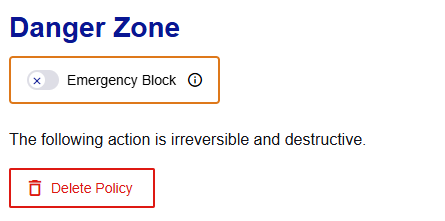
While a policy is blocked:
- Users associated with the policy cannot sign in or change their password.
- Users are not forced to reset their passwords.
- The policy shows a Blocked indicator in the policies list.
The block is reversible. The usual sequence is to block the policy, tighten its rules, and then unblock it. Users whose password no longer meets the updated rules are asked to set a new one at their next sign-in.
Warning
Emergency Block affects all users associated with the policy simultaneously. The system asks for confirmation before activating it.
Delete a policy
Delete Policy is located in the Danger Zone at the bottom of the policy details page. Deleting a policy is irreversible.
You cannot delete a policy that is still assigned to any user's password; the deletion is rejected.

