



NPS communication settings
Note
To set the encryption settings, the Agent Key File must be downloaded from the SAS PCE/STA Management Console. Ensure that the Agent Key File is secured on your file system in a system-protected folder, accessible only to privileged accounts.
To configure communication settings, perform the following steps:
-
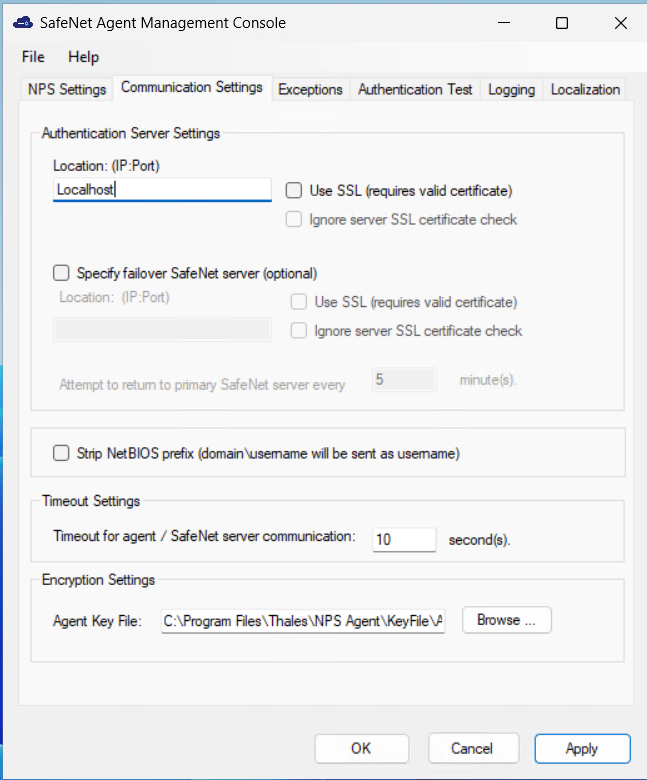
Select Communication Settings tab.
-
In the Location (IP:Port) field, enter the SAS PCE/STA server name.
-
Select one of the following options:
-
Use SSL (requires valid certificate) – SSL must be used.
-
Ignore server SSL certificate check – SSL is not required.
The use of SSL certificates is strongly recommended.
-
-
If a failover SAS PCE/STA server is required, select Specify failover server (optional) and complete the following steps:
-
In the Location (IP:Port) field, enter the SAS PCE/STA server name.
-
Select one of the following options:
-
Use SSL (requires valid certificate) – SSL must be used.
-
Ignore server SSL certificate check – SSL is not required.
-
-
In the Attempt to return to primary server every field, enter the number of minutes required between each attempt to return to the primary server.
-
-
In the Strip NetBIOS prefix (domain\username will be sent as username) field, select if the SAS PCE/STA username is required without the prefix domain\.
Note
The realm-stripping feature applies to SAS PCE/STA usernames only. Active Directory usernames are not affected.
-
In the Timeout for agent communication field, enter the maximum timeout (in seconds) for each authentication attempt. For example: If a maximum timeout of 10 seconds is entered, and the authentication response takes longer than 10 seconds, the system will timeout.
-
In the Agent Key File field, click Browse and navigate to the file.
Note
-
It is strongly recommended to use the default location for the Agent Key File, to avoid possible errors. If you need to use a new Agent Key File, replace it at the default location.
-
To use the AES-GCM key standard, the administrator needs to download a new Agent.bsidkey file from the SAS PCE/STA server, and update it in the agent at Configuration Management > Communications > Agent Encryption Key File. To download the Agent.bsidkey file:
-
Log in to your SAS PCE/STA server account and navigate to COMMS > Authentication Processing.
-
Under Task list, click Authentication Agent Settings and download the Agent.bsidkey file.
-
-
-
Click Apply.
-
Restart NPS.

