



Logging In and Out
Login credentials for the Customer’s first IT Admin are shared by Thales via secure channels. When a new Tenant is created it automatically includes one Environment. Once you log in, the main Policy-Based Authorization Manager interface is displayed.
Logging into the Policy-Based Authorization Manager
To log in to the Policy-Based Authorization Manager:
-
Navigate to the following URL:
https://{{CustomerDomainName}}.{{region}}.onewelcome.io/appwhere CustomerDomainName is the name created by Thales during the sign-up process and region reflects the organization location (for example US, EU, etc.). The customer domain name is typically based on your company’s name or its preferred domain name. The login page opens.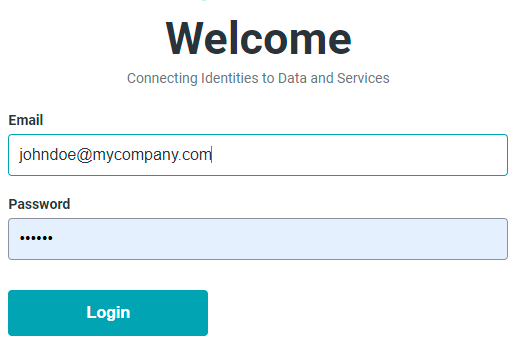
-
Enter your email and password.
- Click Login. If you are having trouble logging in, contact your System Administrator.
One-Time Password (OTP)
As part of enhanced security for Tenant root accounts, the Thales Authorization Platform enforces Multi-Factor Authentication (MFA) using a One-Time Password (OTP).
After you enter your email address and password, the system prompts you to enter a one-time password generated by your registered authenticator app. This additional step verifies your identity and completes the login process.
To enable OTP:
- On your first login, enroll an authenticator app to complete the setup.
- On each subsequent login, enter the time-based code displayed in your authenticator app before it expires.
Note
OTP enrollment is mandatory for all Tenant root accounts. You must complete the enrollment during your first login to access the Thales Authorization Platform.
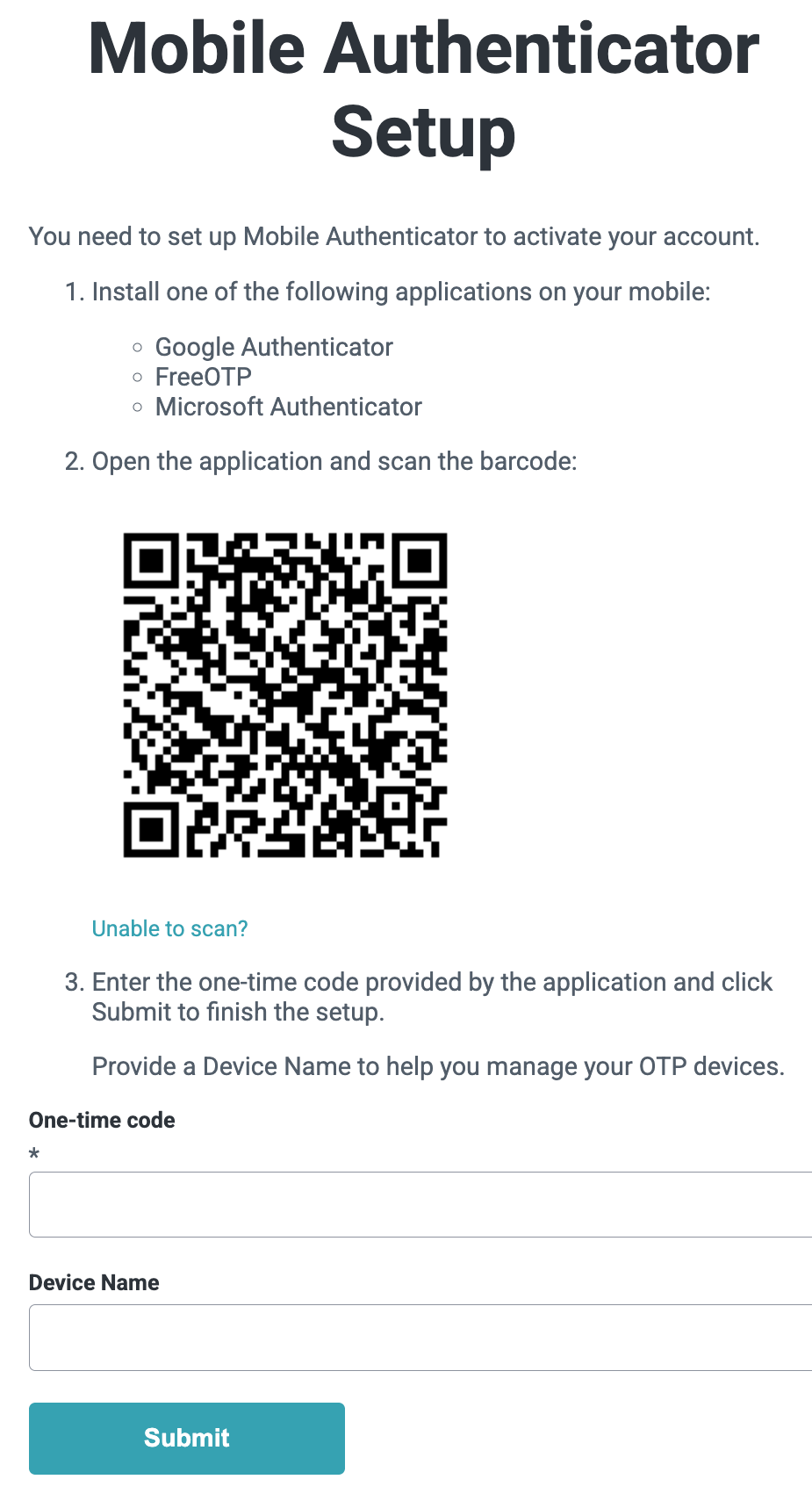
Supported authenticator apps:
- Google Authenticator.
- Microsoft Authenticator.
- FreeOTP.
If you lose access to your authenticator device or cannot generate an OTP, contact Thales Support to request an MFA reset.
Logging Out of the Policy-Based Authorization Manager
To log out of the Policy-Based Authorization Manager:
- Click on your user name in the Policy-Based Authorization Manager left side bar on the bottom. A menu pops up with your Tenant Name and Log out.
- Click Log out. You are logged out of the system.

