



Policy Management
Policy Management provides administrators a centralized interface to define, review, and manage FIDO authentication policies across the organization. It features a structured table (for policy management) that lists all configured policies and provides controlled administrative actions to help preserve policy integrity and ensure compliance.
Policy Management Table
The Policy Management table displays all policies defined within the organization. It includes key metrics and actionable options to help administrators monitor and manage policy usage effectively.
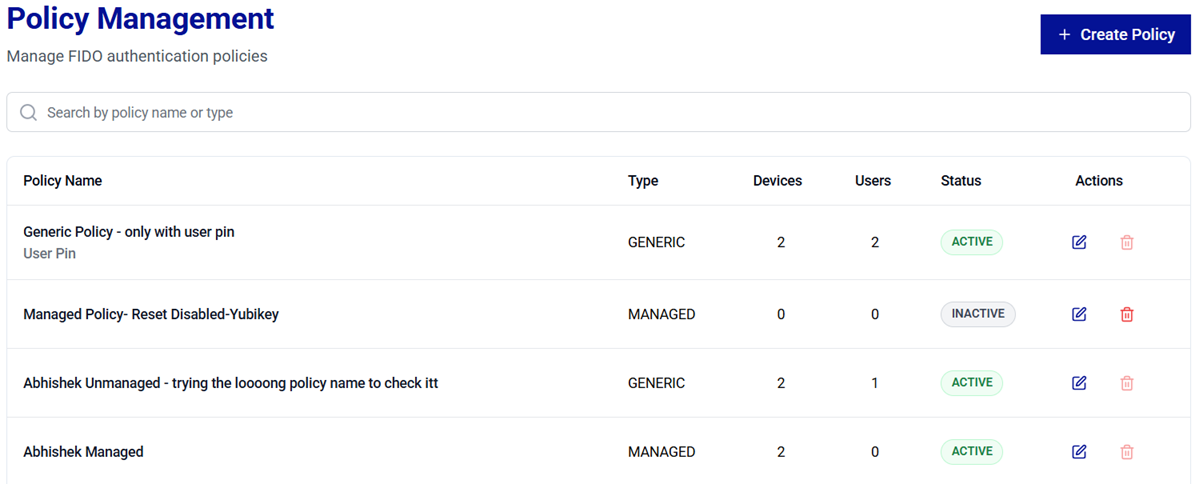
The following table explains each column given in the policy management table.
| Column | Description |
|---|---|
| Policy Name | The name assigned to the policy. |
| Type | Indicates whether the policy is Standard or Thales Enterprise. Refer to the Policy Types section for details. |
| Linked devices | Total number of authenticators to which the policy is linked to but not yet assigned. |
| Configured devices | Total number of authenticators to which the policy is assigned. |
| Status | Indicates whether a policy is IN USE, UNUSED or LINKED. IN USE - Indicates that the policy is assigned to at least one device. - Editing is restricted to prevent disruptions to active deployments. UNUSED - Indicates that the policy is not assigned to any device. - Editing and deletion are permitted, allowing safe updates and cleanup. LINKED - Indicates that the policy is linked to any device but has not been applied to it. - Editing and deletion are permitted, allowing safe updates and cleanup. |
| Self-Service | Indicates whether the policy is enabled for self-service enrollment. A check mark indicates that the policy is available in the self-service portal. |
| Actions | Provides options to perform the following actions on policies, - Edit a Policy  - Delete a Policy  - Set a default policy  |
Caution
Policies can only be edited or deleted when their status is UNUSED or LINKED. This safeguards accidental removal or modification of policies that are actively in use by devices.
Policy Types
Policies determine how authenticators are used and managed within the system. In Thales Authenticator Lifecycle Manager, you can create the following two types of policies:
-
Standard
- Implements standard FIDO features and behaviors.
- Ensures cross-vendor compatibility (for example, Thales, YubiKey, and other compliant devices).
- Offers optional field configurations compatible with a variety of devices.
-
Thales Enterprise
- Provides Thales-specific enterprise capabilities that extend beyond standard FIDO features.
- Includes advanced device management controls (for example Admin PIN enforcement and enhanced compliance settings).
- Designed for Thales devices requiring stricter operational governance.
Tip
-
Use Standard policies for broad compatibility and simplified deployments.
-
Use Thales Enterprise policies when enterprise-grade controls and Thales-specific features are required beyond standard FIDO capabilities.
Manage Policies
Administrators can perform the following operations to manage policies:
Search Policies
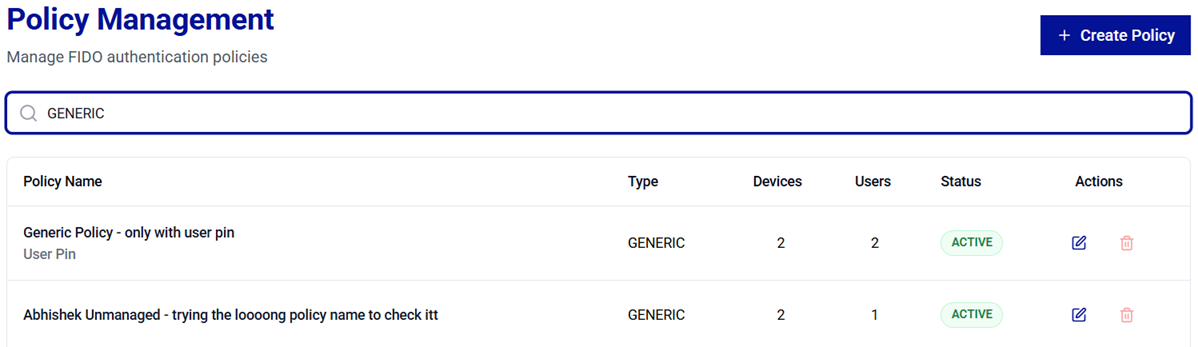
The Search feature allows administrators to quickly locate policies. Use the search bar to filter policies and view their details based on either the policy name or type.
Create a Policy
-
On the Policy Management screen, click Create Policy.

-
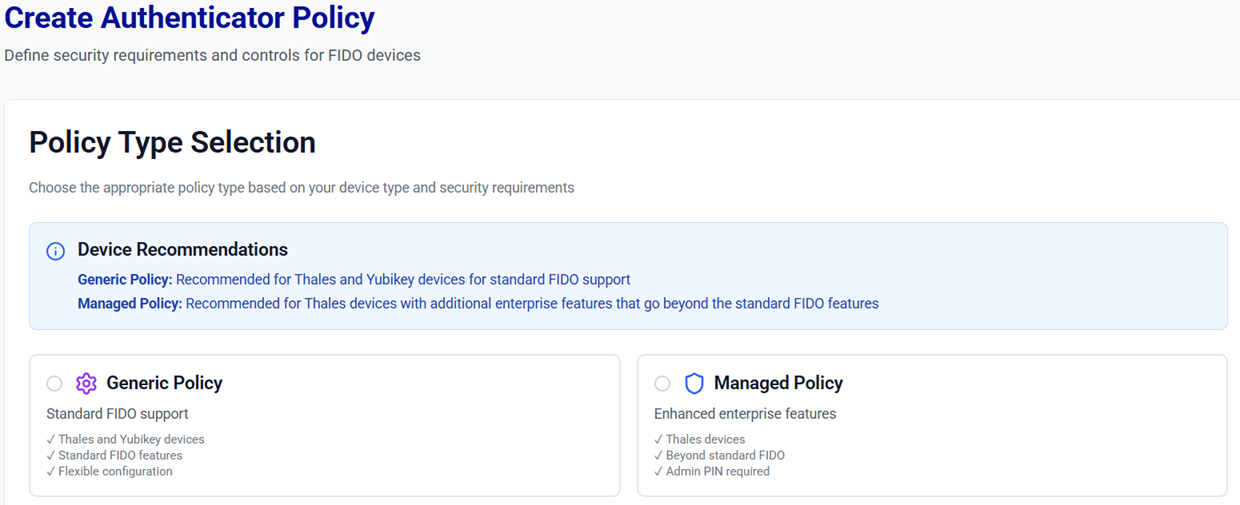
On the Create Authenticator Policy screen, under Select policy type, select either the Standard or Thales Enterprise policy type option as per your preferred configuration.
-
Configure the policy parameters and click Save Policy.
Basic Information
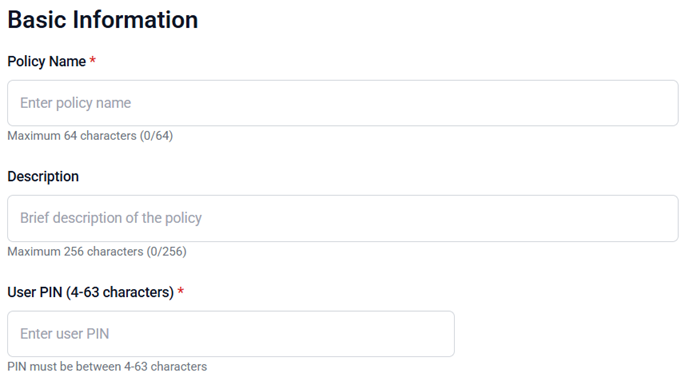
- Policy Name (mandatory): A unique name for the policy (maximum 64 characters).
- Description (optional): A brief description to explain the purpose or scope of the policy.
-
Enable for self-service (optional): Turn on this toggle to allow users to self-register their devices by using this policy. When self-service is enabled, the User PIN options are disabled, because self-service users set their own PIN during registration. Self-service policies are also excluded from the policy list when configuring FIDO devices manually.
-
To generate a FIDO device User PIN, use either of the following two options:
- Randomized User PIN: Enable this option for a system-generated User PIN. The PIN will be generated based on the minimum PIN length set in the policy.
- User PIN: Enter a secure user PIN (4 to 63 characters) to be assigned to a FIDO device.
FIDO 2.1 configuration
This configuration is applicable only to FIDO devices that support the FIDO 2.1 standard.
-
Minimum PIN length: Minimum PIN length (allowed range: 4 to 63 characters) for user PINs to be assigned to FIDO devices.
-
Enforce PIN Change: Enable this option to enforce users to change their default or existing device PIN before using the FIDO key for authentication for the first time.
-
Enforce user verification: Enable this option to make PIN‑based user verification mandatory, instead of relying solely on a physical device touch, ensuring that authentication is performed by the authorized user.
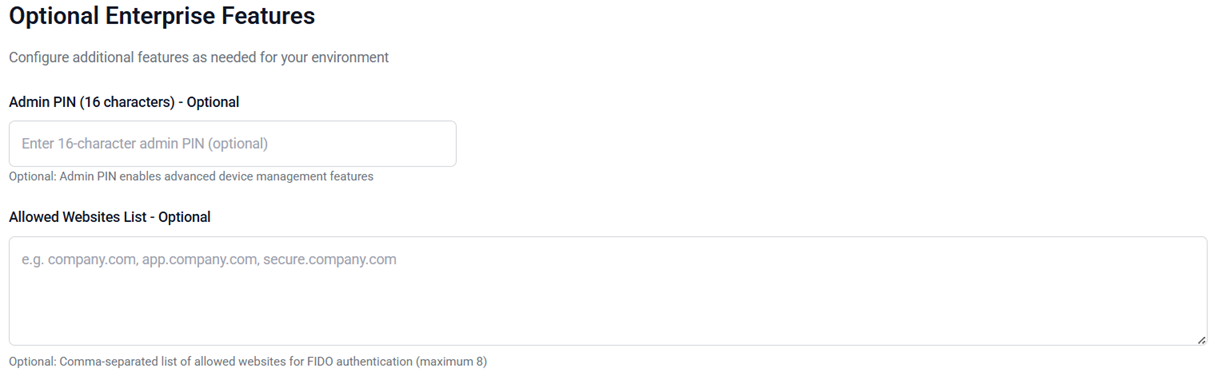
Basic Information
- Policy Name (mandatory): A unique name for the policy (maximum 64 characters).
- Description (optional): A brief description to explain the purpose or scope of the policy.
-
Enable for self-service (optional): Turn on this toggle to allow users to self-register their devices by using this policy. When self-service is enabled, the User PIN options are disabled, because self-service users set their own PIN during registration. Self-service policies are also excluded from the policy list when configuring FIDO devices manually.
-
To generate a FIDO device User PIN, use either of the following two options:
- Randomized User PIN: Enable this option for a system-generated User PIN. The PIN will be generated based on the minimum PIN length set in the policy.
- User PIN: Enter a secure user PIN (4 to 63 characters) to be assigned to a FIDO device.
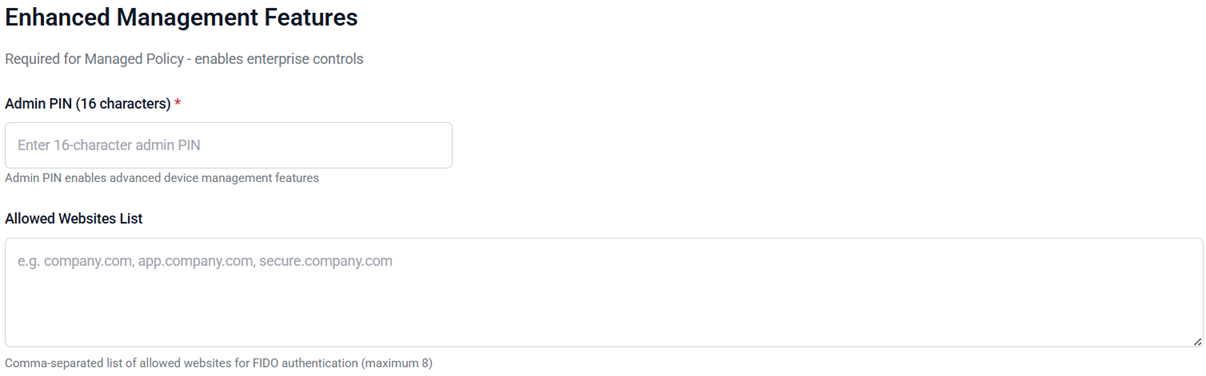
Thales Enterprise features
This section is used to configure controlled administrative actions.
-
To generate a FIDO device Admin PIN, use either of the following two options:
- Randomized Admin PIN: Enable this option for a system-generated Admin PIN (16-digit PIN length).
- Admin PIN: Enter a secure Admin PIN (16-digit PIN length) to be assigned to a FIDO device.
The Admin PIN is set for unmanaged FIDO devices.
Note
The Admin PIN is used to enable advanced device management features.
-
Allowed Websites List (Optional): The website(s) where FIDO devices, governed by this policy, are permitted for user authentication. A maximum of eight websites can be listed, separated by commas.
-
Minimum PIN length (mandatory): Minimum PIN length (allowed range: 4 to 63 characters) for user PINs to be assigned to FIDO devices.
-
Allow device reset management: Enables administrators to control the device reset functionality. When enabled, administrators can perform a factory reset on devices.
-
Enforce PIN Change: Enable this option to enforce users to change their default or existing device PIN before using the FIDO key for authentication for the first time.
-
Enforce user verification: Enable this option to make PIN‑based user verification mandatory instead of relying solely on a physical device touch, ensuring that the authentication is performed by the authorized user.
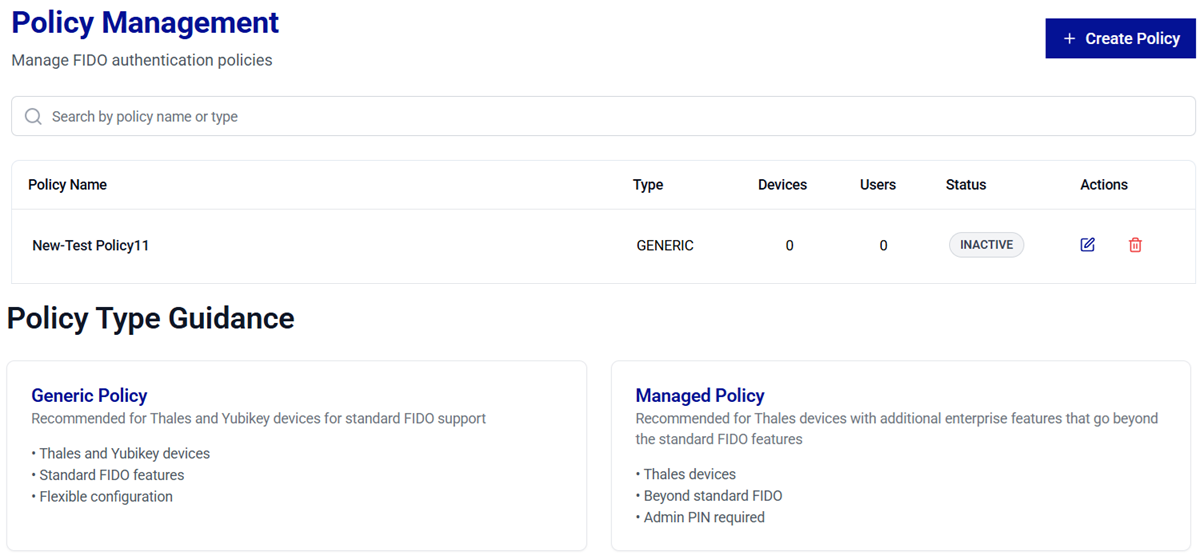
After a policy is successfully created (for example, Standard_Policy), a success message is displayed.

The newly created policy appears in the table with the UNUSED status. Once an administrator assigns the policy to a device, the status automatically updates to IN USE.
Edit a Policy
Policy editing is permitted only for policies with an UNUSED or LINKED status, ensuring safe and non-disruptive updates.
-
On the Policy Management window, locate the target policy in the list and verify that the status is UNUSED or LINKED.
-
In the Actions column, click the three-dots
 icon for the policy, and then select Edit.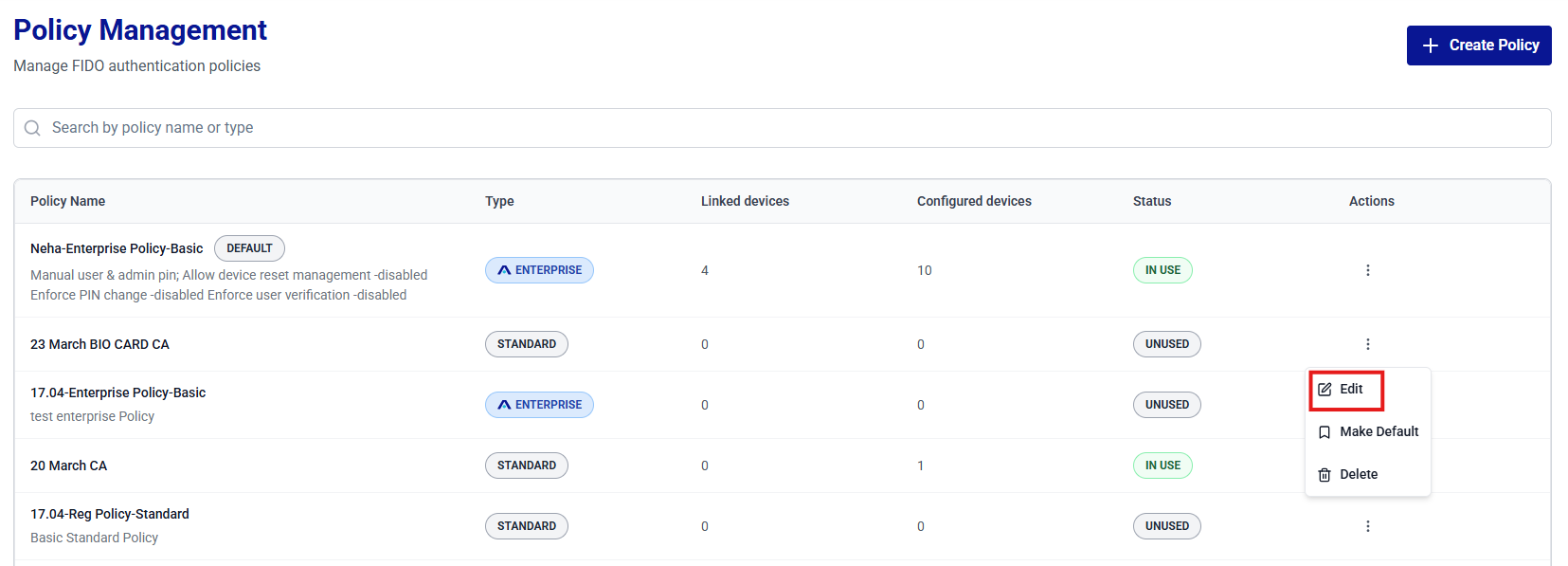
-
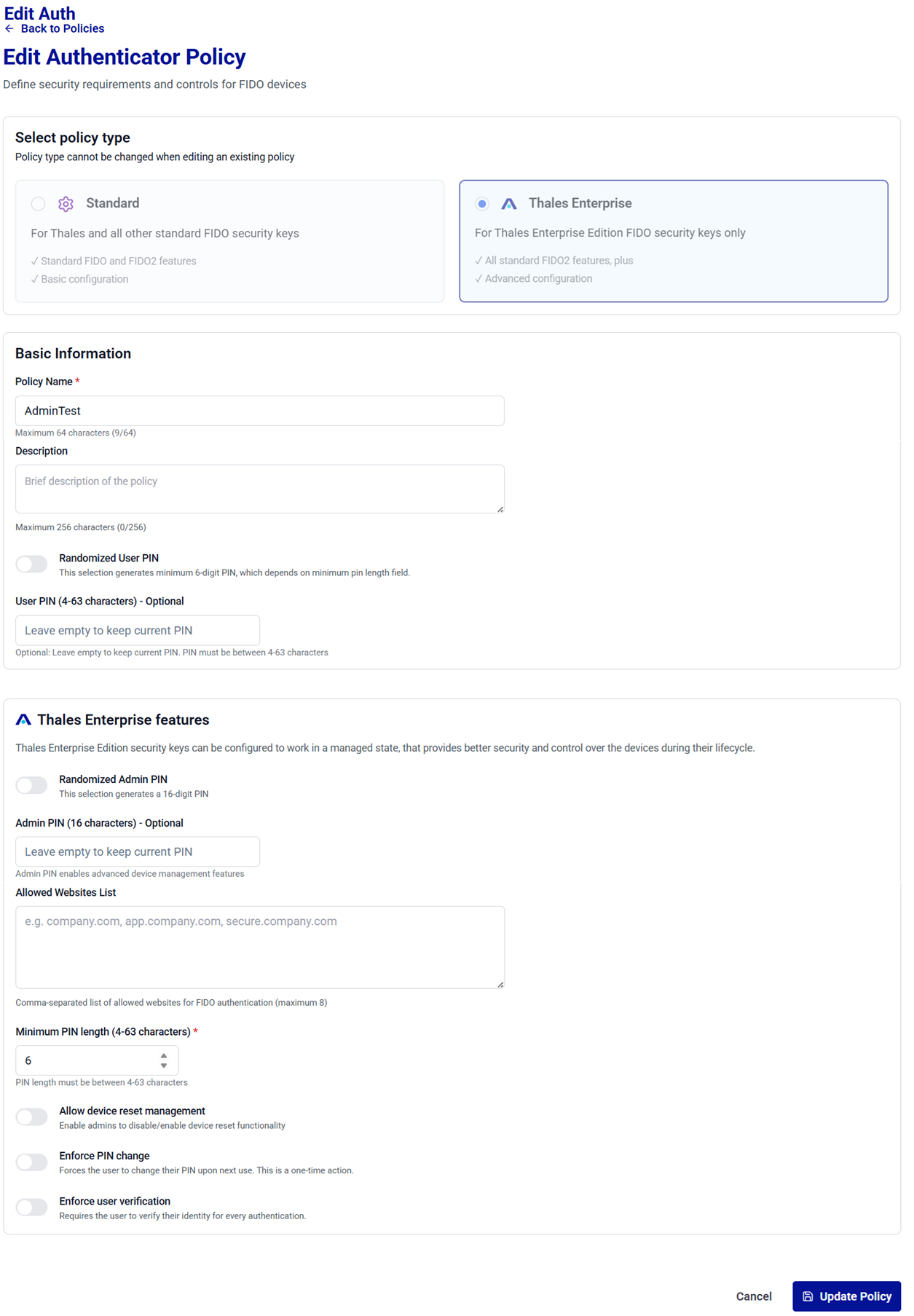
Review and update configuration settings as per the requirements.
Note
For field descriptions, refer to step 3 of the Create a Policy section. The following conditions apply when you edit a policy:
- You cannot change Enable for self-service if devices are associated with the policy or if the policy is the active self-service policy for an identity provider.
- You cannot change the policy type. To use a different policy type, create a new policy.
- For policies with a LINKED status, you can still edit the policy. Changes apply only to devices configured after the update.
-
Click Update Policy to save changes.
Now, administrators can assign the updated policy to devices to make it ACTIVE.
View an In-Use Policy
Policies with an IN USE status are read-only and cannot be edited or deleted. You can review the policy configuration, set it as the default policy, or use it as the basis for a new policy.
-
On the Policy Management screen, locate the policy with the IN USE status. In the Actions column, click the three-dots
icon, and then select View.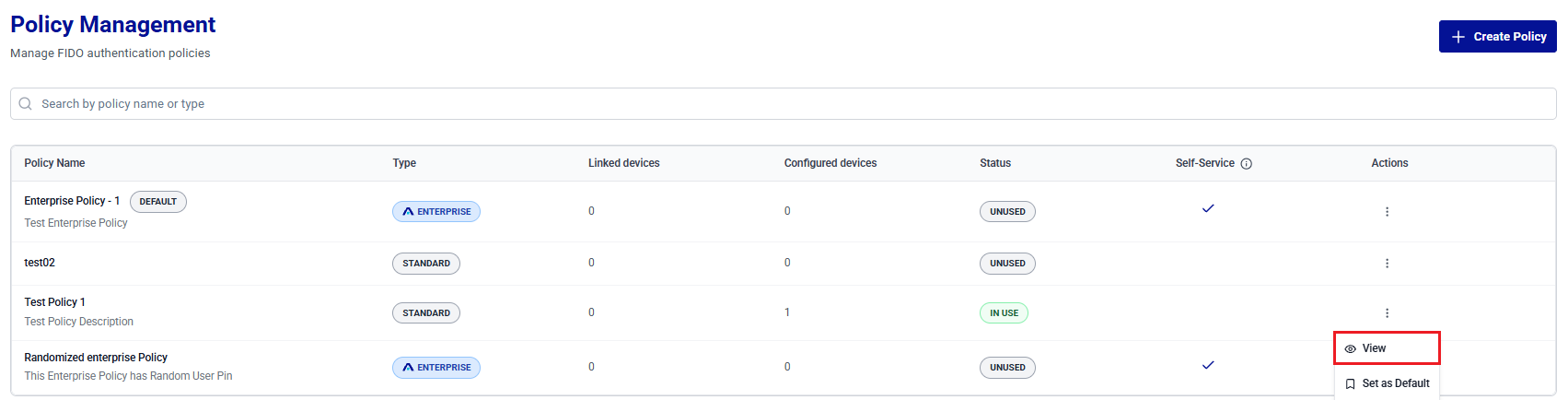
-
The policy opens in read-only mode. Review the configuration as required.
-
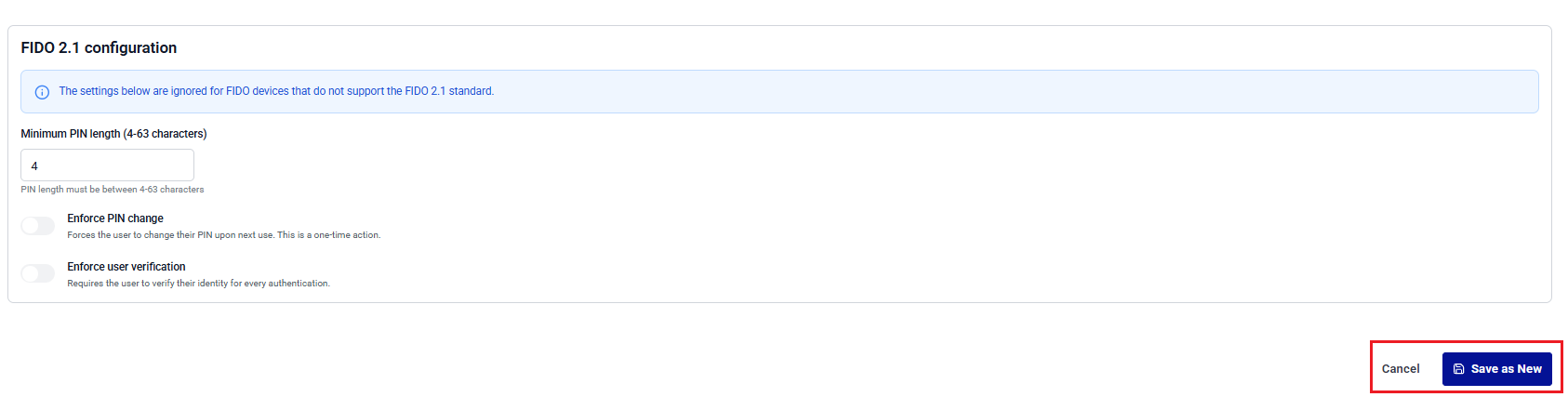
To create an editable copy of the policy, click Save as New. The configuration is copied to a new Create Authenticator Policy form, where you can modify the settings and save them as a new policy.
Delete a Policy
Policy deletion is permitted only for policies with an UNUSED or LINKED status, ensuring safe and non-disruptive cleanup.
-
On the Policy Management screen, locate the target policy in the list and verify that the status is UNUSED or LINKED.
-
In the Actions column, click the three-dots
icon for the policy, and then select Delete.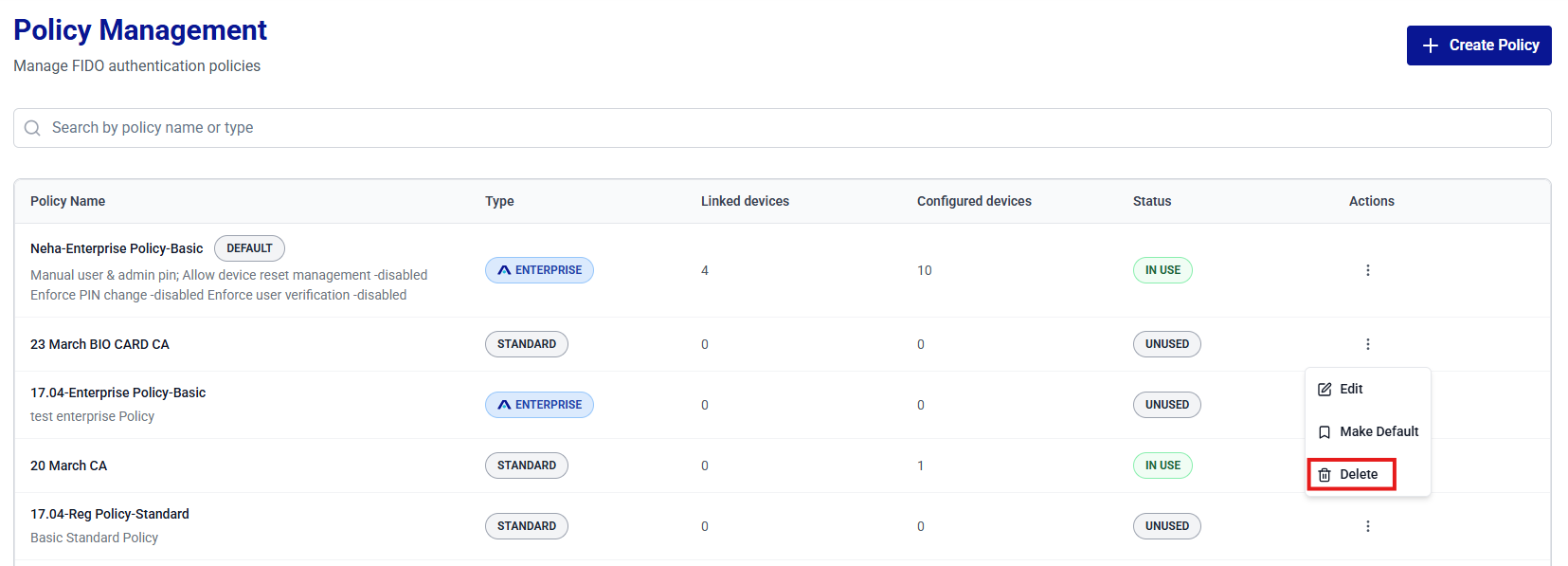
-
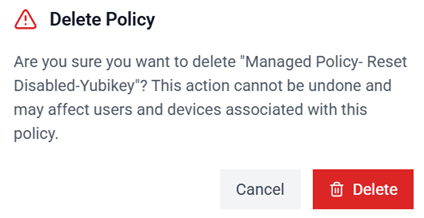
The Delete Policy window is displayed.
-
For an UNUSED policy that is not linked to any device, click Delete to confirm the operation.
-
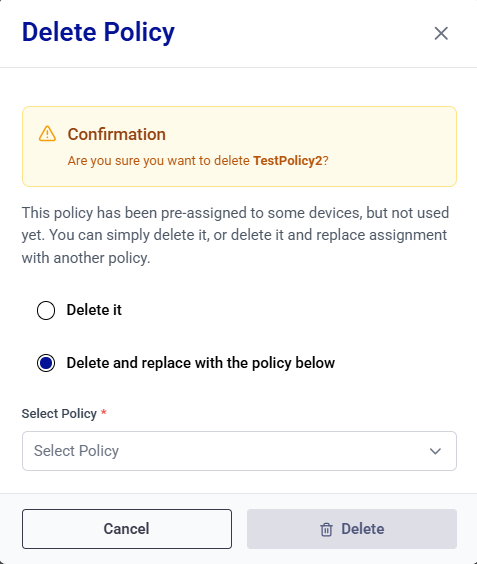
For a LINKED policy that has been pre-assigned to devices but not yet used, select one of the following options, and then click Delete:
- Delete it: Deletes the policy and removes the pre-assignment from the linked devices.
- Delete and replace with the policy below: Deletes the policy and reassigns the linked devices to a replacement policy that you select from the Select Policy list.
After a policy is successfully deleted, a success message is displayed.

-
Set a Default Policy
Perform the following steps to set a policy as default:
-
On the Policy Management window, search for and locate the target policy from the list.
-
In the Actions column, click the three-dots
icon for the policy, and then select Set as Default.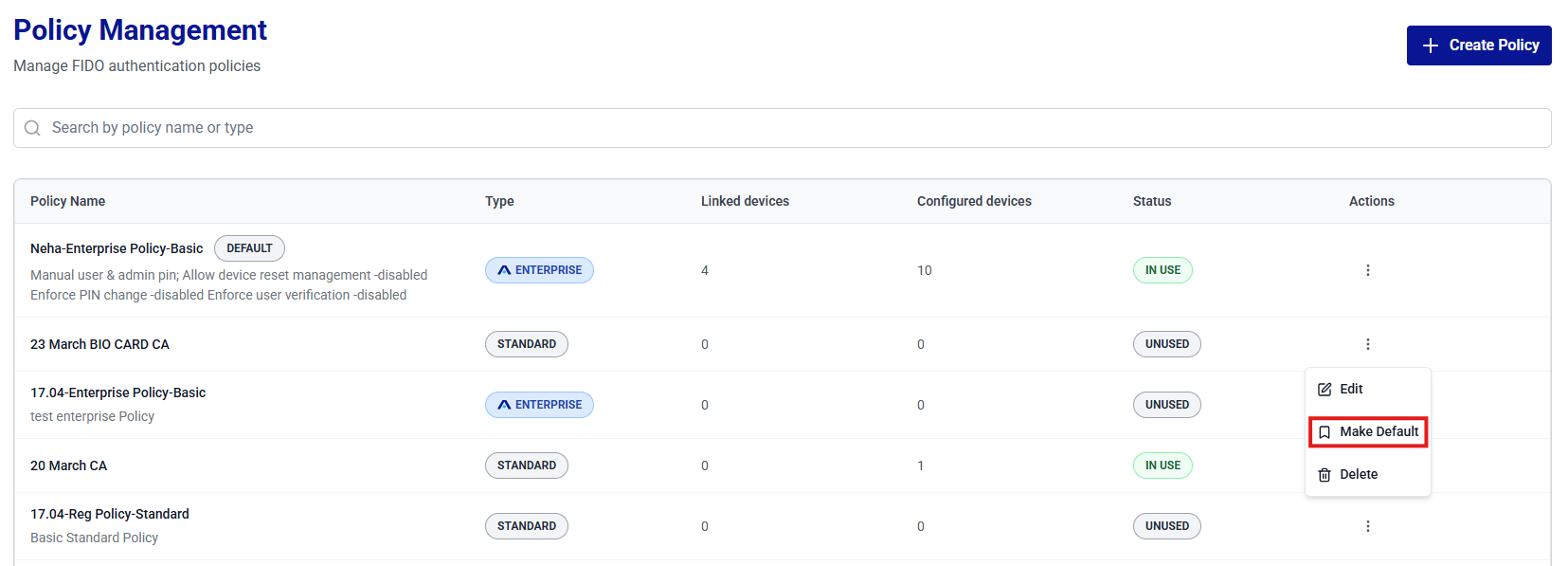
-
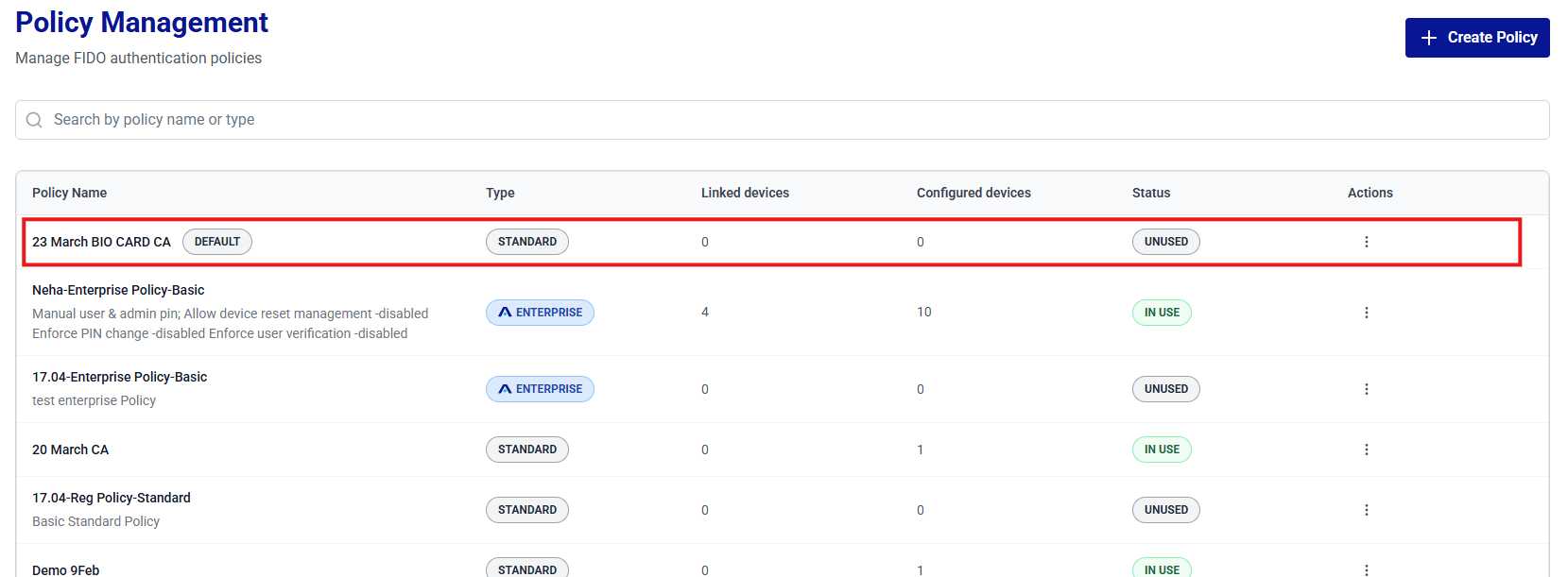
The policy is set to default and the policy name is displayed with the DEFAULT indicator.
Note
Only one policy can be set as default at a time. Setting a new policy as default automatically clears the previous one.

