



Single Sign-On with PingFederate
This page describes how to configure PingFederate as an IdP for use with SSO in CCC. Complete the steps on this page after finishing the main SSO configuration procedure described in Single Sign-On.
The configuration steps described in this document are indicative and may vary based on tenant-specific settings, security policies, and enabled features.
Prerequisites
Ensure the following prerequisites are met before starting:
-
PingFederate server installed and running
-
Administrative access to the PingFederate console
-
Valid TLS certificates installed in PingFederate
-
HTTPS configured on PingFederate
-
An operational CCC instance with an admin user
-
A user directory or identity store configured and backed by LDAP, Active Directory, or a database
Configure PingFederate
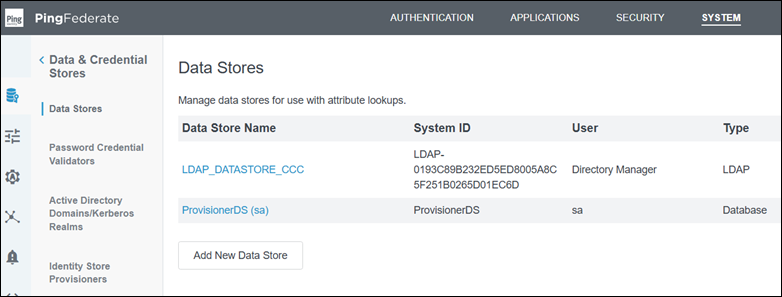
Navigate to System > Data Stores and configure a data store for the user directory or identity store.
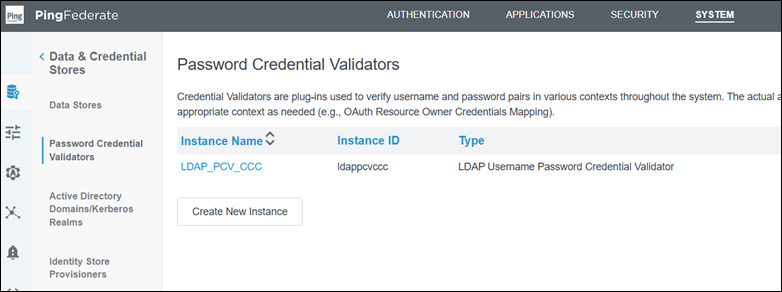
Navigate to System > Password Credential Validators and configure a Password Credential Validator to authenticate users using a username and password.
Navigate to Authentication > IdP Adapters, create an adapter of type HTML Form IdP Adapter, define the required attributes, and configure data source connectivity.
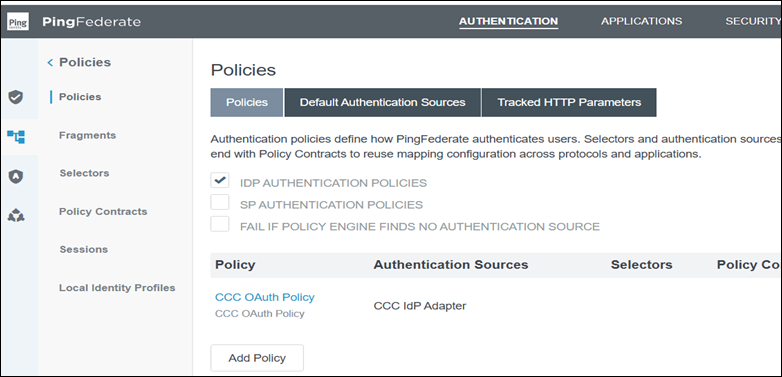
Navigate to Authentication > Policies and create an authentication policy that maps the configured IdP adapter to support user authentication.
Navigate to Authentication > OAuth > IdP Adapter Grant Mapping and configure the mapping to translate authenticated user attributes into OAuth/OIDC token attributes.
Navigate to System > OAuth Settings > Scope Management and ensure the following scopes are defined:
-
openid -
profile -
email
Navigate to Applications > OAuth > Access Token Management, create or select an Access Token Manager, and configure the following:
-
Token Type: JWT
-
Signing Certificate: Select an appropriate certificate
-
Token Lifetime: As required by your environment
-
Scope Claim Name:
scope -
Issuer: PingFederate base URL
Define the Access Token Attribute Contract entries required for CCC:
-
roles: multi-valued
-
ccc_organization: single-valued
Save the Access Token Manager configuration.
Ensure that the ID token is signed using a certificate trusted by CCC and that the Discovery endpoint exposes the corresponding JWKS for signature validation.
Navigate to Applications > OAuth > OpenID Connect Policy Management and create a new OpenID Connect policy for the CCC application.
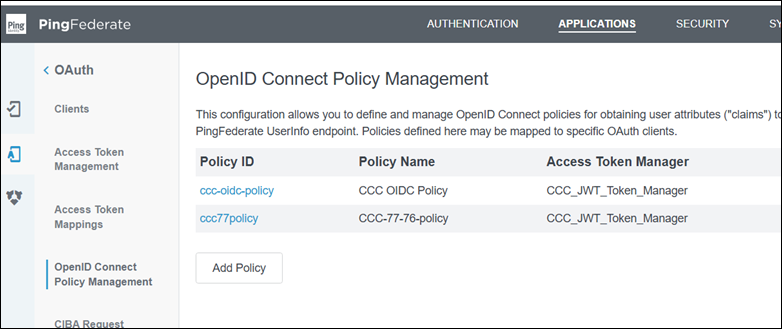
Configure the policy with the following settings:
-
Provide a policy ID (for example,
ccc-policy) -
Select the previously created Access Token Manager
-
Set Include User Info in ID Token to true
-
Add
roles(multi-valued) andccc_organization(single-valued) to the ID token contract -
Configure attribute sources and contract fulfillment to map values from LDAP, AD, data store, or IdP adapter
Ensure the ID token includes the following claims required by CCC:
-
Standard OIDC claims:
sub,name,email,preferred_username,iss,aud,iat,exp -
roles(multi-valued; for example:"roles": ["ccc_admin"]or"roles": ["ccc_user"]) -
ccc_organization(string; for example:"ccc_organization": "xyz_org")
The value of ccc_organization must exactly match an organization configured in CCC under Accounts > Organizations.
Navigate to Applications > OAuth > Clients and create an OAuth/OIDC client for CCC.
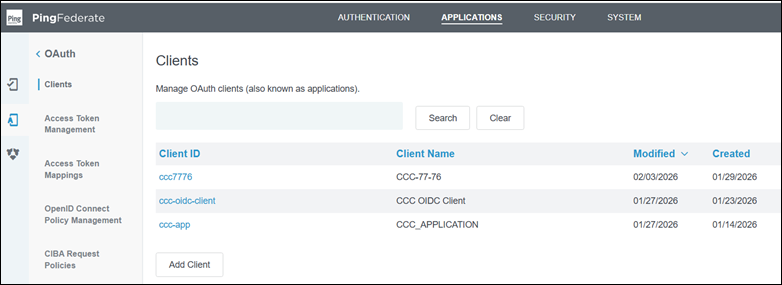
Configure the client with the following settings:
-
Provide a Client ID
-
Set Client Authentication to Client Secret, generate the secret, and copy it for use in CCC
-
Enable Authorization Code grant type (and Refresh Token if required by your environment)
-
Select the previously created OpenID Connect policy
-
Select the previously created Access Token Manager
-
Allow the following scopes:
openid,profile,email
Save the client configuration.
Navigate back to Applications > OAuth > OpenID Connect Policy Management, open the previously created policy, and define issuance criteria so that the policy applies when the Client ID equals the CCC OAuth client ID created in the previous step.
Create the SSO configuration entry in CCC to generate the Sign-in Redirect URL, then copy that URL and register it exactly in the PingFederate client configuration.
Configure SSO in CCC
Log in to CCC using an admin account and begin the SSO configuration.
Enter the required SSO configuration values, including the SSO Display Name, Alias, Discovery URL (from PingFederate), Client ID, Client Secret, Role Claim Name (roles), and Organization Claim Name (ccc_organization).
After entering the Discovery URL, click Connect to validate the configuration and fetch the remaining endpoints.
Click Add SSO to save and activate the configuration.
Verify the SSO setup by confirming that the SSO entry appears in the SSO list and a new SSO login option appears on the CCC login screen.
With these steps complete, the PingFederate and CCC SSO integration is fully configured. Users can now authenticate to CCC using PingFederate credentials.

