



Single Sign-On
CCC supports Single Sign-On (SSO) using OpenID Connect (OIDC), enabling integration with any OIDC-compliant external Identity Provider (IdP) for secure and seamless authentication. A CCC administrator configures SSO by preparing the Identity Provider (IdP), collecting the required values, and completing the setup in CCC using either automatic discovery or manual endpoint configuration. Once activated, users can authenticate using their corporate identity without additional credentials. Official validation has been performed with PingFederate, Okta, STA, and Microsoft Entra ID. To complete the full integration, first follow the steps on this page to configure the CCC-side requirements, then proceed to the appropriate provider-specific guide to configure the Identity Provider: PingFederate, Okta, STA, or Microsoft Entra ID.
If you plan to use a different OIDC-compliant provider, we strongly recommend completing end-to-end validation in your environment before deploying to production. For assistance, contact Thales Support.
Add the IdP TLS certificate to the CCC Keycloak trust store by copying the certificate file to the ${CCC_BASE_DIR}/ccc-certs/ directory, naming it with the ccc_idp_trust prefix (for example, ccc_idp_trust_myca.pem), and starting or restarting the CCC application container.
This step is required only if the IdP certificate is self-signed or signed by a private Certificate Authority CA.
Create an OIDC application in the Identity Provider, ensure that the Authorization Code grant type is enabled and the required scopes (openid, profile, and email) are allowed, configure it for CCC integration, and collect the following values: Discovery URL, Client ID, Client Secret, Role Claim Name, and Organization Claim Name.
Configure the role claim in the IdP to be returned in the ID token as an array (for example: "roles": ["ccc_admin"] for CCC administrators or "roles": ["ccc_user"] for application owners).
Configure the organization claim in the IdP to be returned in the ID token as a string (for example: "ccc_organization": "myorg"). The value must exactly match an organization name configured in CCC under Accounts > Organizations.
Log in to CCC as a CCC administrator.
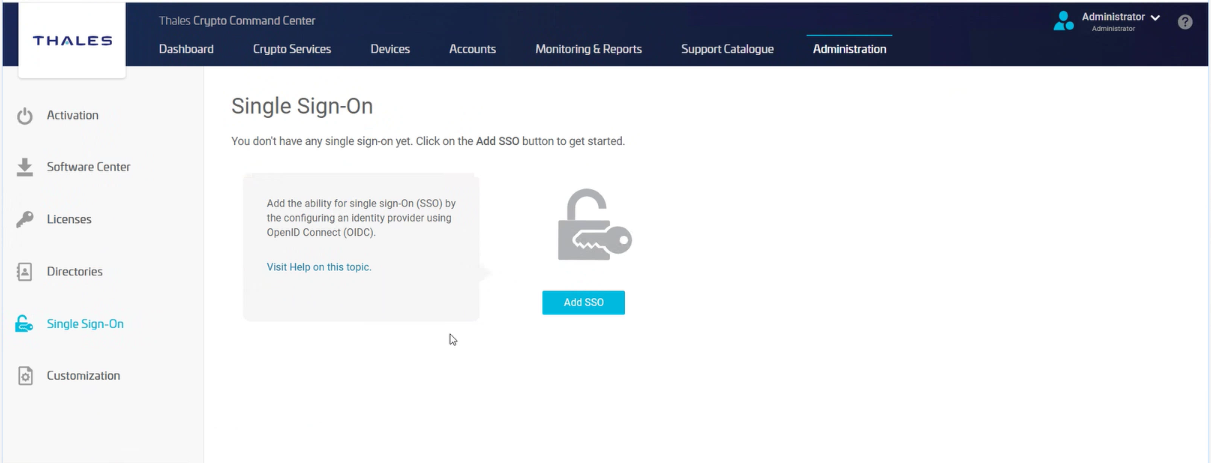
Navigate to Administration > Single Sign-On > Add SSO.
Enter the basic SSO configuration details.
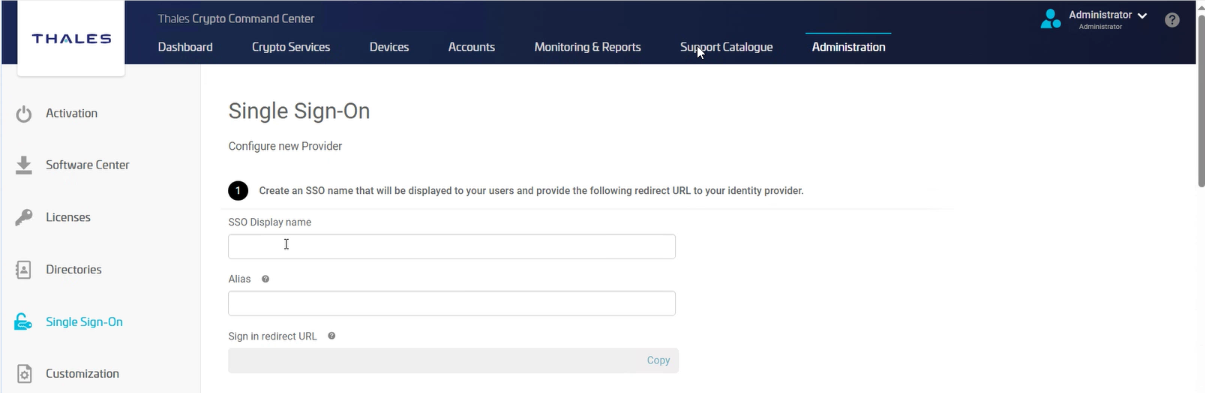
| Field | Description |
|---|---|
| SSO Display Name | A user-friendly name displayed on the CCC login page (for example, Company Login). |
| Alias | A unique identifier for the IdP (for example, company-idp). Do not use spaces or special characters. |
| Sign-in Redirect URL | Automatically generated after you enter the Alias. Copy this URL and register it in your IdP configuration. |
Register the copied redirect URL in the Identity Provider’s OIDC application configuration.
Configure the Identity Provider endpoints by choosing one of the following configuration methods: Automatic setup (enable the discovery endpoint and provide the Discovery URL) or Manual setup (disable discovery and enter the required endpoint values: Authorization URL, Token URL, optional Logout URL, UserInfo URL, and Issuer).
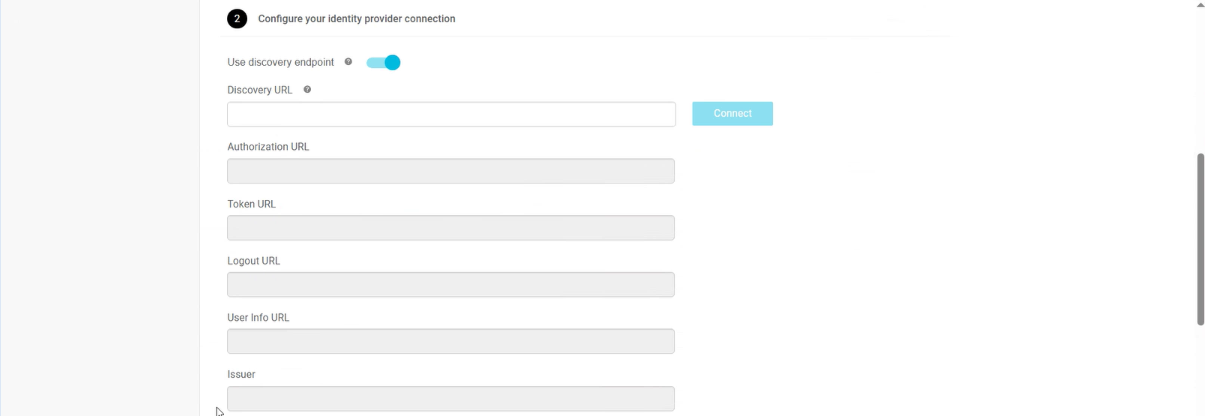
Enter the authentication and claim-mapping values.

| Field | Description |
|---|---|
| Client ID | Client identifier issued by the IdP. |
| Client Secret | Secret associated with the client ID. |
| Role Claim Name | Claim used to map IdP roles to CCC roles. |
| Organization Claim Name | Claim used to associate users with an organization in CCC. |
Save and activate the SSO configuration by clicking Add SSO.
Once these steps are complete, users can sign in to CCC using the configured SSO option. If you run into any issues, start by checking the Identity Provider logs and the CCC error messages. These usually point to common causes such as endpoint configuration, certificate trust, or claim-mapping mismatches. When you’re ready to complete the Identity Provider–specific setup, continue with the appropriate guide: PingFederate, Okta, STA, or Microsoft Entra ID.

