



Upgrading the SafeNet Agent for Epic
Upgrading the agent
Note
Always work in Run as administrator mode when installing, uninstalling or upgrading the agent.
The SafeNet Agent for Epic 3.0.7 supports upgrade from version 1.1.0 (or later versions). However, direct upgrade from version 1.1.0 to 3.0.7 is not supported. The administrators needs to:
- Upgrade from version 1.1.0 to version 2.0.1.
- Upgrade from version 2.0.1 to version 3.0.7.
Perform the following steps to upgrade the agent:
-
Double-click and execute the installer (EXE). Use MSI for Group Policy Object (GPO) upgrade.
Note
If a user has logged into the system as an administrator or if the user(s) is a member of the Domain Admin group, the upgrade process will continue. Otherwise, a window will prompt to provide the administrator credentials.
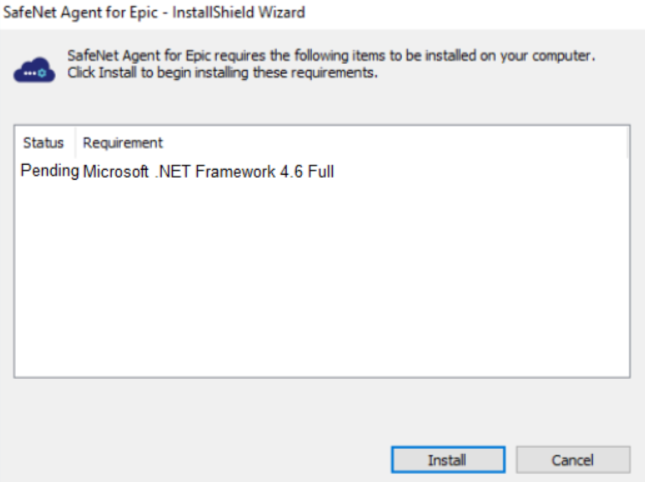
The installer will verify if the Microsoft .NET Framework 4.6 is installed on the system, or not. If it is not, the Install Shield Wizard screen will appear, which will guide the user to install the required framework.
Note
If the required .NET Framework (4.6) is not available during the GPO upgrade, the upgrade process will execute successfully, without any interruptions. In such a case, only when the Epic Management Console is opened, an error stating the unavailability of .NET Framework is encountered. To proceed, install Microsoft .NET Framework 4.6.
-
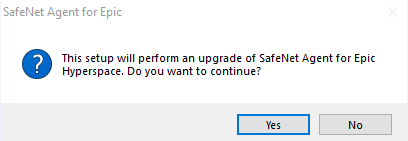
If there exists an existing version of the agent, the installer detects it. In case of upgrade from 1.1.0 (and later) to 3.0.7, the installer auto-directs you to a prompt. Click Yes.
-
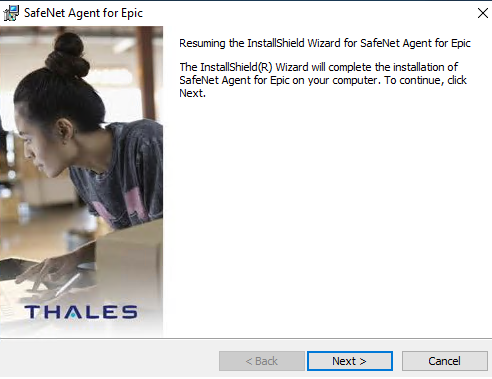
The Resuming the InstallShield Wizard for SafeNet Agent for Epic window is displayed. Click Next, and follow the remaining prompts.
-
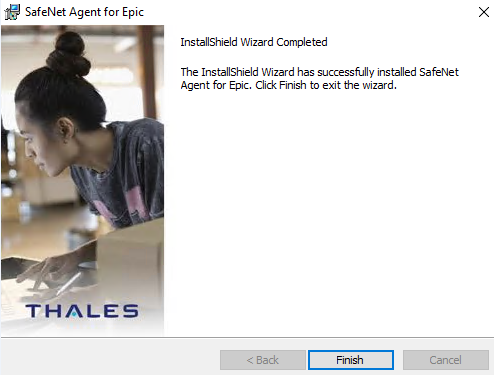
After the upgrade completes, the InstallShield Wizard Completed window is displayed. Click Finish.
Note
If you have created a junction (using mklink) to install the SafeNet Agent for Epic v1.1.0, ensure that the junction/symbolic link should not be removed before, during or after the upgrade process.
Upgrading the agent silently
To upgrade the SafeNet Agent for Epic in silent mode, perform the following steps:
- Open the command prompt in Administrator mode.
- Navigate to the folder which contains the installer.
-
Execute the following command:
Using EXE:
cmd
"SafeNetAgentforEpic.exe" /s /v"/q"
Using MSI:
cmd
msiexec /i "SafeNetAgentforEpic.msi" /quiet REINSTALLMODE=vomus REINSTALL=ALL
Note
For major upgrade (using MSI) from v2.0.1 to the latest version, execute the following command:
cmd
msiexec /i "SafeNetAgentforEpic.msi" /quiet REINSTALLMODE=vomus UPGRADINGPRODUCTCODE=52D3B65F-73ED-4F75-9BF6-AD93A083CBB5
Note
To update settings, the new configuration file needs to be uploaded by opening the Epic Management Console > Communications and clicking Browse displayed against the Select the config file or the BSID file field.

