



Introduction
Epic Systems is one of the largest providers of health information technology, used primarily by large U.S. hospitals and health systems to access, organize, store and share electronic medical records. It enables medical organizations (and individuals) to perform actions such as medication scheduling, ordering, dispensing and e-prescription downloading. Hyperspace is legacy client application and they are now moving to a Chromium web-based framework, Hyperdrive.
The SafeNet Agent for Epic is a client-side agent that supports Direct authentication against a user ID. The agent is a best-in-class authentication solution, providing maximum security and performance, certified to the highest security standards.
User flow
The following steps broadly depict the flow of actions for the agent solution:
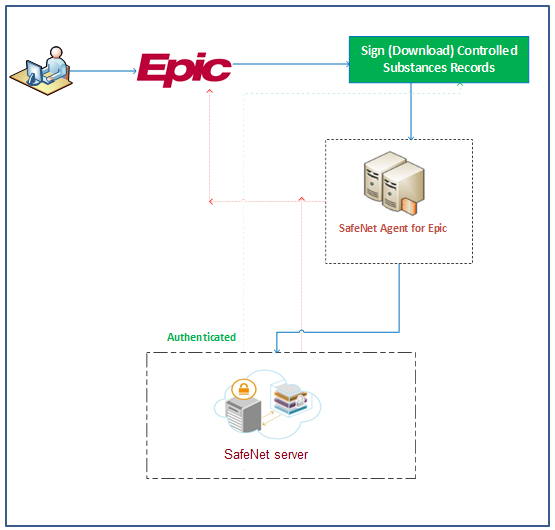
- A user logs into the Epic using username and password.
- If the user proceeds to sign the controlled substances patient records, the SafeNet solution is called (through the agent) for elevated access check.
- The configured authentication for the second factor is displayed.
- Once authenticated, the user is allowed to sign and download the records.
Agent authentication methods
Authentication methods allows to combat online fraud activities (such as phishing) and help maintain password integrity by making it more difficult for customers to lose or share passwords.
The SafeNet Agent for Epic supports the Direct method, meaning an ID is needed to authenticate users. The device determines whether the object being authenticated corresponds to the provided ID, or not.
Prerequisites
Ensure that the following prerequisites are met:
- Ensure that the Epic Hyperspace/Hyperdrive application is already installed on the system where the agent is proposed for the installation.
- Ensure that the user has administrative rights for installing and configuring the SafeNet Agent for Epic.
- To successfully configure and implement the SafeNet Agent for Epic solution, the administrator must be familiar with SafeNet Authentication Service (SAS) Cloud or SAS Service Providers Edition (SAS SPE)/ SAS Private Cloud Edition (SAS PCE). Create an account in SAS Cloud or SAS PCE 3.9.1 (and above).
Security recommendations
If you are using the Transport Layer Security (TLS) channel to secure requests between Token Validator Proxy (TVP) [recommended: TVP v2.0] and the SafeNet Agent for Epic, follow the steps to enable the TLS:
-
To enable TLS on TVP server in the Internet Information Services (IIS) Manager, you need to create a Hypertext Transfer Protocol Secure (HTTPS) binding for the Default web site, by following the steps:
a. Click Start > Control Panel > Administrative Tools > Internet Information Services (IIS) Manager.
b. In the left pane of the IIS window, right-click the Default Web Site and click Edit Bindings.
c. Create an HTTPS binding by using either a self-signed or a Certificate Authority (CA) certificate.
Note
The certificate name should match the Uniform Resource Locator (URL) address of the token validator site.
-
Navigate to the following Registry Editor path:
HKLM\Software\CryptoCard\TokenValidatorChange URL of the token validator to include HTTPS.
-
On the Client side, import the root CA certificate into the trusted root CA store.
-
On the Epic Management Console, select Communication > Use SSL checkbox [next to Primary Server URL (or Failover Server URL) field] to ensure that the HTTPS is used as the protocol to establish the connection.
System requirements
Interoperability
Supported operating systems:
- Windows 11
- Windows Server 2016 (64-bit)
- Windows Server 2019 (64-bit)
- Windows Server 2022 (64-bit)
- Windows Server 2025 (64-bit)
Software component
- Microsoft .NET Framework 4.6
Configuration component
- SafeNet Epic Management Console utility
Supported tokens
- All authentication tokens currently supported by SafeNet Authentication Service except Push OTP.

