



Configuring settings via Group Policy Object Editor
The use of Microsoft Group Policy or Group Policy Objects (GPO) enables the SafeNet administrator to centrally manage the agent configuration for users and computers in an Active Directory environment. It allows to configure many important policy settings to provide flexibility and support extensive configuration information.
The policy settings of the SafeNet Agent for Epic are stored in a Windows Administrative Template (ADMX) file. The settings can be edited using Windows tools, and can be propagated to the entire domain, or be applied to the local computer and domain controllers only.
To configure settings, perform the following steps:
- Add ADMX file to Group Policy Object (GPO) Editor
- Configure ADMX Settings using GPO Editor
- Deploy the Certificate via GPO
Prerequisites
- Microsoft .NET Framework 4.6
Adding ADMX file to Group Policy Object (GPO) Editor
To add ADMX file of the SafeNet Agent for Epic to the GPO Editor, perform the following steps:
-
Copy the ADMX file (
SafeNetEpic.admx) included in the downloaded agent software package to the following location:- For servers:
C:\Windows\PolicyDefinitions - For client computers:
%Systemroot%\PolicyDefinitions
- For servers:
-
Copy the appropriate ADML language file (
SafeNetEpic.adml) to a language folder under the\PolicyDefinitionsfolders.For example: In Windows Server 2019, the English language file provided should be written to:
C:\Windows\PolicyDefinitions\en-US -
Restart GPO Editor.
Configuring ADMX settings using GPO Editor
Once the ADMX file is added, open the template to configure the settings. To open the template and edit the settings:
-
From the Windows taskbar, select Start > All Programs > Accessories > Run.
-
In the Run window, enter
gpmc.msc, and click OK. The Group Policy Management window is displayed. -
Complete one of the following actions:
-
To propagate the settings to all clients in the domain, right-click Default Domain Policy under the domain node.
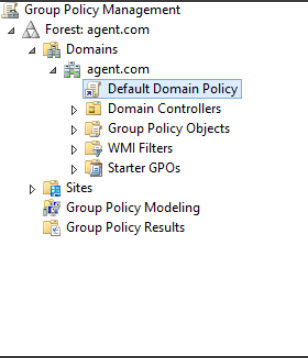
-
To apply the settings to the local machine and any other domain controllers in this domain, under the Domain Controllers node, right-click Default Domain Controllers Policy.
-
-
From the dropdown menu, select Edit. The Group Policy Management Editor window is displayed.
-
In the left pane, navigate to Computer Configuration > Administrative Templates > SafeNet Epic > Safenet EPIC.
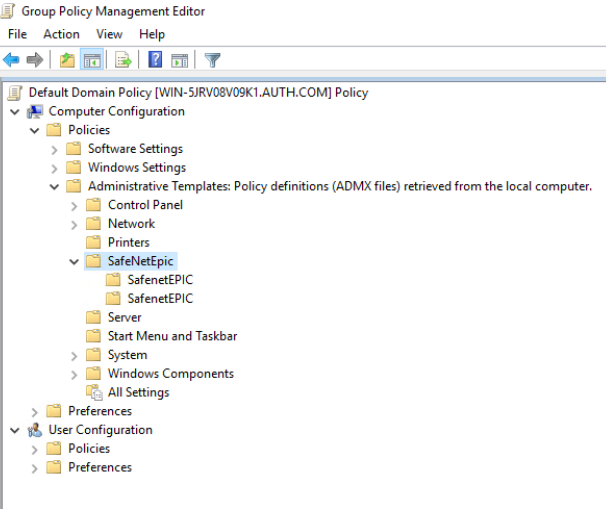
The SafeNet Agent for Epic settings are displayed in the right pane.
-
For performing GPO push:
-
On 32-bit clients: Configure the settings corresponding to
SOFTWARE\Thales\Epicand ensure the settings related to 64-bit are set to Not Configured.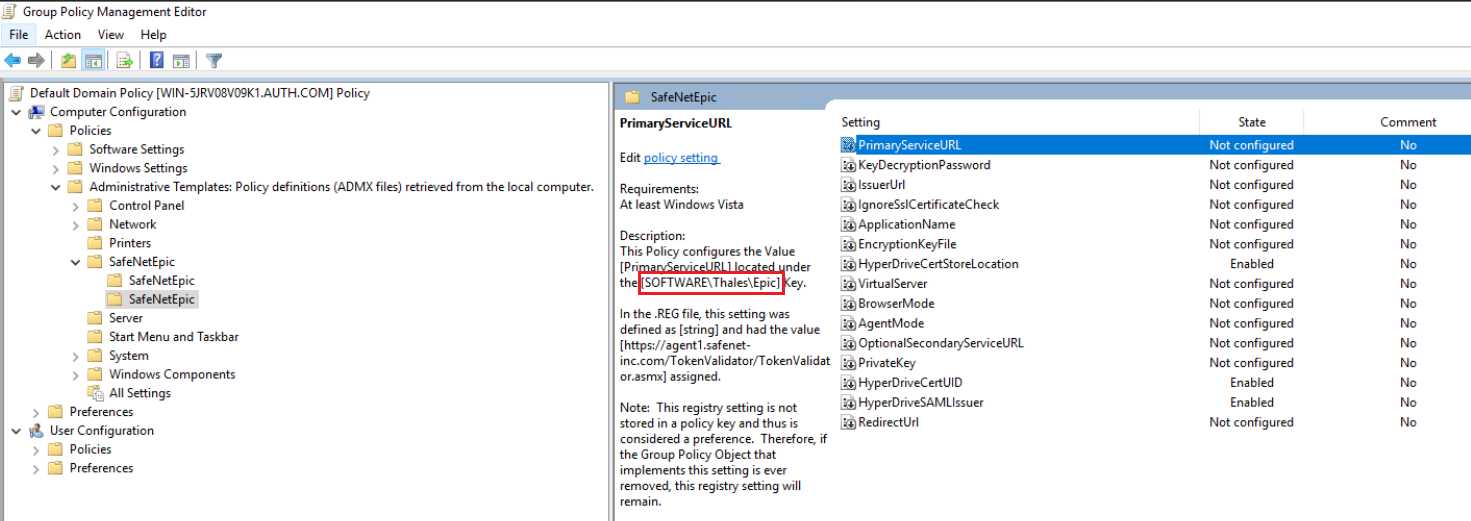
-
On 64-bit clients: Configure the settings corresponding to
SOFTWARE\Wow6432Node\Thales\Epicand ensure the settings related to 32-bit are set to Not Configured.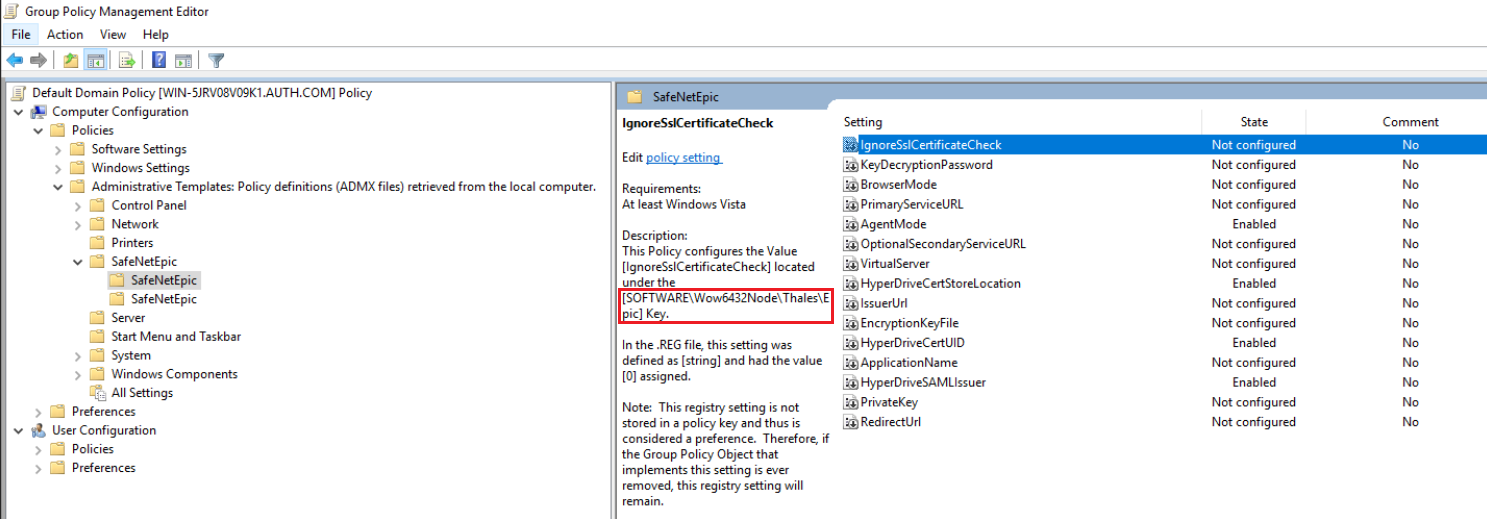
-
-
Double-click the setting to be edited.
-
Select one of the following, and click OK.
- Not Configured
- Enabled (Enable the settings which you want to deploy, if not enabled with default value or user-defined value)
- Disabled
Registry settings
The following table lists the details of the registry settings:
| Setting | Description | Accepted Values | Applicability |
|---|---|---|---|
| AgentMode | The mode in which the agent is used for the authentication purpose. | 1: for Next Generation mode 0: for Classic mode |
Both Classic and Next Generation modes |
| ApplicationName | Specifies the application name set in STA (fetched from the .agent file). | For example, a235e78f-4929-477f-9f60-d203eftg73ce | Next Generation mode |
| BrowserMode | Specifies the browser mode to work on for the authentication purpose. | 0 (Default): Embedded browser 1: Windows default browser (For example, Google Chrome/IE) NOTE: It is recommended to use Embedded browser. |
Next Generation mode |
| EncryptionKeyFile | Used to set the key file location. | For example, C:\Program Files (x86)\Epic\Agent.bsidkey |
Classic mode |
| HyperDriveCertStoreLocation | Specifies the certificate store location. | 1: Current User 2: Local Machine |
Both Classic and Next Generation modes |
| HyperDriveCertUID | Specifies the certificate's Issuer and Thumbprint in the format (Issuer|Thumbprint). | For example, CN=epicsafenet.com|K4D4O3C73D79....BC71FF | Both Classic and Next Generation modes |
| HyperDriveSAMLIssuer | Depicts the Entity ID or Unique identifier of the SAML token. | For example, EpicSafenetIssuer | Both Classic and Next Generation modes |
| IgnoreSslCertificateCheck | If selected, the agent will not validate the certificate from the SafeNet server. | 0 (Default): SSL certificate check is enabled 1: SSL certificate check is disabled |
Classic mode |
| IssuerUrl | Specifies the Issuer Url of your STA tenant (fetched from the .agent file). | For example, https://idp.eu.safenetid.com/auth/realms/SR42FOTLS5-STA | Next Generation mode |
| KeyDecryptionPassword | If at the time of bsidkey creation, default password is not used, then this setting is required. Otherwise, always keep it empty. | Its default value is empty. | Classic mode |
| OptionalSecondaryServiceURL | Used to configure the IP address/hostname of the failover SafeNet server. | For example, https://cloud.us.safenetid.com/TokenValidator/TokenValidator.asmx | Classic mode |
| PrimaryServiceURL | Used to configure the IP address/hostname of the primary SafeNet server. | For example, https://cloud.eu.safenetid.com/TokenValidator/TokenValidator.asmx | Classic mode |
| PrivateKey | Used during the authentication process (fetched from the .agent file). | For example, -----BEGIN RSA PRIVATE KEY----- MIIEowIBAAdctkVf........d56x5vnuw----- END RSA PRIVATE KEY----- |
Next Generation mode |
| RedirectUrl | Redirect to this URL after authentication (fetched from the .agent file). This is only applicable while using Windows default browser (value: 1) as the browser mode. | For example, http://safenetepicredirecturl/ | Next Generation mode |
| VirtualServer | The STA virtual server/tenant name where the Epic application is created (fetched from the .agent file). | For example, ThalesEpicTenant | Next Generation mode |
Deploying the certificate via GPO
Following are the sample ways for deploying the certificate via GPO. You can use your own certificate deployment workflow.
Note
This section is only applicable for Epic Hyperdrive.
Certificate guidelines:
- Ensure that the certificate must have a private key.
- For improved security, the certificate should be deployed with non-exportable private key.
- In case of local machine certificate, the Epic users should have read access to the private key.
GPO deployment of certificate to a trusted store
To deploy the certificate to a trusted store perform the following steps:
-
From the Windows taskbar, select Start > All Programs > Accessories > Run.
-
In the Run window, enter
gpmc.msc, and click OK. The Group Policy Management window is displayed. -
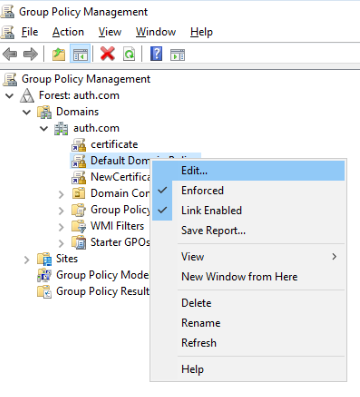
Right-click Default Domain Policy under the domain node, and click Edit.
Note
Ensure that the GPO is associated with a domain, site, or an organizational unit (OU) where the appropriate user and computer accounts resides.
The Group Policy Management Editor window is displayed.
-
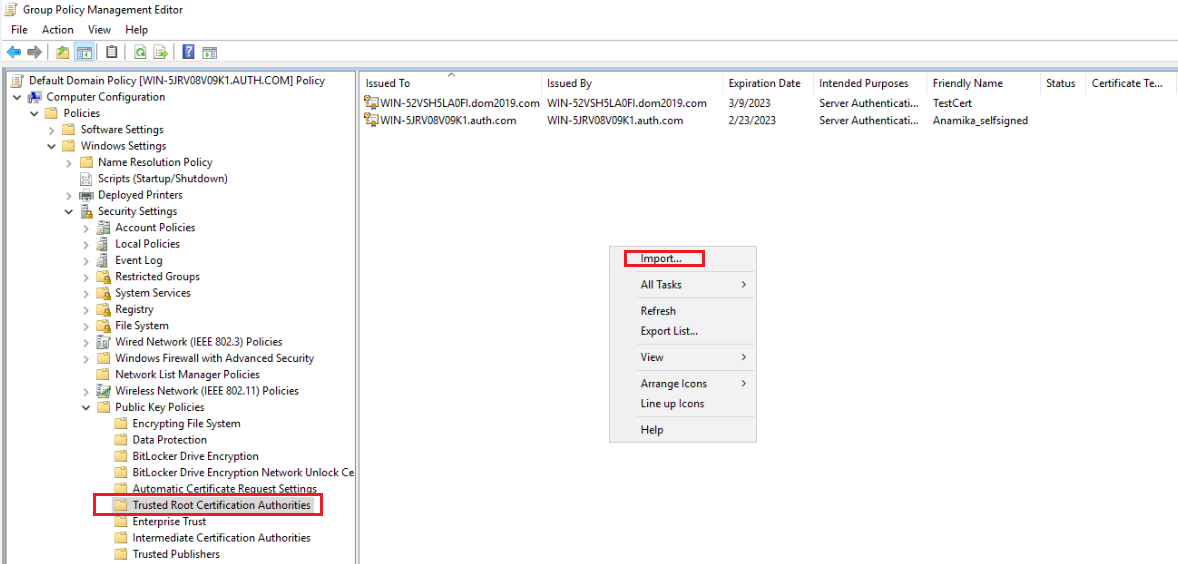
In the left pane, navigate to Computer Configuration\Policies\Windows Settings\Security Settings\Public Key Policies, right-click Trusted Root Certification Authorities, and then click Import.
-
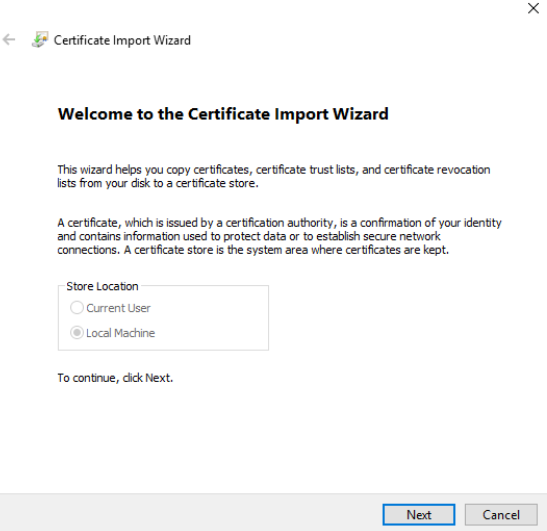
On the Welcome to the Certificate Import Wizard window, click Next.
-
On the File to Import window, click Browse to select the path of certificate file that you have placed in the shared location (for example,
\\fs1\c$\fs1.pfx), and then click Next.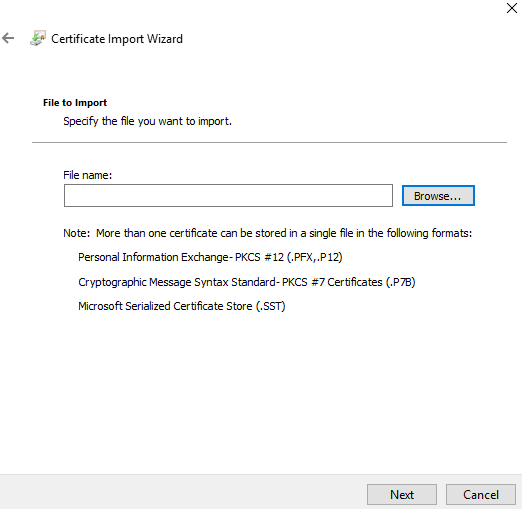
-
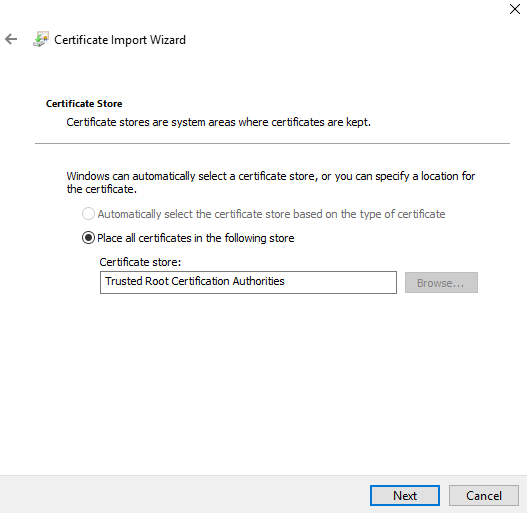
On the Certificate Store window, click Place all certificates in the following store, and then click Next.
-
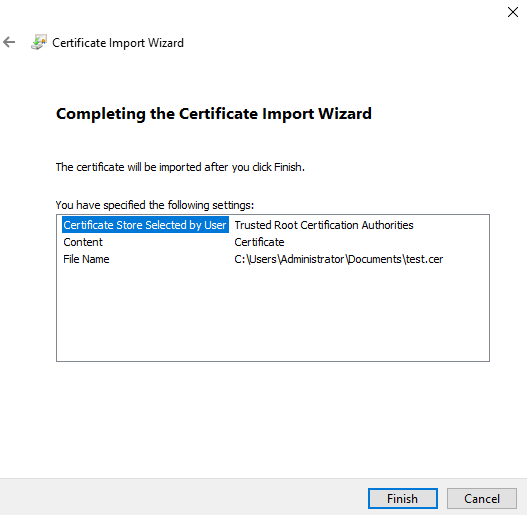
On the Completing the Certificate Import Wizard window, verify that the information you provided is accurate, and then click Finish.
-
On the client machine, open the command prompt and run
gpupdate /force.
Sample script for deploying the certificate to a personal store
Below is the sample script to deploy the certificate to a personal store of local machine with read access on private key:
param(
    [string]$userorGroupName="domain\username", //username or group name
    [string]$permission="read", //Permission to be given on Private key of the certificate
    [string]$certStoreLocation="\LocalMachine\My", //Certificate store location
    [string]$certThumbprint="AF66D91205D80BD547EADF5C1",
    [string]$pfxFilePath="C:\Desktop\share\Cert.pfx", //Expected that the file has been pushed to the machine
    [string]$pfxPassword="****" //Certificate's password
)

try {
    # Convert pfx password to secure string
    $password = ConvertTo-SecureString -string $pfxPassword -Force -AsPlainText

    # import pfx certificate to a certificate store
    Import-PfxCertificate -Password $password -FilePath $pfxFilePath -CertStoreLocation Cert:$certStoreLocation

    # Check if certificate has been successfully installed
    $certificateIsInstalled = Get-ChildItem cert:$certStoreLocation | Where thumbprint -eq $certThumbprint

    # Provide read access to a specific user on the installed certificate only
    if ($certificateIsInstalled -eq $null) {
        $message = "Certificate with thumbprint: " + $certThumbprint + " does not exist at " + $certStoreLocation
        Write-Host $message -ForegroundColor Red
        exit 1;
    } else {
        $rule = new-object security.accesscontrol.filesystemaccessrule $userorGroupName, $permission, allow
        $root = "c:\programdata\microsoft\crypto\rsa\machinekeys"
        $l = ls Cert:$certStoreLocation
        $l = $l | ? {$_.thumbprint -like $certThumbprint}
        $l | % {
            $keyname = $_.privatekey.cspkeycontainerinfo.uniquekeycontainername
            $p = [io.path]::combine($root, $keyname)
            if ([io.file]::exists($p)) {
                $acl = get-acl -path $p
                $acl.addaccessrule($rule)
                # echo $p
                set-acl $p $acl
            }
        }
    }
} catch {
    // put your exception here
}

