Configuring the SafeNet Agent for Epic
Configuring the agent
You can configure SafeNet Agent for Epic using the Epic Management Console utility.
Double-click the utility icon to edit/enter the configuration details. The Epic Management Console window has four (4) tabs:
- Communication
- Configuration
- Logging
- Certificate
You can click the Help link (at the top-left) to know about the version and copyright details of the product.
Note
After making any change in the management console, ensure to click Apply and then OK for the changes to take effect.
In addition, policy settings of SafeNet Agent for Epic can be configured using the Group Policy Object (GPO) Editor.
Communication
On opening the Epic Management Console, the Communication tab is displayed by default. On first accessing the console, the following message is displayed: Agent configuration file not detected. Browse and select the file.
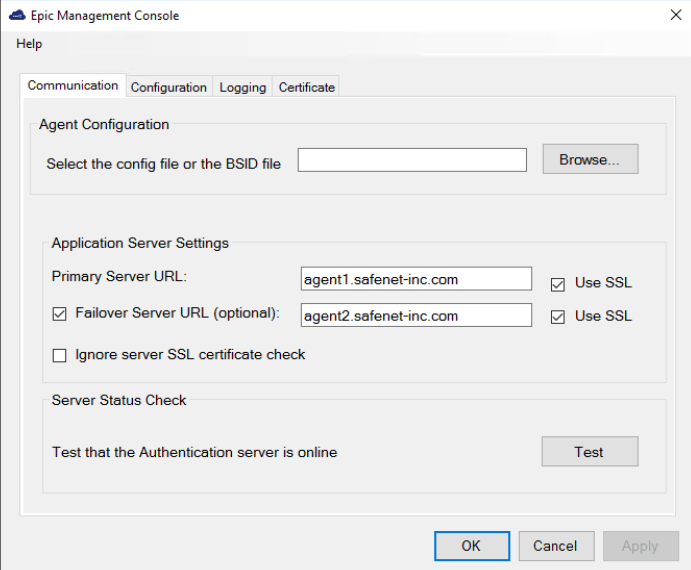
This tab has the following three sections:
Agent configuration
- Select the config file or the BSID file: Click Browse... to select the BSID file and update the required configurations.
Application server settings
-
Primary Server URL: The IP (or URL) address of the primary SafeNet server. Alternatively, Use SSL check box option can also be selected to ensure that HTTPS is used as the protocol to establish the connection. If it is not selected, the connection is established using the less secure HTTP.
Note
The Registry Settings are updated at the following paths:
HKEY_LOCAL_MACHINE\SOFTWARE\Wow6432Node\Thales\Epic(64-bit Windows)HKEY_LOCAL_MACHINE\SOFTWARE\Thales\Epic(32-bit Windows) -
Failover Server URL (optional): If the primary SafeNet server is not functioning, the Failover Server URL checkbox can be selected to specify the IP (or URL) address of the secondary/failover server. Alternatively, Use SSL checkbox option can also be selected to ensure that HTTPS is used as the protocol to establish the connection. If it is not selected, the connection is established using the less secure HTTP.
-
Ignore server SSL certificate check: Select the checkbox to disable the SSL server certificate error check on the agent. It is unchecked by default. If customers are using the on-premise deployment of SafeNet server within a well-controlled network (where self-signed certificates are used and cannot be properly validated by the SafeNet Agent for Epic), this checkbox needs to be selected.
Note
We strongly recommend the use of SSL certificate.
Server status check
- Test that the Authentication Server is online: Click Test to confirm if the Authentication Server is available, or not.
Downloading BSID file
- Log into your SafeNet server account, and navigate to COMMS > Authentication Processing.
- Under Task list, click Authentication Agent Settings link and download the
Agent.bsidkeyfile.
Configuration
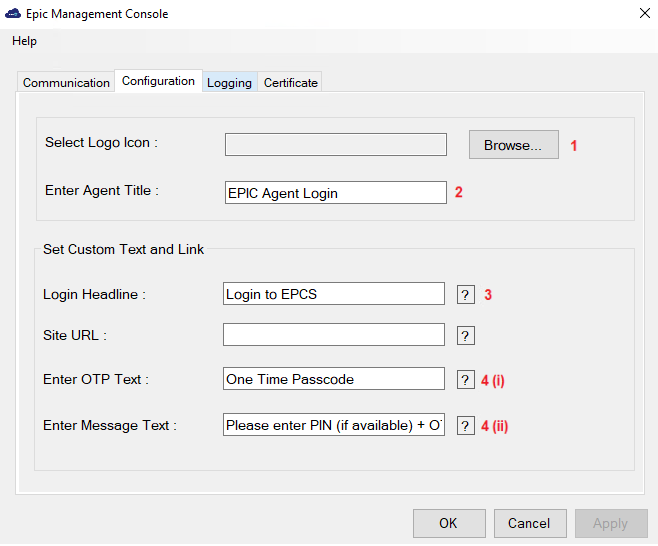
The Configuration tab allows to alter the look and feel of the agent window, so it looks as part of the Epic workflow, and not a third-party add-on. Being able to enforce a consistent user login experience helps protect against account credential attacks.
-
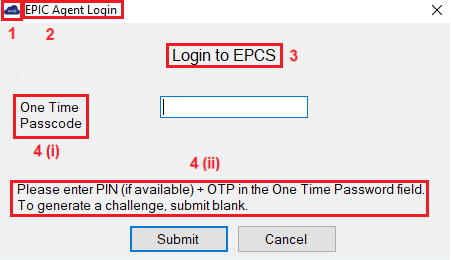
Select Logo Icon: The image selected will be the title image in the OTP prompt window of the agent. This field only accepts ICO image format.
-
Enter Agent Title: The text entered in this field will be the title in the OTP prompt window of the agent.
-
Login Headline: The text entered in this field will be clickable in the OTP prompt window of the agent, hyperlink to which can be specified in the Site URL field.
-
Enter OTP Text and Enter Message Text: These text fields allow to customize the messages on the OTP prompt window of the agent. Based on deployed tokens, customers can control the messages, to make it clear and consistent with their enterprise terminologies.
Note
Hover over the question mark icon (?) (displayed against fields) to view the sample text.
The OTP prompt window of the agent will appear based on the selected token type:
-
If the selected token type is Password:
a. Enter password in the One Time Passcode field, and click Submit.
b. Click OK in the Epic Management Console window.
-
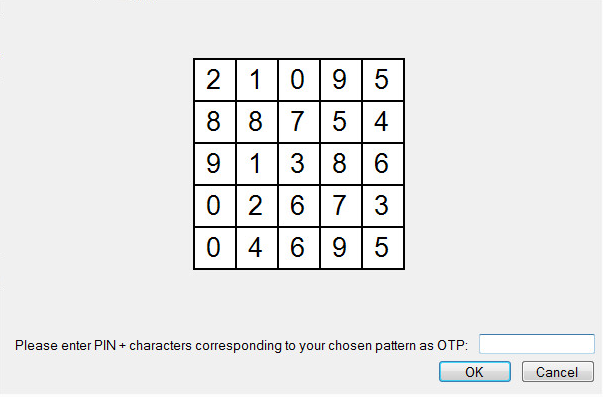
If the selected token type is GrIDsure or Challenge-Response, keep the One Time Passcode field blank, and click Submit. A window will be displayed that will help the user to complete the authentication by the selected token type.
Logging
Log files record events that occur during the software execution process.
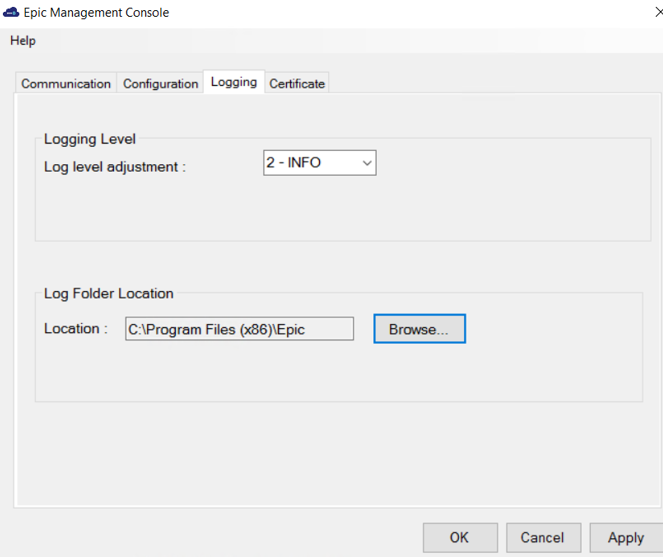
The Logging tab has the following two fields:
Log level adjustment
The field allows to specify the level of log that will be created. According to debugging needs, the logs are recorded at different levels. Four consecutive levels are configured, namely DEBUG, INFO, ERROR, and OFF, wherein DEBUG is the highest log level, and OFF is the lowest. The higher the log level is, the more detailed the log is recorded. Each log level also contains information for all its following log levels. For example, the DEBUG level also contains information for INFO and ERROR log levels (and thus is more detailed). Similarly, the INFO level also contains information for the ERROR log level.
-
1-DEBUG: This option allows to view diagnostic information that is useful to debug the application.
-
2-INFO: This option allows to view informational messages that highlight the running, management and progress of the application. It includes information, the administrator wants available but usually need not to refer under normal circumstances. Some examples of INFO types:
- Service Start/Stop Details
- Configuration Details
- Authentication Success/Failure Details
- Assumptions
-
3-ERROR: This option allows to log all unhandled exceptions. It records errors which are fatal to the operation but not the service or application, and thus require Administrator intervention. Some examples of ERROR types:
- Unable to open (or access) required resources
- Missing data
- Incorrect connection strings
- Missing services
-
4-OFF: This option allows to turn off logging.
Note
None of the four log levels recorded events that stop the running of the application. The events recorded are not critical, in the sense that they do not interfere with the functioning of the agent application.
Location
The field specifies the location where the logs will be created. By default, the logs will be created in the logs folder at the agent's working directory. The location (where the log files will be created) can be secured using standard System Policy settings of the Windows.
Tip
One of the best ways to secure log files is to direct them to a separate server, whenever possible. By storing your log files on a separate server, your log files are always one more step away from hackers.
Certificate
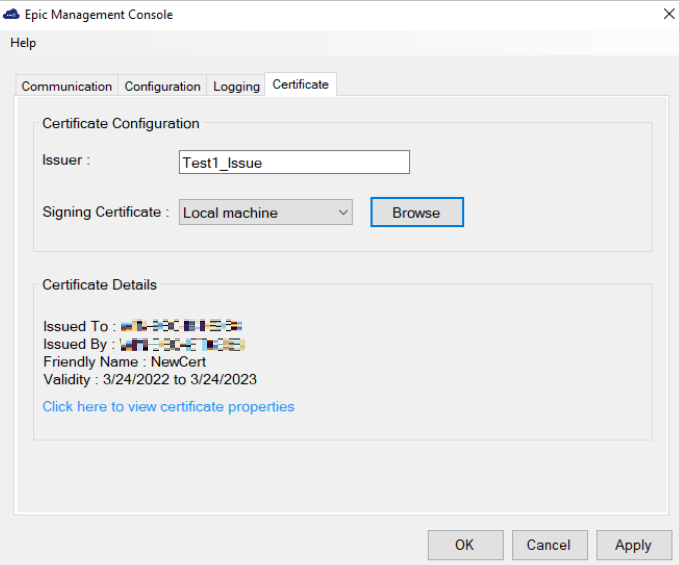
The Certificate tab enables to upload the signing certificate issued from a valid authority.
Note
This is only applicable for Epic Hyperdrive.
Note
The agent supports certificates that are stored using Microsoft Software Key Storage Provider for CNG-based cryptography and Microsoft RSA SChannel Cryptographic Provider for CryptoAPI (CAPI)-based cryptography.
Prerequisite
Ensure that the certificate is already deployed on the machine.
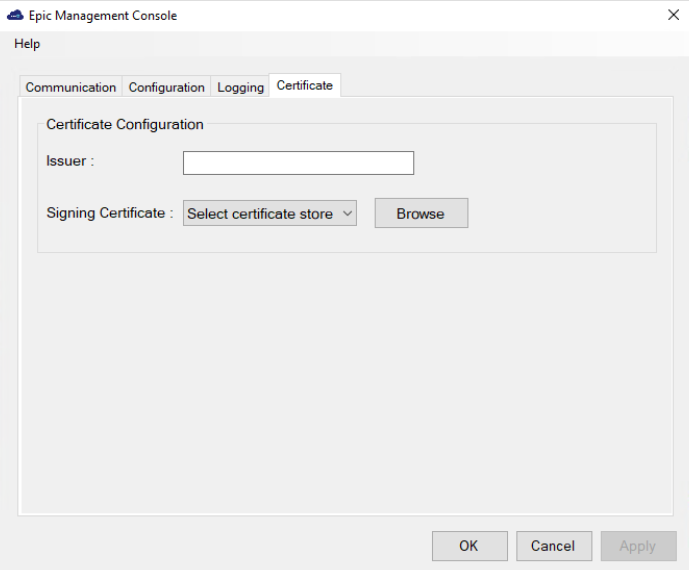
The Certificate tab has the following two fields:
-
Issuer: Enter the Entity ID of the SAML token. The Issuer in the SAML token must be added to an E0G record in the Epic database. It must be a unique identifier of the authentication device in the Epic environment.
-
Signing Certificate: This settings is used to select the certificate for signing in.
a. Choose the certificate store location by selecting either of the following options from the dropdown: * Current user * Local machine store
b. Click Browse to select the certificate, and then click OK. The Select Certificate window shows all the valid certificates that has a private key.
Note
Multiple certificate selection is not allowed.
Note
In case of a non-admin user, if the certificate is present in the Personal folder of the local machine, then the user must be provided with the read access for managing the certificate's private key.
The selected certificate is used to sign the SAML token response generated when using with Epic Hyperdrive.
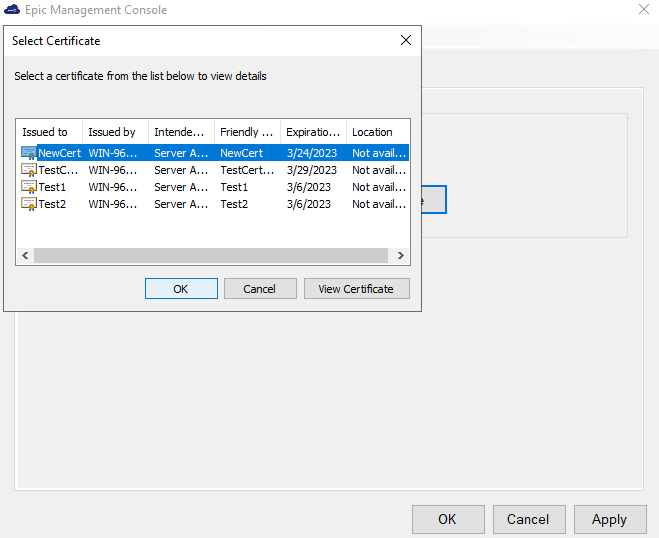
After selecting the certificate, the certificate details gets listed on the Epic Management Console:
- Issued To - Specifies the entity name to whom the certificate was issued.
- Issued By - Specifies the entity name that issued the certificate.
- Friendly Name - [Optional] It will be visible if the user selected certificate contains a friendly name.
- Validity - Specifies the certificate validity.